Shrink a Video Without Losing Quality: Resize & Downsample
A quality slider isn't the only lever. Downsizing resolution or downsampling frame rate can shrink a video further, without the visible damage.
If you've already dragged a compression slider down and the file is still too big, or dragging it further starts putting blocky artifacts in every dark scene, the slider isn't the only tool available. Decreasing, downsizing, and downsampling all describe the same basic move: changing what the video actually is, dimensions or frame rate, rather than just squeezing the existing pixels harder. It's a different lever than compression, and for a lot of files it gets you further before anything looks worse.
Downsize, downsample, decrease: what's actually different here
These three words get used interchangeably in search, but they point at two genuinely different techniques.
Downsizing means reducing the video's resolution, the pixel dimensions it's stored at. A 4K (3840x2160) clip has four times the pixels of 1080p (1920x1080), and every one of those pixels needs data to describe it. Cut the resolution and you cut the raw amount of picture information before compression even starts.
Downsampling is the broader technical term, and it covers resolution, but also frame rate and audio sample rate. Dropping a 60fps screen recording to 30fps is downsampling too, you're storing half as many frames per second of video, which is roughly half the motion data for the same length of footage.
Both are different from what a compression slider does. A slider (or the CRF value it's usually driving under the hood) keeps the resolution and frame rate exactly as they are and just gets pickier about which fine details survive. That's genuinely the right first move for a moderate size cut, the full guide to compressing without visible quality loss covers it in depth. Downsizing and downsampling are what's left when that slider alone can't hit your target without the damage becoming obvious, or when the resolution or frame rate you're storing at is more than the video actually needs for where it's going.
Which lever actually fits your file
A few honest questions before touching anything:
- Is this going somewhere smaller than the resolution you shot it at? A 4K phone video destined for a Discord embed, an Instagram Story, or a website background doesn't need to keep 4K's pixel count. Downsizing to 1080p or even 720p costs you nothing visible in that context and cuts the file dramatically.
- Was this recorded at a frame rate the content doesn't need? 60fps matters for genuinely fast motion, sports, gaming footage, anything you might slow down later. A talking-head recording, a screen capture of someone clicking through a spreadsheet, or a static presentation doesn't benefit from 60 frames a second the way it benefits from a smaller file.
- Is the resolution and frame rate already right for the job? Then this isn't your problem to solve, that's a straight compression job, and the slider-based guide above or the exact-size guide if you're chasing a hard cap like Discord's or Gmail's is the more direct path.
Downsizing and downsampling also stack with compression rather than replacing it. Dropping a 4K 60fps screen recording to 1080p 30fps, then running the result through a quality slider, gets you a much smaller file than pushing that slider alone ever would on the original.
1. AI Convertly's video resolution converter (browser-based, no upload, no account)
For pure resolution downsizing, this is the fastest path and keeps the file on your device the whole time.
- Open the video resolution converter and drop your file onto it.
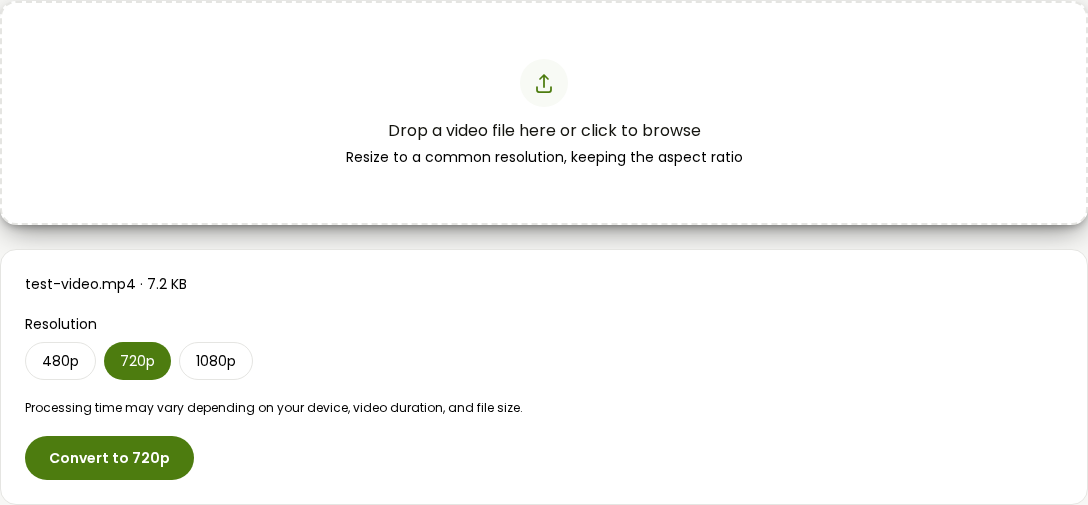
- Pick a target: 480p, 720p, or 1080p. It keeps your original aspect ratio automatically, so a vertical phone video stays vertical, it just scales the whole frame down to whichever height you pick.
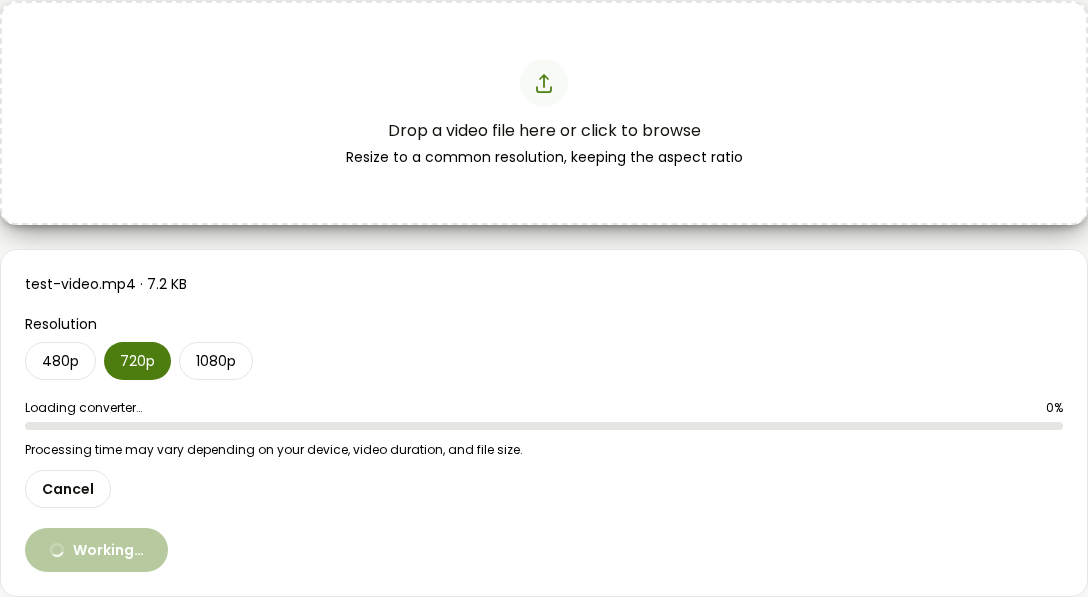
- Click Convert to [height]p and let it process in your browser.
- The converted file downloads automatically once it's ready.
Honest limit: this tool changes dimensions only, not frame rate, and it always re-encodes to MP4. If your file also needs a frame rate cut, or you need to keep it in its original container, that's a second pass with one of the tools below.
2. AI Convertly's compress video tool, for a pass after downsizing (or instead of it)
If downsizing alone gets you close but not quite under your target, or a slider adjustment on top of the new, smaller resolution is all you need, run the result back through the compress video tool. The default quality of 60 is a reasonable starting point, drag it down if you need more, and because the file's already smaller after downsizing, you'll usually need a much smaller quality cut than compressing the original would've required. The full compression walkthrough covers the slider and what it's actually doing in more detail than makes sense to repeat here.
3. FreeConvert, for resolution downsizing plus a frame rate you set yourself (up to 1GB free)
FreeConvert's compressor exposes a dedicated resize option alongside its usual quality and bitrate controls, so you can shrink dimensions without leaving the same tool.
- Go to FreeConvert's video compressor and upload your file.
- Open the advanced settings and turn on Make Video Size Smaller (Re-Size), then set your target dimensions.
- If you also need a lower frame rate, the same advanced panel has a frame rate field, set it directly rather than relying on the resize step to touch it, since resizing dimensions and reducing frame rate are handled as separate settings here.
- Click Compress Now and download the result once it finishes.
The tradeoff is the usual one for a server-side tool: your file leaves your device while it processes, and the free tier caps out at 1GB.
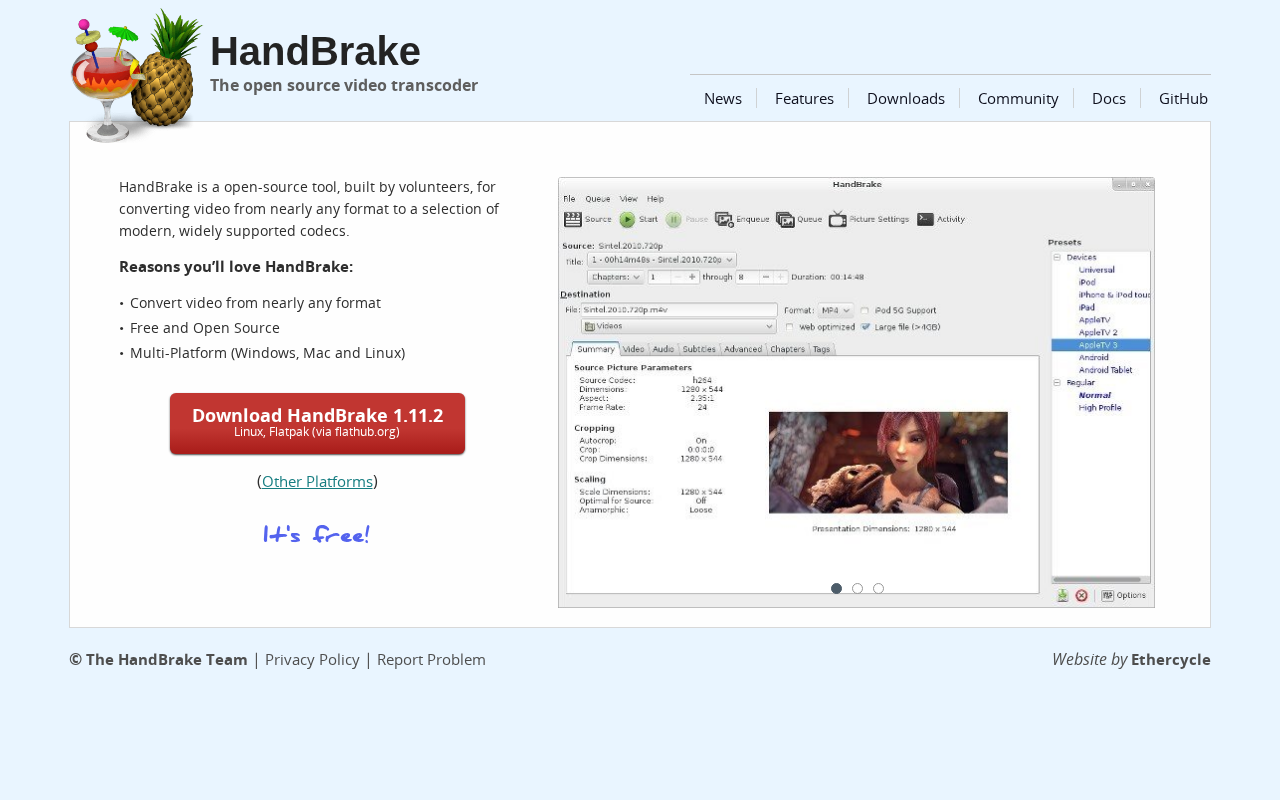
4. HandBrake, for real control over frame rate
Neither browser tool above touches frame rate, and this is the gap HandBrake fills. If a screen recording or a static talking-head clip was captured at 60fps for no real reason, cutting it to 30 or even 24 can shrink the file meaningfully without changing anything you'd actually notice watching it.
- Open your video in HandBrake and go to the Video tab.
- Find the Framerate (FPS) dropdown. It defaults to Same as Source.
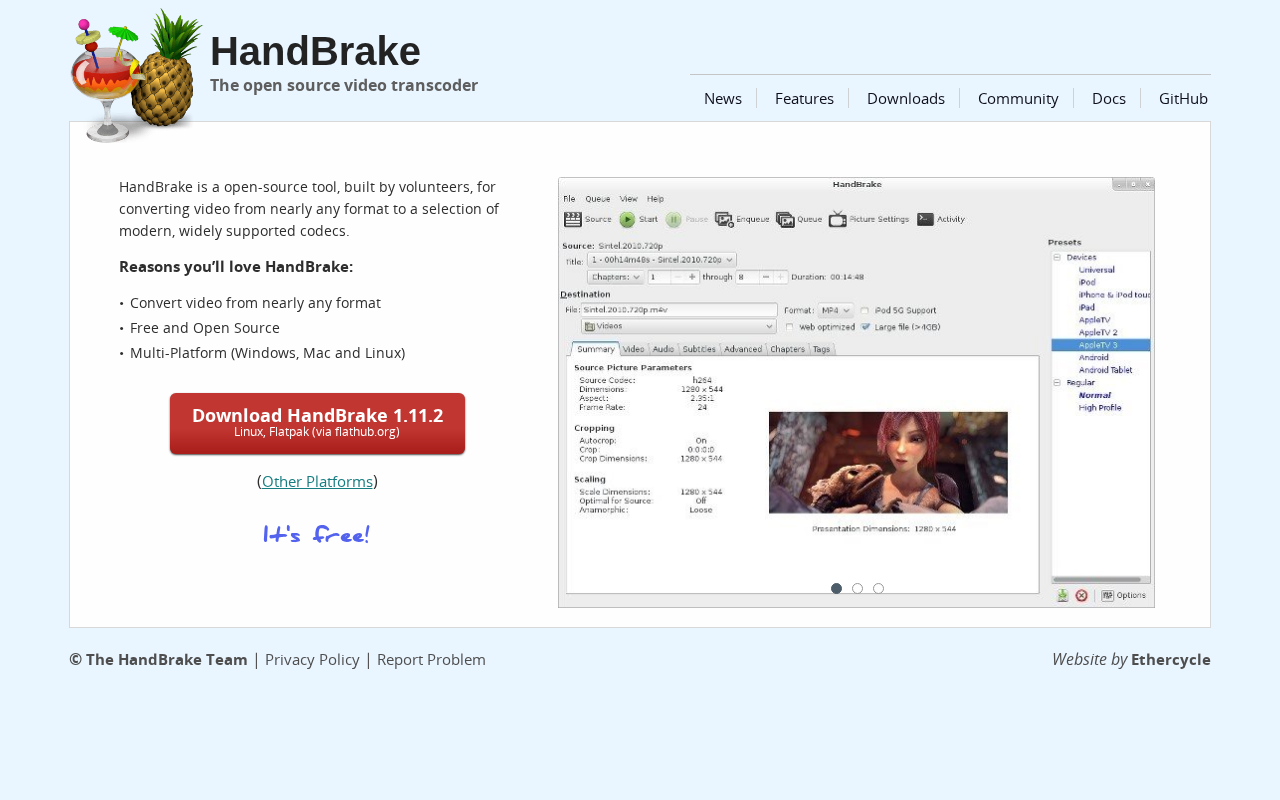
- Pick a lower rate; 24 or 30 covers almost anything that isn't fast motion. Leave the framerate mode set to Peak Framerate (HandBrake's default), which caps higher-motion sections at your chosen rate rather than forcing every frame to match exactly. Switching to Constant Framerate and picking a specific value works too, HandBrake itself notes it's only worth doing that way in special cases, so Peak Framerate is the one to reach for first.
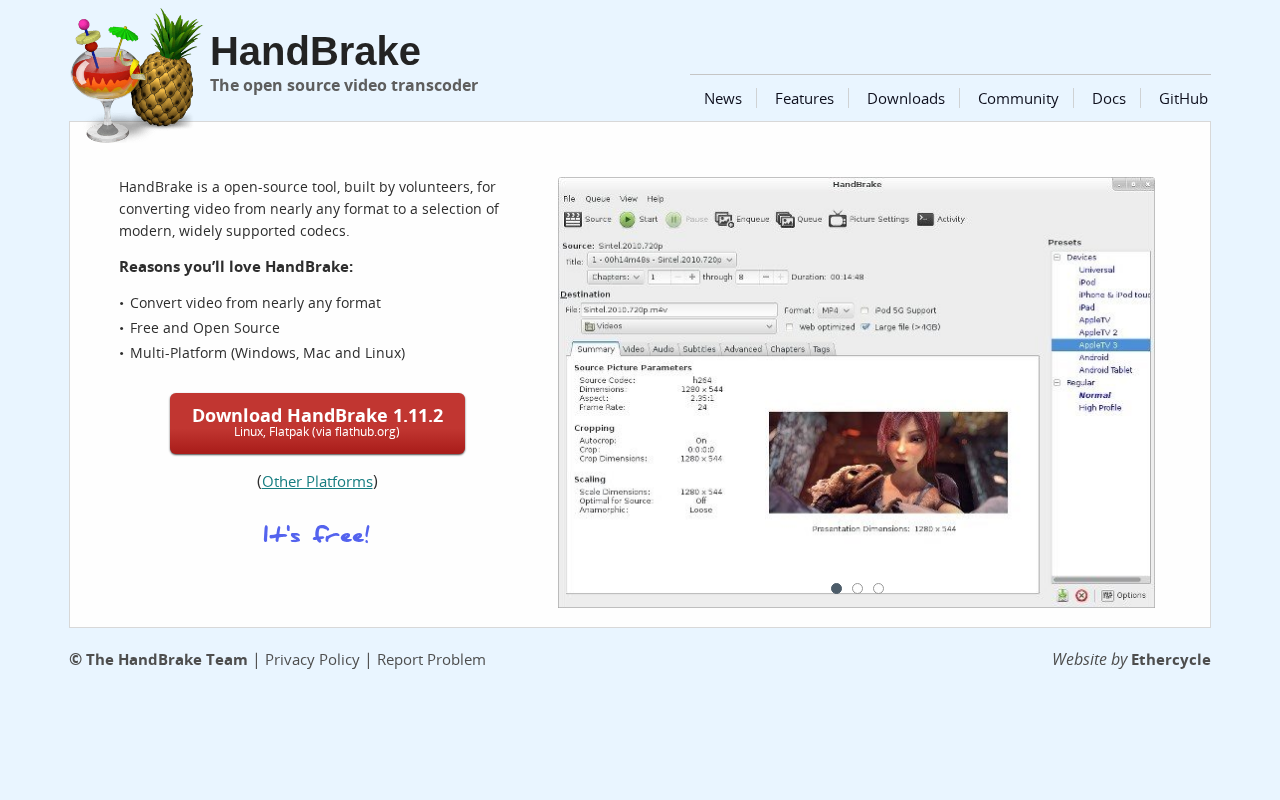
- Set your resolution the same pass if you're doing both: the Dimensions tab has width and height fields, with Keep Aspect Ratio checked by default so you only need to set one.
- Start the encode from the Start Encode button and wait for it to finish.
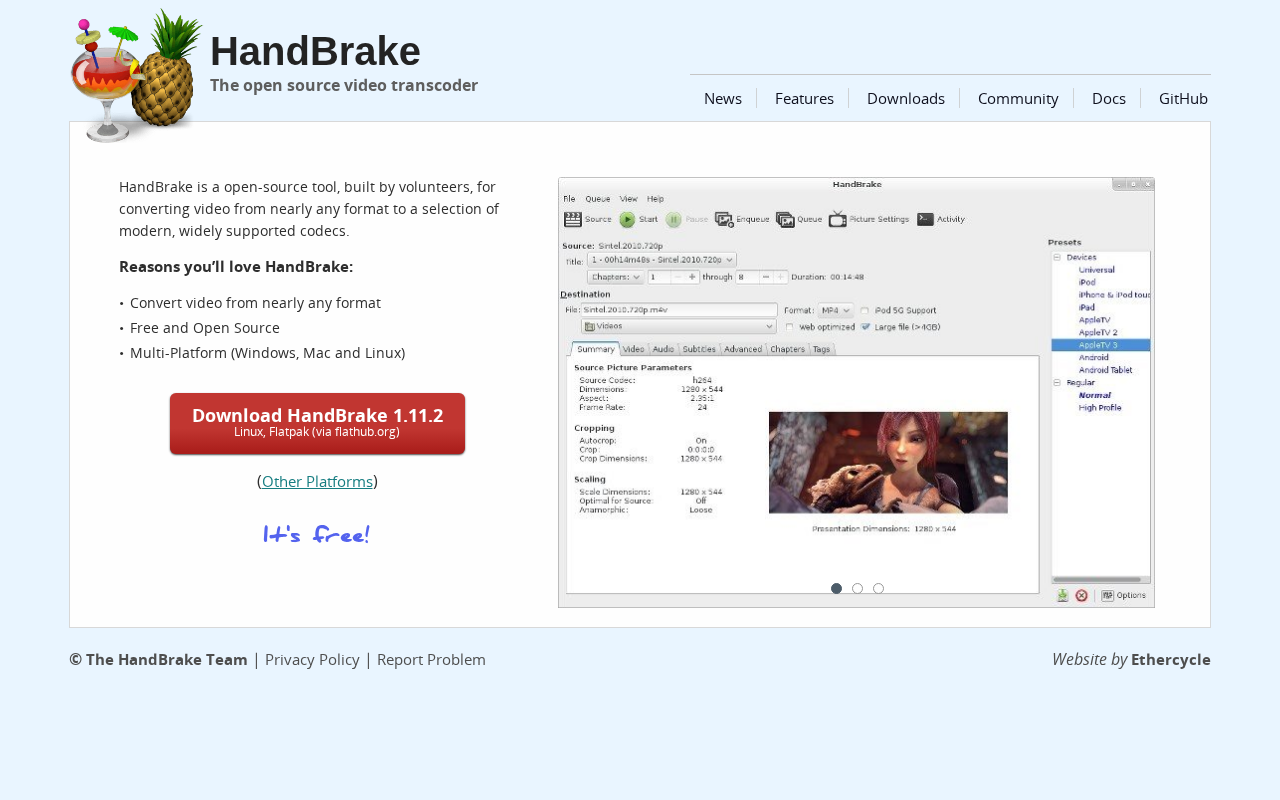
It's more setup than either browser tool for a single file (there's a full breakdown of when HandBrake earns the install in the HandBrake alternative guide), but it's the only option here that gives you resolution, frame rate, and quality all in the same configurable pass, which matters if you're doing this repeatedly rather than once.
One more lever worth knowing about: just make it shorter
None of the above touches length, and trimming dead space off the front or back of a clip shrinks the file by exactly the percentage of runtime you cut, no quality tradeoff involved at all. If there's ten seconds of nothing before the part that matters, AI Convertly's trim tool removes it in a couple of clicks and costs you zero visual quality doing it. Not a fix for a video that's genuinely long and needs to stay that way, but worth checking before you touch a slider or a resolution setting at all.
Putting it together
Start with what the file's actually being used for. Going somewhere smaller than its current resolution: downsize first, with the video resolution converter or FreeConvert if you also need a specific frame rate. Recorded at a frame rate the footage doesn't need: HandBrake is the only tool here that'll actually touch that setting. Already sized and framed the way it needs to be and just too big: that's compression, not downsizing, head to the compression guide instead. And if downsizing alone doesn't quite get you there, a light compression pass afterward almost always finishes the job.