Compress a Video to an Exact Size (Discord, Email, WhatsApp)
Discord's 20MB cap, Gmail's 25MB limit, and WhatsApp's 16MB cutoff don't care about a quality slider. How to hit an exact file size instead of guessing.
A quality slider, or a "compress by 50%" button, will absolutely make your video smaller. What it won't do is land you on an exact number, and for a lot of the reasons people compress video in the first place, an exact number is the whole point. Discord rejects your upload past its cap. Gmail bounces your email past 25MB. WhatsApp quietly re-crushes anything you send as a video past its own limit, no matter what you started with. "Smaller" isn't really the goal here. "Under this specific number" is, and that's a slightly different problem to solve.
The limits you're actually up against
Discord's free tier caps uploads at 20MB per file, raised from 10MB in August 2026. Nitro Basic pushes that to 50MB, and full Nitro goes up to 500MB. Discord's own support page notes it's still experimenting with these caps for some accounts, so if you're not paying for anything, 20MB is the safe number to plan around rather than assume.
Gmail and Outlook.com both cap a plain attachment at 25MB. Go bigger and both will offer to swap the file for a cloud link instead, Google Drive on Gmail's side, OneDrive on Outlook's, rather than shrinking it for you.
WhatsApp has a real trap built into it. Send a video the normal way, tapped straight out of your camera roll, and WhatsApp compresses it for you automatically, landing around 16MB with a real, visible quality hit, regardless of how big or small the original was. Attach that exact same file as a Document instead (the paperclip icon, not the photo picker) and WhatsApp leaves it alone entirely, up to 2GB, no recompression. If a video you sent over WhatsApp came out looking worse than the file on your phone, that's almost certainly why, and it doubles as a legitimate way around the problem: compress it yourself to a size you're happy with, then send it as a document so nothing touches it a second time.
If you don't actually have a hard number in mind and just want the file noticeably smaller, the general guide to compressing video without losing quality is the simpler read. This one's for when a specific number isn't negotiable.
Why "quality: 60" doesn't mean a specific file size
A video's file size is roughly its bitrate multiplied by its length: more data per second, or more seconds, both mean a bigger file. A quality slider (or a CRF value, the same idea most compressors expose under a more technical name) doesn't set bitrate directly. It tells the encoder how aggressively to throw away detail, and how much bitrate that produces depends on the footage itself. A slow, mostly-static screen recording compresses down much further at the same quality setting than a shaky, detail-heavy action clip does. Run two different videos through the identical slider position and you can get wildly different sizes back, because there's no fixed conversion table between "quality" and "megabytes." There's only a relationship you can see by actually running the compression and checking what came out.
1. AI Convertly's compress video tool (browser-based, no upload, no account)
- Open the compress video tool and drop your file onto it.
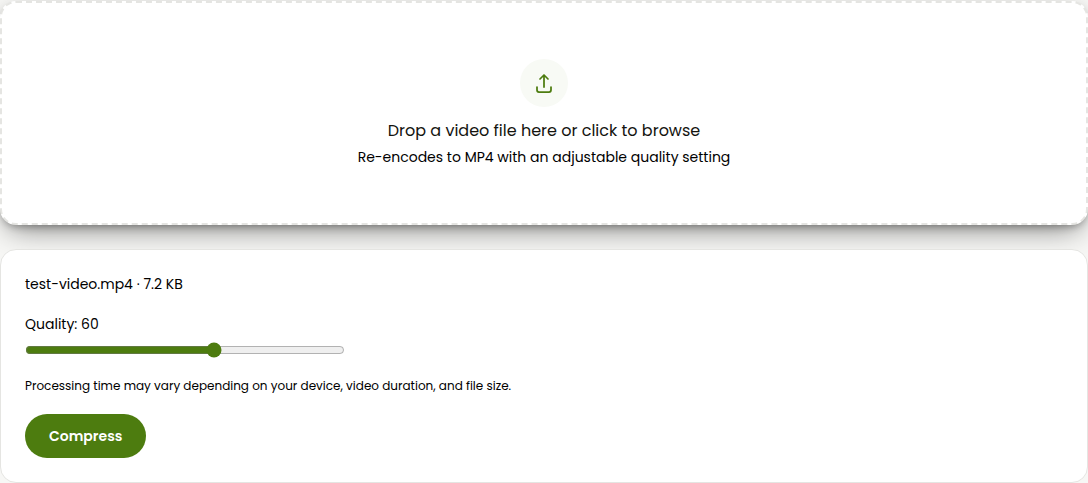
- Leave the quality slider at its default of 60 for your first pass and click Compress.
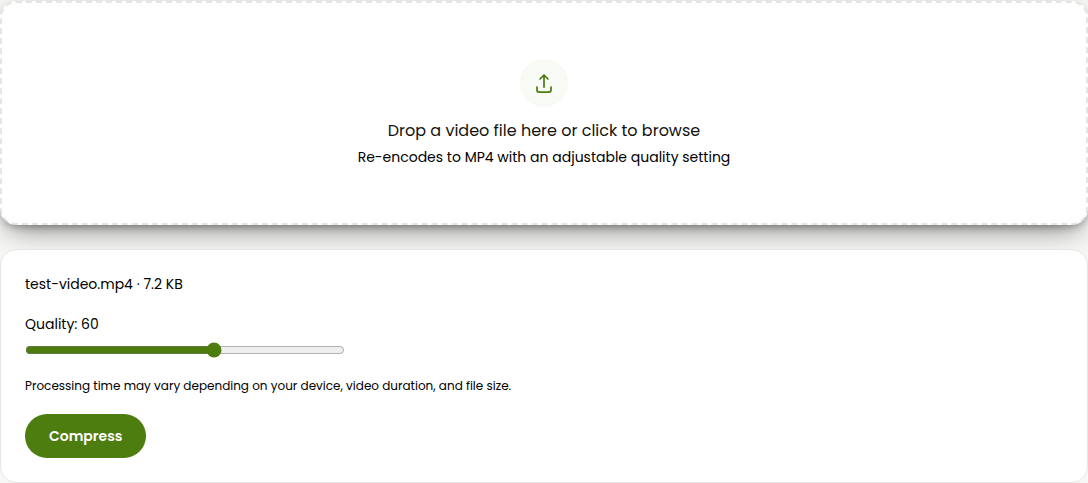
- Check the size in the result panel against your actual limit. If it's still over, drag the slider down, in a bigger step than you'd think (15 to 20 points, not one or two, since a tiny nudge rarely moves the size enough to matter) and run it again.
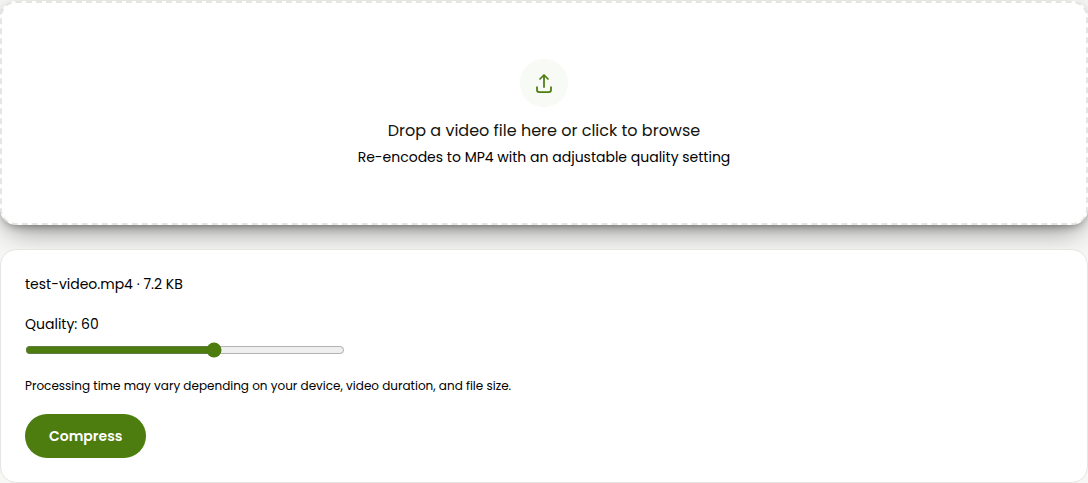
- Once you're comfortably under, you can nudge the slider back up a little to claw back quality you didn't actually need to give away, then re-run once more to confirm you're still under the number you need.
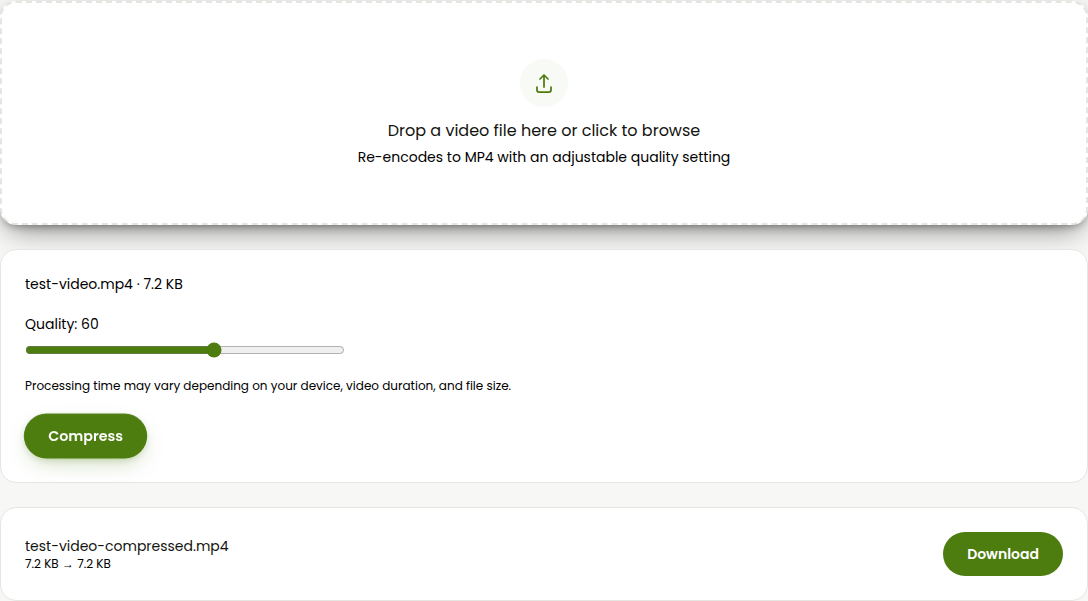
- Click Download.
Because it's running in your browser and reruns instantly, this trial-and-adjust loop is usually two or three tries, not a long process, and the file never leaves your device while you do it. The real limit: this slider takes a quality number, not a bitrate or a target size, so there's no field where you type "20MB" and get exactly that back. If you'd rather calculate the number once and get it right on the first try, especially useful if you're doing this often, that's what the next section is for.
2. Calculate the exact bitrate you need
This works with any tool that lets you type in a bitrate directly, which AI Convertly's slider doesn't, but FreeConvert and HandBrake both do (both covered next). The formula: target bitrate in kbps equals your target size in MB times 8192, divided by the video's length in seconds. Subtract your audio track's bitrate (128 kbps is a common default), then shave off another 5% for container overhead so you land safely under the line instead of right on it.
Worked example: a 3-minute clip (180 seconds) aimed at Discord's 20MB free cap. 20 times 8192 is 163,840 kilobits total, divided by 180 seconds is roughly 910 kbps total. Subtract a 128 kbps audio track and you're at about 782 kbps for video, then knock off 5% for overhead and you're at roughly 740 kbps. Rounding down to 700 kbps gives you a real safety margin, since going over by even a few hundred KB just means doing the upload again.
3. FreeConvert (percentage, quality, or a bitrate you set yourself, up to 1GB free)
FreeConvert is server-side, so the file leaves your device while it processes, but it's free with no account and no watermark, and its free tier handles files up to 1GB.
- Go to FreeConvert's video compressor and upload your file.
- Switch the compression method to Max Bitrate instead of the default percentage option, and enter the number you worked out above.
- Click Compress Now and download the result once it finishes.
The percentage mode is easier when you don't care about an exact number and just want the file meaningfully smaller. For an actual hard cap like Discord's or Gmail's, the bitrate number you calculated is the only mode here that's aiming at your target instead of approximating it.
4. HandBrake, if you're hitting the same limit over and over
For a one-off file, everything above is enough. If you're regularly exporting clips for the same Discord server, or batching a folder of videos down to email-attachment size every week, HandBrake's Video tab lets you switch from Constant Quality to Average Bitrate and type in the exact kbps number from your calculation, plus run it as a 2-pass encode, which scans the whole file once before compressing rather than reacting frame by frame as it goes, and lands closer to your target as a result. It's more setup than a single quick file needs (there's a full breakdown of when HandBrake is and isn't worth installing in the HandBrake alternative guide), but for repeat use it's the one tool here built specifically to hit a number exactly, every time, instead of approximately.
For a single file and a real hard cap, running AI Convertly's tool a couple of times is the fastest checkable loop, since you see the actual result immediately and it costs nothing to try again. If you want it exact on the first attempt, do the math and feed that number into FreeConvert's Max Bitrate mode. And if this is a recurring job rather than a one-time fix, HandBrake's average-bitrate mode is the one built for getting it right every single time.
Compress Video
Shrink a video's file size while keeping quality reasonable.