HandBrake Alternative: A Simpler Free Video Converter
HandBrake converts almost anything, but its eight-tab interface is built for batch jobs, not one file. A faster route, and when HandBrake still earns the setup.
You downloaded HandBrake to convert one file, maybe a MOV your phone won't let you upload anywhere, and instead of a "pick a format, click convert" screen you landed on eight tabs (Summary, Dimensions, Filters, Video, Audio, Subtitles, Chapters, Queue) and a Presets panel with dozens of entries you don't recognize. That's not a design flaw. HandBrake is built for someone re-encoding a folder of DVD rips or dialing in bitrate for an archive copy, and for that job it's genuinely one of the best free tools around. For converting the single file that's actually in front of you right now, it's more software than the task calls for.
Why HandBrake feels heavier than the job calls for
Two things stack up against you here. First, it's a desktop install, not something you can open and use in the next ten seconds: download it, run the installer, wait for it to finish, then open it and find your file again. Second, its interface is organized around control, not speed. Every tab exists because some workflow genuinely needs it (Filters for deinterlacing an old capture, Chapters for a DVD rip, Queue for batch jobs), but none of that helps when your actual task is "make this one video open on my other computer."
There's also a real limitation worth knowing before you install anything: HandBrake only writes to three containers, MP4, MKV, or WebM (more on what a container actually is). If the reason you're looking for a converter is that you need a video back in MOV, say to drop it into iMovie or hand it to someone on a Mac who expects Apple's own format, HandBrake has no menu for that. You'd convert to MP4 and then need a second tool to get to MOV anyway.
The fastest fix: AI Convertly's video converter, nothing to install
- Open the video converter.
- Drop your file onto the upload area, or click it to browse. It reads MP4, WebM, MOV, and MKV.
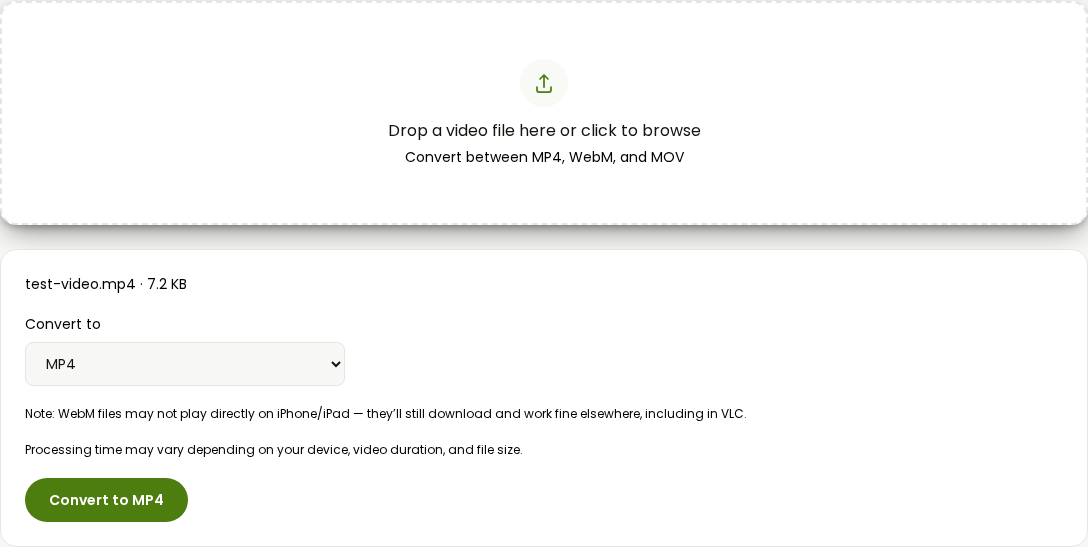
- Pick your output format from the dropdown: MP4, WebM, or MOV. MP4 is the safe default if you're not sure what the destination actually needs.
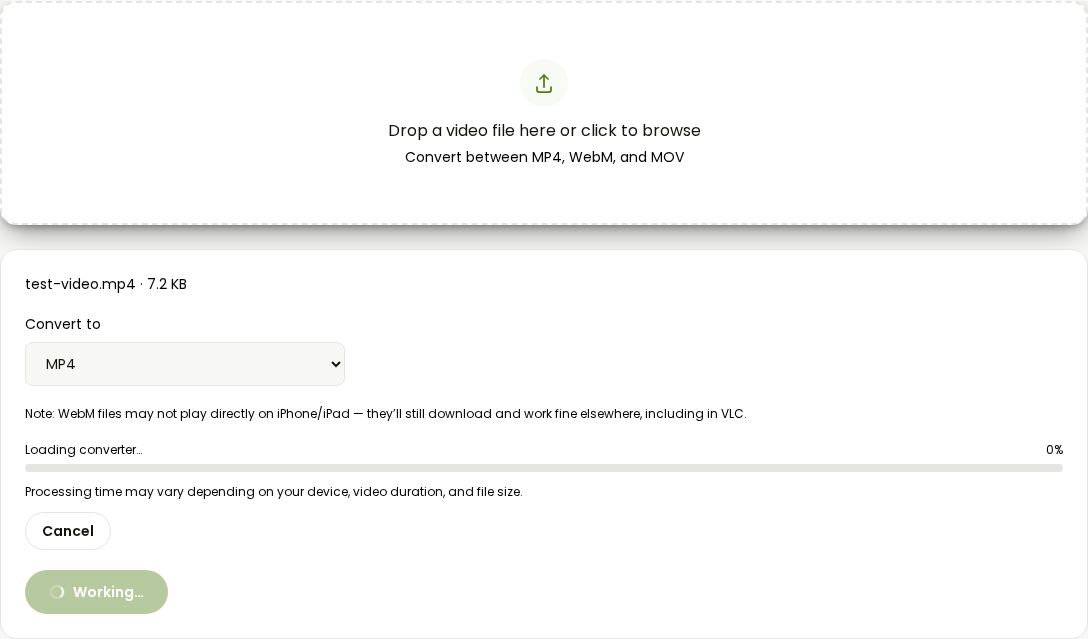
- Click Convert.
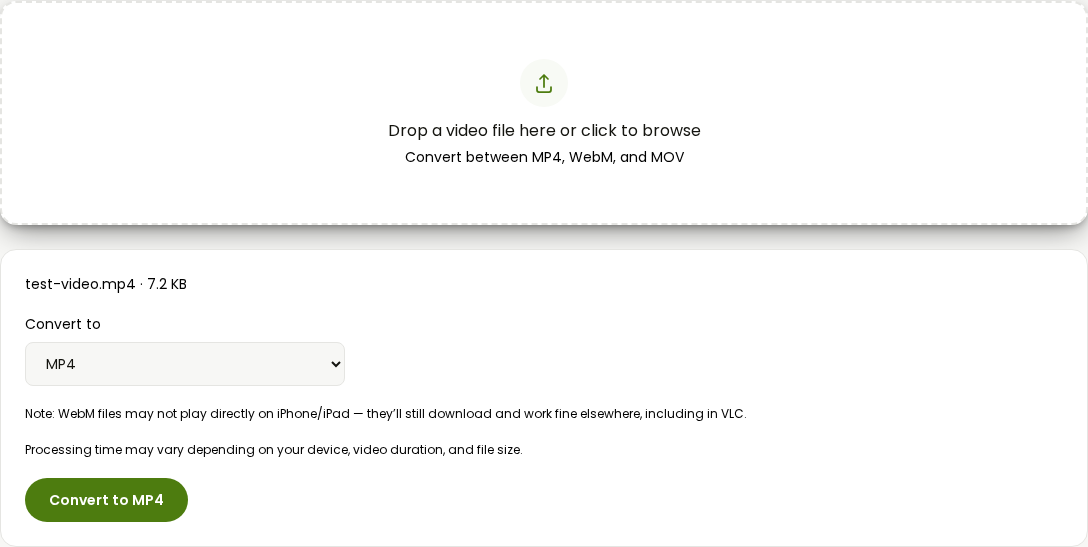
- The converted file downloads automatically the moment it's ready, no separate download screen to wait on.
Nothing gets installed, nothing needs an account, and the file never sits on someone else's server while you wait. For the specific problem that sent you looking for HandBrake in the first place, one file that needs to be a different format, this is usually the entire job.
If what you actually wanted was a smaller file, not a different format
A lot of people reach for HandBrake because it can shrink a video, not because they need a new container. If that's your situation, skip the format conversion entirely and use the compress video tool instead:
- Open the compress video tool.
- Drop in your file.
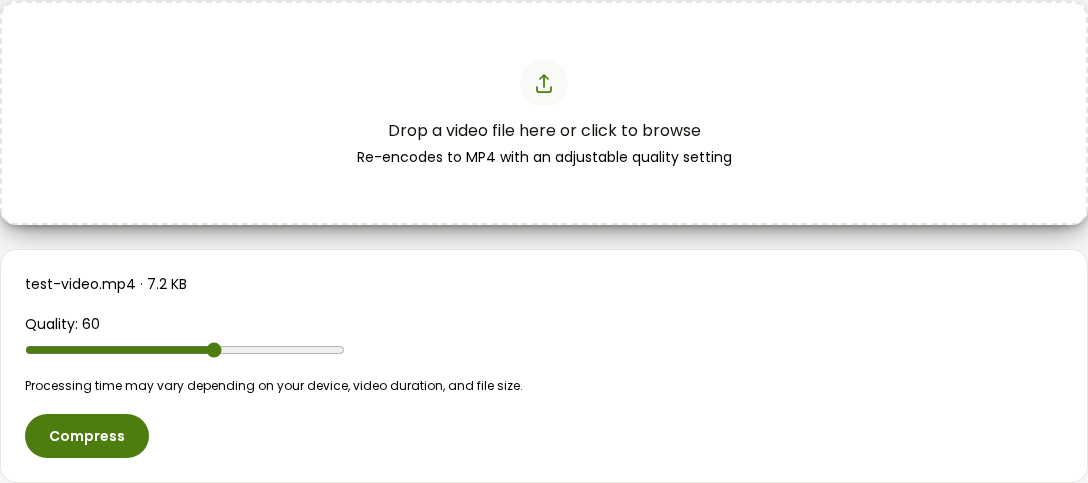
- Drag the quality slider. Lower cuts the file size more but costs more visual quality; the tool re-encodes to MP4 either way.
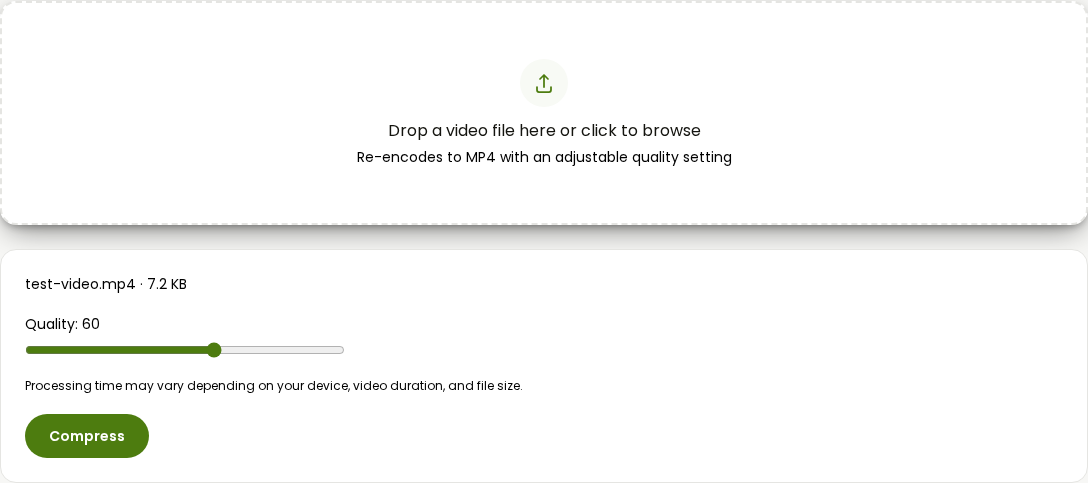
- Click Compress and download the result once it finishes.
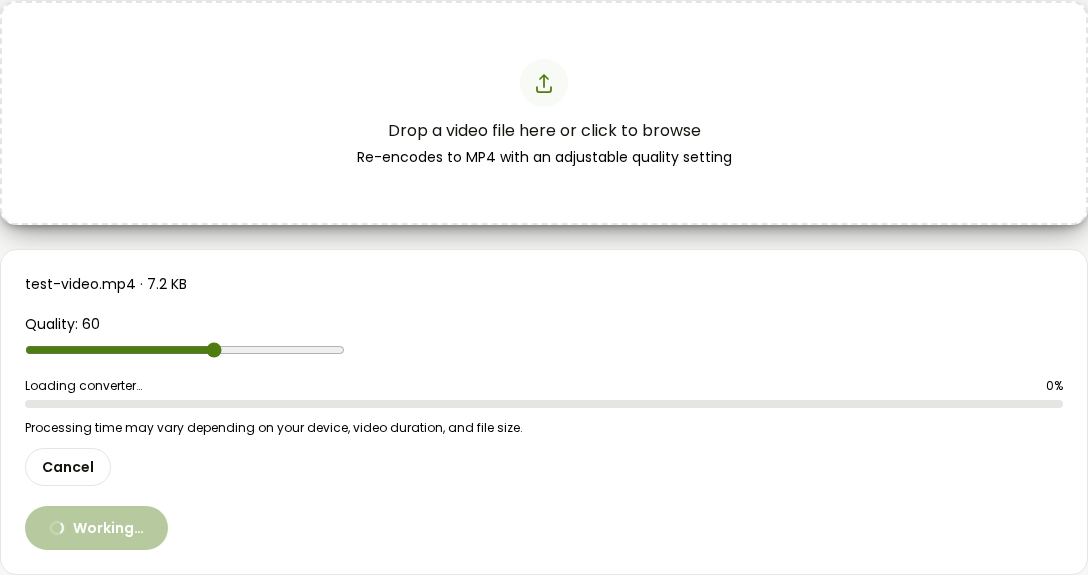
That's the whole workflow HandBrake's Video tab and CRF slider are doing under the hood, without the tabs you don't need for a single pass.
VLC: the other free desktop option, if you've already got it installed
If you already have VLC on your machine for playing video, it can also convert files, and its path to "just convert this one thing" is shorter than HandBrake's.
- Open VLC and go to Media, then Convert / Save.
- In the dialog that opens, click Add and select your file.
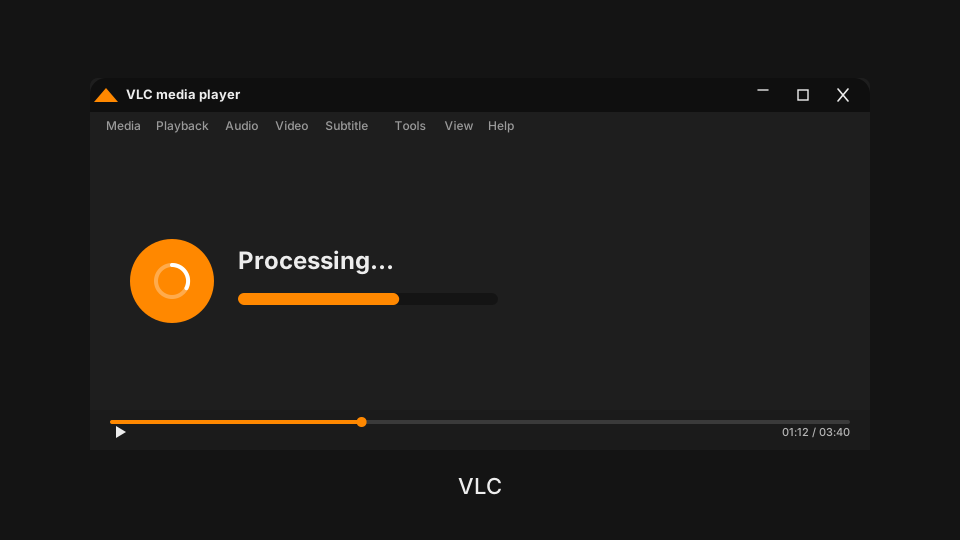
- Click the Convert / Save button at the bottom of that dialog.
- In the next window, open the Profile dropdown and pick a target, "Video - H.264 + MP3 (MP4)" covers most cases.
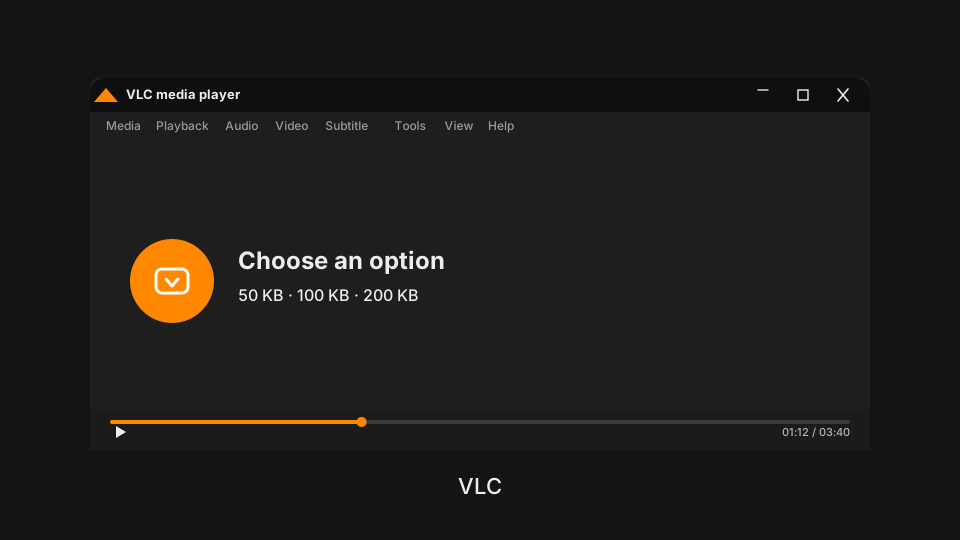
- Next to Destination, click Browse, choose where to save the file, and give it a name.
- Click Start.
VLC won't match HandBrake's control over bitrate and filters, and its profile list is shorter and less specific than HandBrake's presets, but if it's already sitting in your taskbar, there's no install step standing between you and a converted file.
When HandBrake is still the right call
None of this makes HandBrake a bad tool, it just isn't the fast path for a single file. It's worth the setup when you're actually doing what it was built for:
- Converting more than one file at a time. Add each one to the Queue tab and start them all together instead of running the same steps repeatedly.
- Controlling exactly how much quality gets traded for file size, through the Video tab's constant quality (CRF) slider, rather than a single quality number.
- Hitting a specific platform's size limit. HandBrake 1.10 added ready-made "Social 10MB" presets built around exactly this, Discord's upload cap among them, so you're not hand-tuning bitrate to land under a hard limit.
- Ripping a DVD you own that isn't copy-protected, which none of the browser tools above can do at all.
- Saving your own custom preset once you've found settings you like, so future conversions skip the setup entirely.
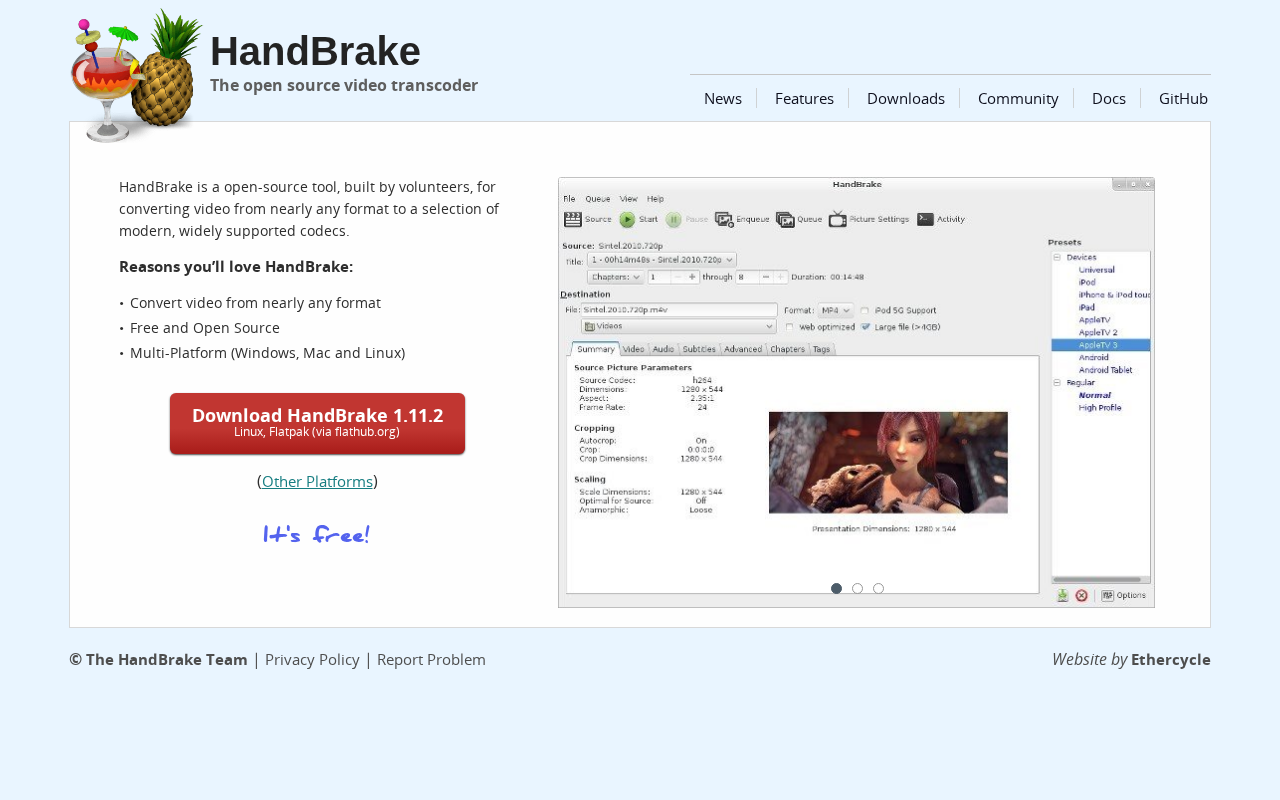
If any of that describes what you're actually trying to do, install it. It's free, it's open source, and it's genuinely good at the job. If you just need the one file you've got right now to open somewhere it currently doesn't, that's a two-minute job in the browser, and installing a full transcoding suite for it is solving a bigger problem than you actually have.
Video Converter
Convert between MP4, WebM, and MOV.