How Video Conversion Works: MP4, WebM & MOV Explained
MP4, WebM, and MOV aren't interchangeable labels, they're different containers with different codecs. Here's what that means and how to convert between them.
A video file that plays perfectly on your phone can refuse to open on your laptop, get rejected by an upload form, or show up as a black screen with no audio in your editing software. Nothing about the video itself changed. What changed is the container it's wrapped in, and sometimes the codec doing the actual compression inside that container. MP4, WebM, and MOV are the three you'll run into constantly, and knowing what they actually are is the difference between guessing your way through a file converter and knowing exactly why you need one in the first place.
A container isn't the video, it's the box around it
Think of MP4, WebM, and MOV as shipping boxes rather than the contents. Inside sits a video stream, compressed with a codec like H.264, H.265, VP9, or AV1, usually an audio stream, and sometimes subtitles or metadata. The container's only job is to hold all of that together and tell a media player how to read it.
That's why renaming a file from .mov to .mp4 in File Explorer doesn't fix anything. You've relabeled the box without touching what's inside it. Most players will still choke on it, or "open" it with a scrambled picture and no sound. Actually converting a file means re-encoding the video and audio streams so the new container, and whatever's reading it, understands them.
MP4: the one that plays almost everywhere
MP4 (MPEG-4 Part 14) is the closest thing video has to a universal target for a format converter. It typically wraps H.264 or H.265 video, and both have hardware decoding built into nearly every phone, TV, browser, and streaming platform made in the last decade. If you're not sure what to convert to and you just need something that opens reliably wherever it ends up, MP4 is the safe default.
The tradeoff shows up in file size and licensing rather than compatibility. H.264 is dependable but not the most efficient option available. H.265 compresses better but still has spottier hardware support on older phones and TVs.
WebM: built for the web, not for your camera roll
WebM comes from Google, built specifically for browser video, and wraps around VP8, VP9, or newer AV1 streams. It compresses well and it's royalty-free, which is why you'll see it used heavily on sites that serve a lot of video and in screen recordings from web-based tools.
Where it falls apart is Apple's ecosystem. Safari's WebM support has been inconsistent for years, and playback on iPhone specifically is unreliable enough that you can't count on a WebM file opening cleanly if it lands on an iOS device. If a WebM file needs to go anywhere near an iPhone or iPad, converting it to MP4 first isn't optional. It's the only way to guarantee it actually plays.
MOV: the format your iPhone (and every Mac app) defaults to
MOV is Apple's QuickTime container, and it's what your iPhone or Mac saves video in by default, whether that's a screen recording, something pulled from Photos, or an export out of iMovie or Final Cut. On a Mac, MOV files are painless, since QuickTime support is built into the OS.
The problem starts the moment a MOV file leaves Apple's ecosystem. Windows Media Player doesn't ship with the codec most MOV files need, so double-clicking one on a Windows PC often triggers a "can't play this file" error or a prompt to hunt down a codec pack Microsoft stopped bundling years ago. This is probably the single most common reason someone searches for a video format converter in the first place: they got sent, texted, or AirDropped a MOV file, and their PC flatly refuses to open it.
When you actually need to convert
A few situations come up constantly:
- An iPhone video (MOV) won't open on a Windows PC or in an older video editor.
- A WebM file, usually a screen recording or something downloaded from a web tool, won't play on an iPhone or in certain Windows apps.
- An upload form for a job application, ad platform, or CMS only accepts MP4 and rejects everything else.
- A video editor throws an "unsupported format" error on import, even though the file plays fine in a regular media player.
In every one of these, the fix is the same: convert to the container the destination actually expects, not just any format that sounds more "standard."
How to actually convert a video file
Cheapest and fastest first. If you've got a single file and nothing installed, handle it in a browser and skip the rest of this list unless you need something the browser tools don't offer.
1. AI Convertly's video converter (browser-based, no install, no sign-up)
- Open the video converter.
- Drop your MOV, WebM, or MP4 file onto the upload area, or click to browse for it. Once it loads, pick your output format from the dropdown that appears: MP4 for broad compatibility, WebM if you're optimizing specifically for the web, MOV only if you actually need it back in Apple's ecosystem.
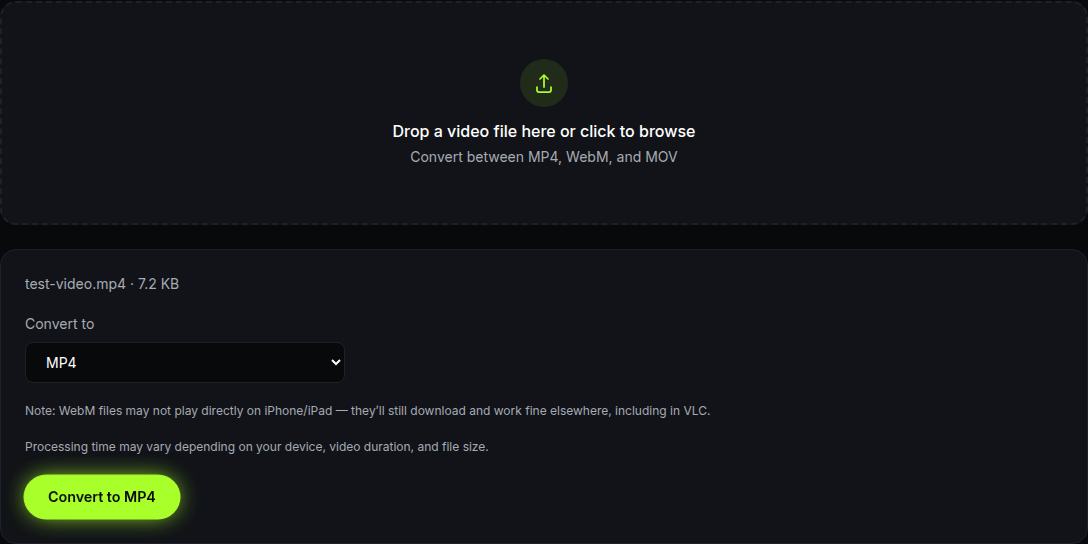
- Click Convert and let it process. Time depends on file size and length, so a five-minute 4K clip takes longer than a fifteen-second one.
- The converted file downloads automatically the moment it's ready. There's no separate Download button to click or result screen to wait on.
No account required, no watermark stamped across the video, and the file doesn't have to sit on some company's server waiting for you to sign up for an email list. That's the real advantage over most of what's listed below.
2. A general online converter (CloudConvert and similar sites)
If for some reason AI Convertly's converter doesn't cover the exact combination of formats you need, a general-purpose online converter is the next fastest option. CloudConvert is a reasonable stand-in for this whole category, and it walks the same basic path most of these sites do.
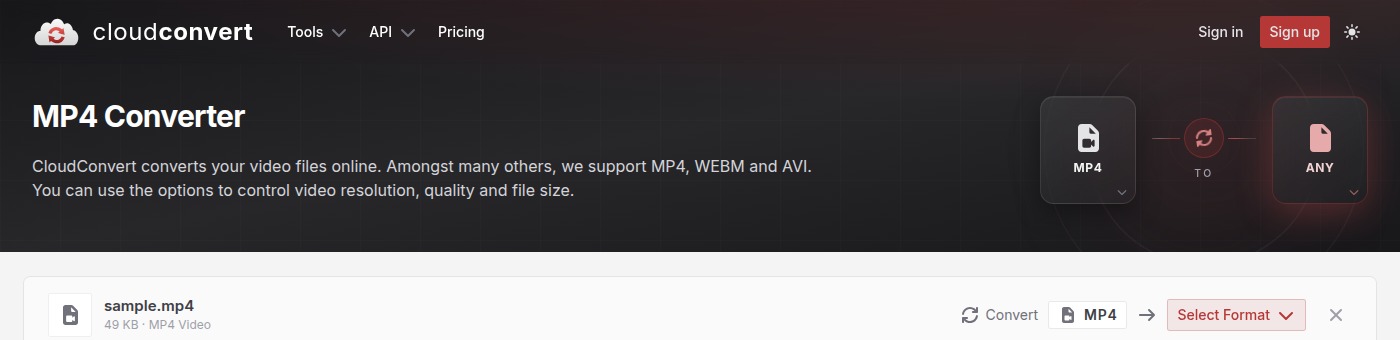
- Go to CloudConvert's video converter and click Select File, or drag your file onto the page.
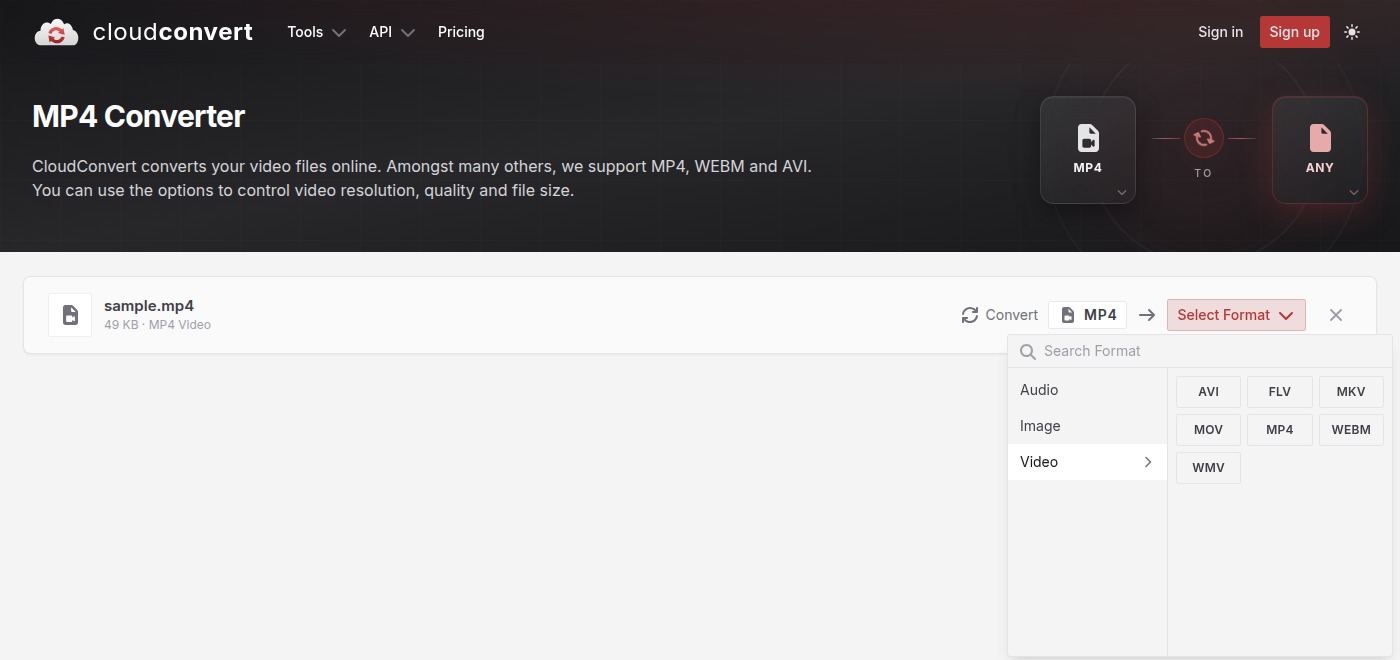
- Click Select Format and pick your target from the Video tab. Same three formats as everywhere else: MP4, WebM, MOV, plus a handful of less common ones like AVI and MKV.
- Once you've picked an output, the file switches to "ready" and the action button changes to Convert.
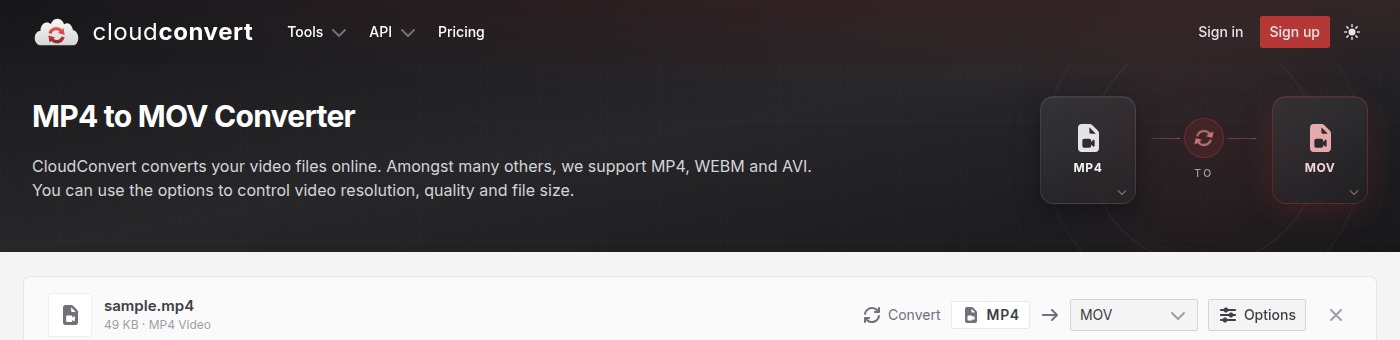
- Click Convert. A progress bar tracks the upload and processing.
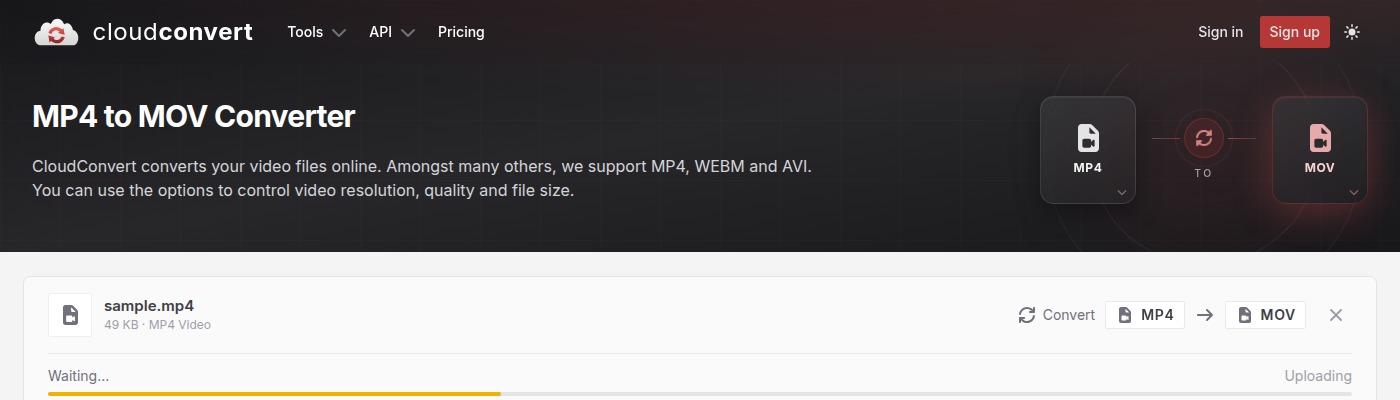
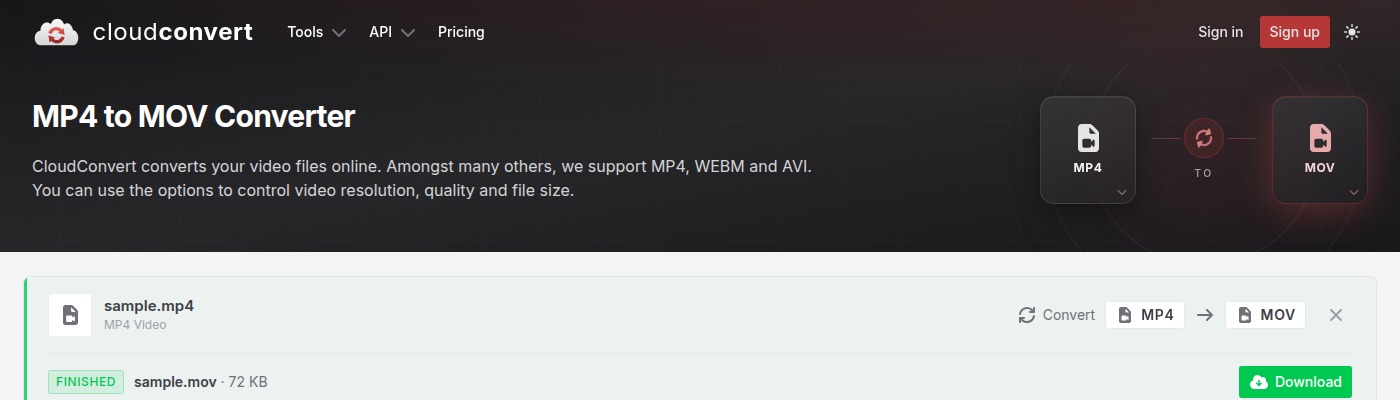
- When it finishes, click Download to save the converted file.
The catch with most sites like this: free usage is capped, whether by file size, by how many minutes of processing you get per day, or by features locked behind a paid account. Fine for a one-off file. Gets annoying fast if you're converting video regularly, and unlike AI Convertly's converter, your file is sitting on a third-party server for however long that processing takes.
3. QuickTime Player, if you're on a Mac and only need MP4
Already on a Mac? QuickTime Player, sitting in Applications, can export a MOV straight to MP4 without installing anything new.
- Open the video in QuickTime Player (right-click the file, choose Open With, then QuickTime Player).
- Go to File, then Export As.
- Pick a resolution. 1080p is a safe default for most uses.

- Choose a save location and click Save.
It won't export to WebM, since QuickTime only really speaks Apple's own format language. Fine if MP4 is your target, a dead end if it isn't.
4. Desktop software: VLC and HandBrake, for bulk conversions
For a single file, none of this is worth installing. But if you're regularly converting a folder full of clips, or you need control over bitrate and codec settings that browser tools don't expose, both VLC (through Media, then Convert/Save) and HandBrake handle MP4, WebM, and MOV conversions for free, with far more configuration than an online tool will offer. The tradeoff is setup time and an interface that assumes you already know what a bitrate is.
Whichever route you take, the format that actually matters is the one the destination expects, not whichever one happens to be fastest to produce. A perfectly converted file in the wrong container is exactly as broken as the one you started with.
Video Converter
Convert between MP4, WebM, and MOV.