How to Compress or Zip Any File Type
Zipping a photo or video barely shrinks it since both are already compressed. Here's what actually reduces file size, by file type, and when zip helps.
An upload form rejected your file, or an email bounced back with "attachment too large," and now you need to make something smaller without knowing exactly what tool actually does that. The honest answer depends entirely on what kind of file you're holding. A file compressor that works great on a spreadsheet can do almost nothing to a photo, and a lot of people's first instinct, right-click and zip it, quietly fails for exactly that reason.
Why Zipping a File Doesn't Always Make It Smaller
A ZIP file works by finding repeated patterns in your data and writing them more efficiently, the same basic idea behind most lossless compression. That works well on a plain text file, a spreadsheet, or a folder of source code, because those formats are full of repetition: the same words, the same formatting bytes, the same structure, over and over.
A JPEG photo, an MP4 video, an MP3, and a PDF full of scanned pages are different. Those formats are already compressed, using algorithms built specifically for that kind of data, image or audio or video, that already stripped out the redundancy zipping would otherwise look for. Run a JPEG through a zip compressor and you'll typically save a percent or two, sometimes nothing, and occasionally the zipped version comes out very slightly larger than the original, since the ZIP format adds its own small overhead for file names and metadata that has to go somewhere. That's not a bug in your zip tool. It's just nothing left to compress.
This is also true of some files you wouldn't expect. A .docx or .xlsx file is, under the hood, already a ZIP archive of XML files, Word and Excel compress it themselves when you hit save. Zipping an already-zipped Word document does effectively nothing for the same reason zipping a JPEG doesn't.
Figure Out What You're Actually Compressing First
- A photo (JPG, PNG, WebP) that's too big for an upload cap or a KB limit: skip zip entirely and go to the section below on AI Convertly's Image Compressor.
- A video that's too big for an upload form, email, or storage: same story, skip to the Compress Video section.
- A PDF, especially one built from scanned pages: has its own dedicated fix, linked below.
- A plain document, spreadsheet, folder of loose files, or anything you mainly need bundled into one file to upload or email: this is where zipping genuinely earns its keep, covered further down.
If It's a Photo: AI Convertly's Image Compressor
This is the fastest fix for a JPG, PNG, or WebP that's too big, and it runs entirely in your browser, no upload to anyone else's server.
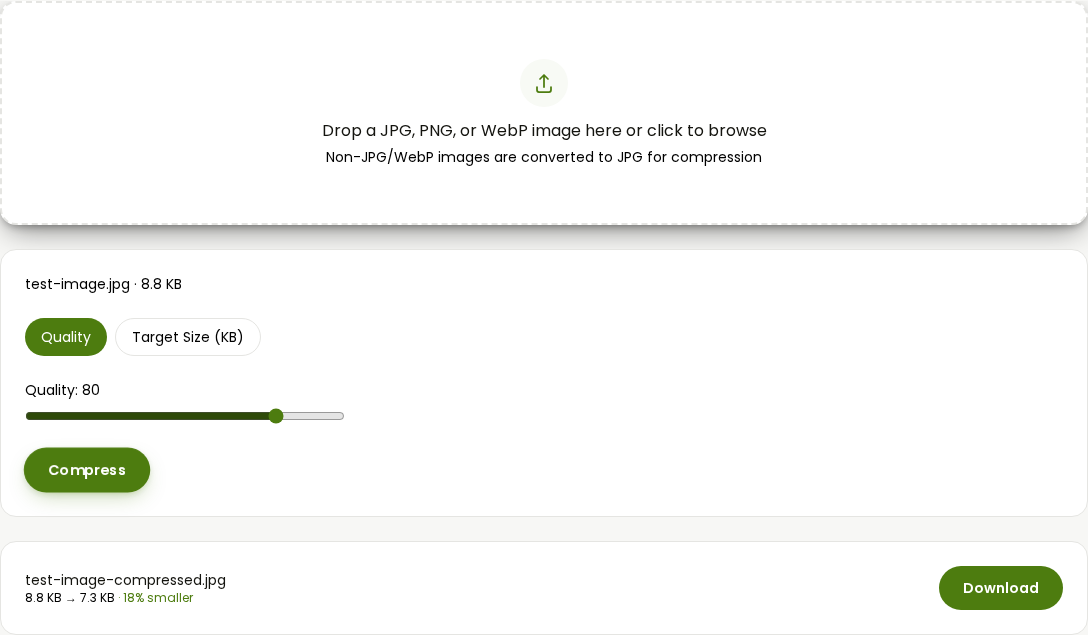
- Open AI Convertly's Image Compressor.
- Drop your photo onto the page, or click to browse for it. Anything that isn't already JPG or WebP gets converted to JPG automatically.
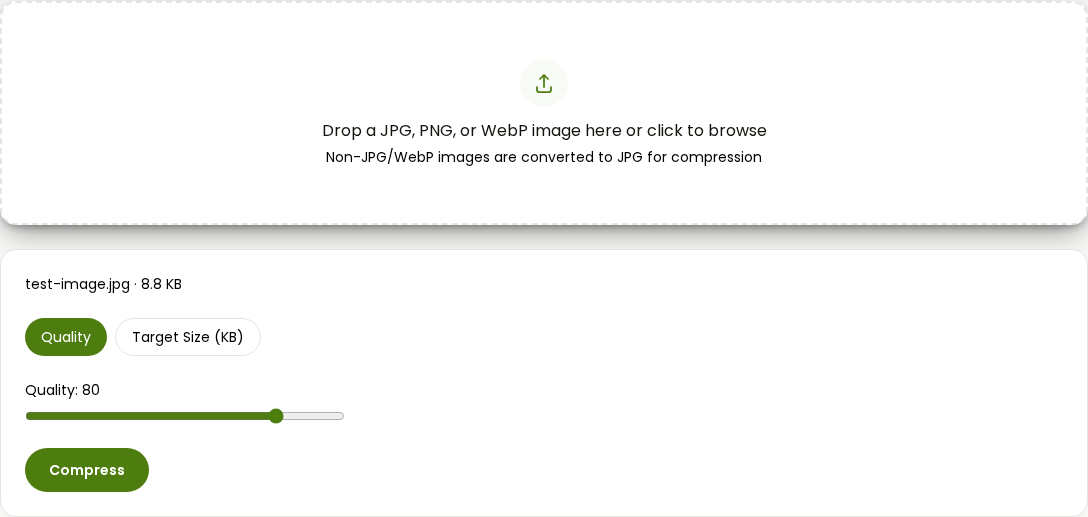
- Pick a mode. Quality mode is a straightforward slider. Target Size (KB) mode is for when you have an exact number to hit, like a visa photo capped at 200 KB.
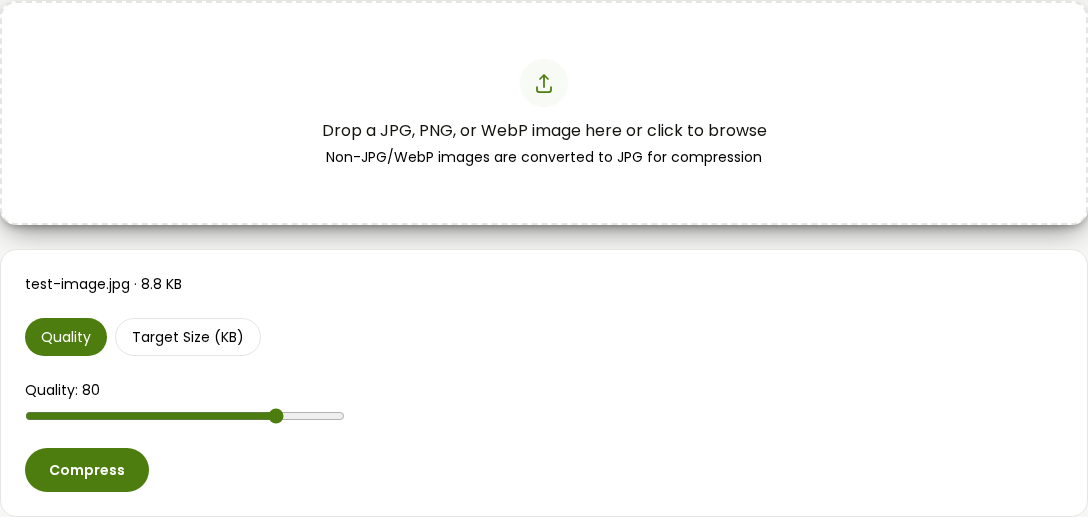
- In Quality mode, drag the slider down until the preview looks acceptable, then click Compress.
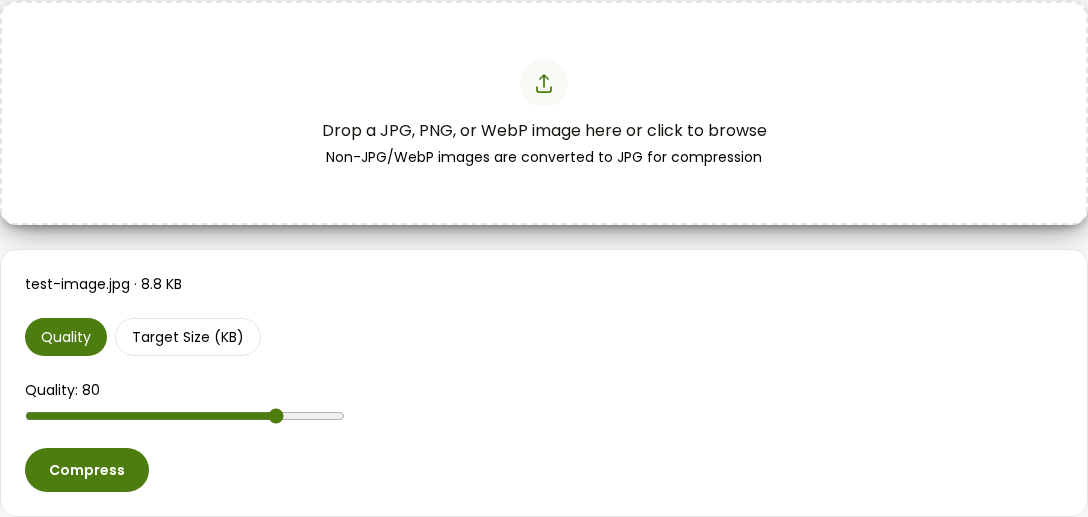
- In Target Size mode, type your KB target and click Compress to Target Size. The tool tries a quality level, checks the resulting size, and adjusts up or down until it lands close to your number, resizing the pixel dimensions too if quality alone can't get there.
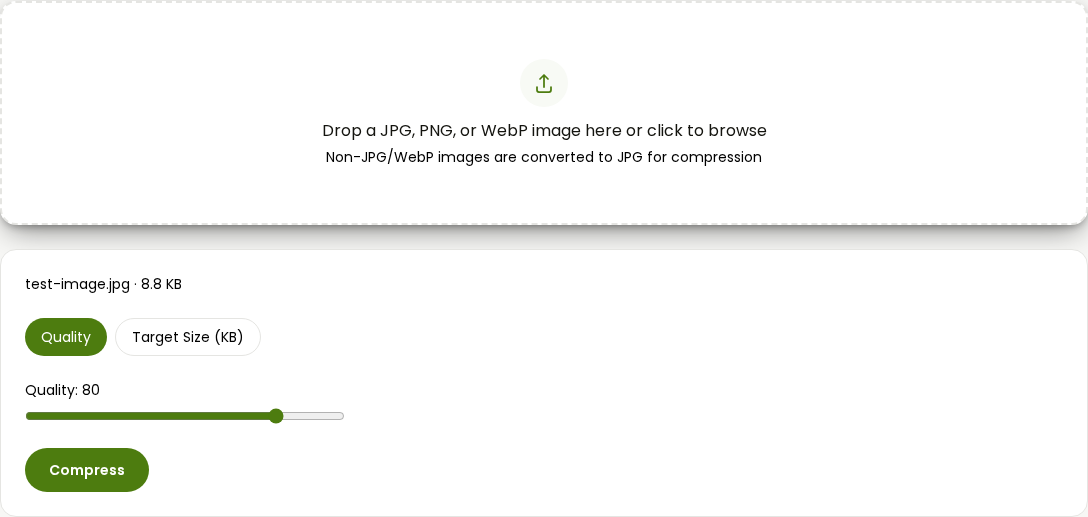
- Either way, you'll see the size before and after, plus the percentage saved, before you download.
If you're hitting a strict KB range rather than just "as small as reasonably possible," the full walkthrough on resizing a photo to an exact KB size covers the target-size math in more depth than makes sense to repeat here.
If It's a Video: AI Convertly's Compress Video
Same logic applies, and the same browser-only approach.
- Open AI Convertly's Compress Video tool.
- Drop your video file onto the page. It accepts MP4, WebM, MOV, and MKV, and re-encodes to MP4.
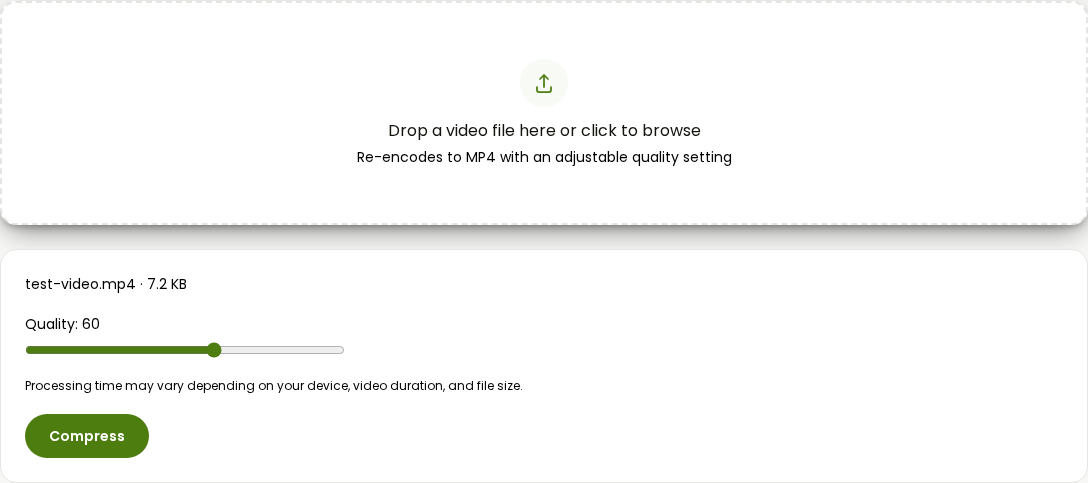
- Drag the Quality slider. Lower numbers mean a smaller file and more visible compression; higher numbers keep more detail at a larger size.
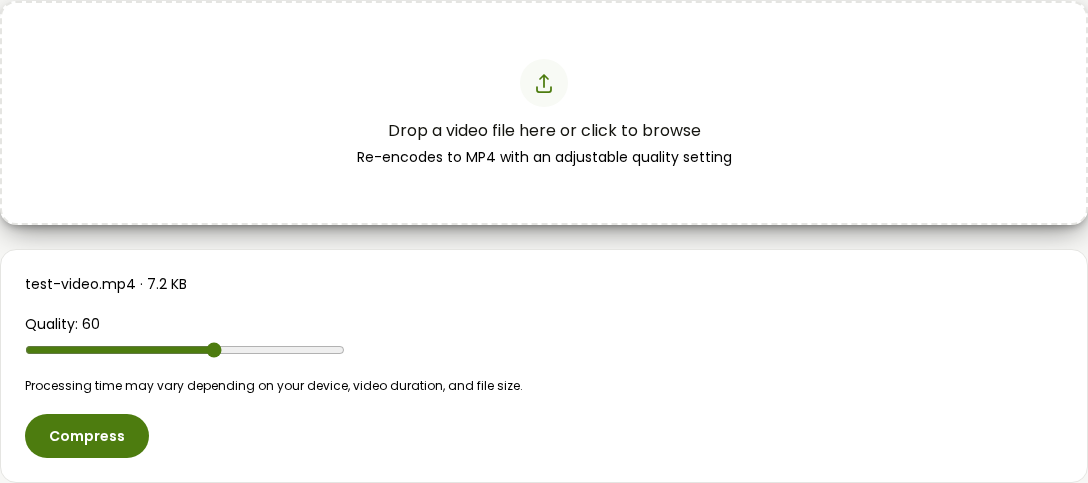
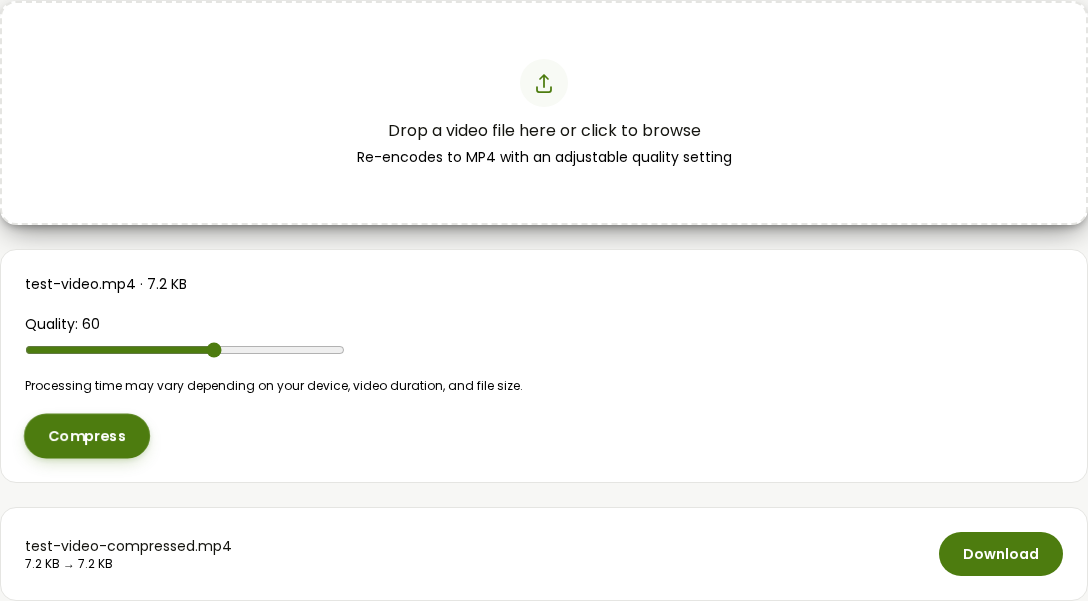
- Click Compress and let it process, this happens on your device, so it takes longer than a quick upload but nothing leaves your browser. Once it's done, you'll see the size before and after with the percentage saved, then a Download button.
For the full explanation of what that quality slider is actually doing under the hood, and how to hit a hard size cap like Discord's or Gmail's, the dedicated video compression guide goes deeper than this overview needs to.
If It's a PDF
A PDF that's too big is almost always the images inside it, not the text, especially one built from scanned pages. That's enough of a different problem, with its own tools and steps, that it gets its own full guide here rather than a repeat of it in this one.
If You Need to Bundle Files or Shrink a Document: Zip It
This is the case zipping is actually built for: a folder of files you want to email or upload as one attachment, or a genuinely repetitive file like a CSV, a log file, or plain text that hasn't already been compressed by its own format. Both operating systems have this built in, no extra software needed.
On Windows
- Open File Explorer and find the file or folder you want to compress.
- Right-click it. If you see Compress to ZIP file directly in the menu, click it.
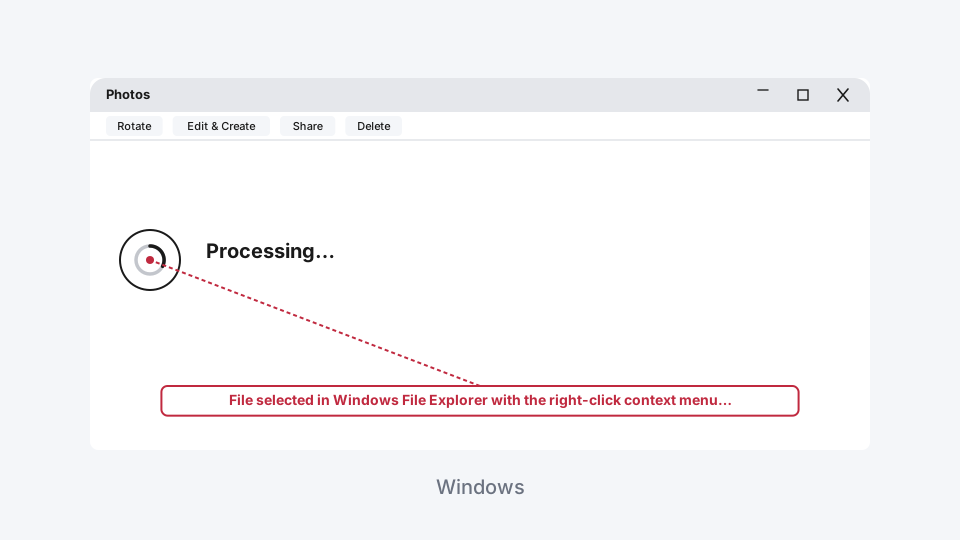
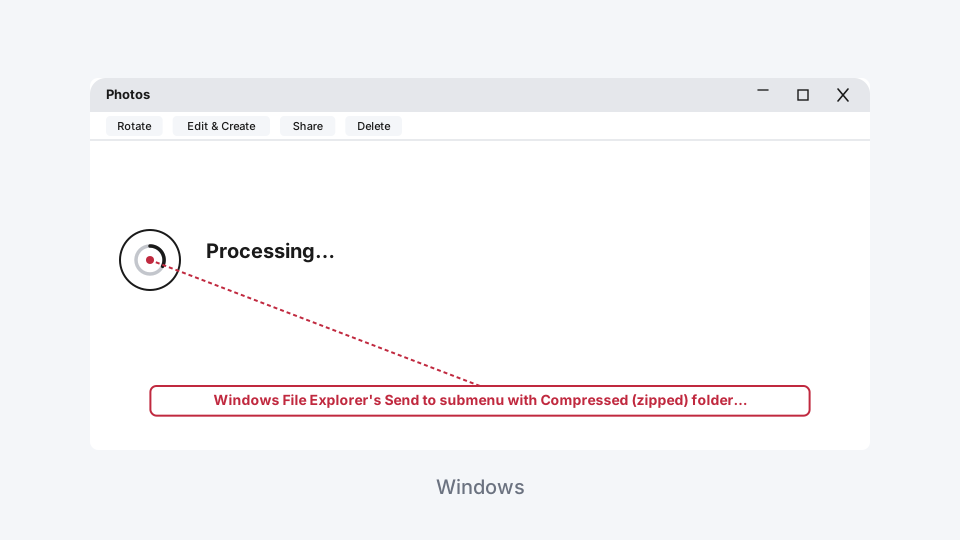
- If that option isn't there, right-click, choose Show more options, then point to Send to and click Compressed (zipped) folder.
- Windows creates the .zip file in the same folder, named after the original. Rename it if you want, then it's ready to attach or upload.
On a Mac
- In Finder, select the file or folder (or select multiple items at once to bundle them together).
- Right-click, or Control-click, and choose Compress.
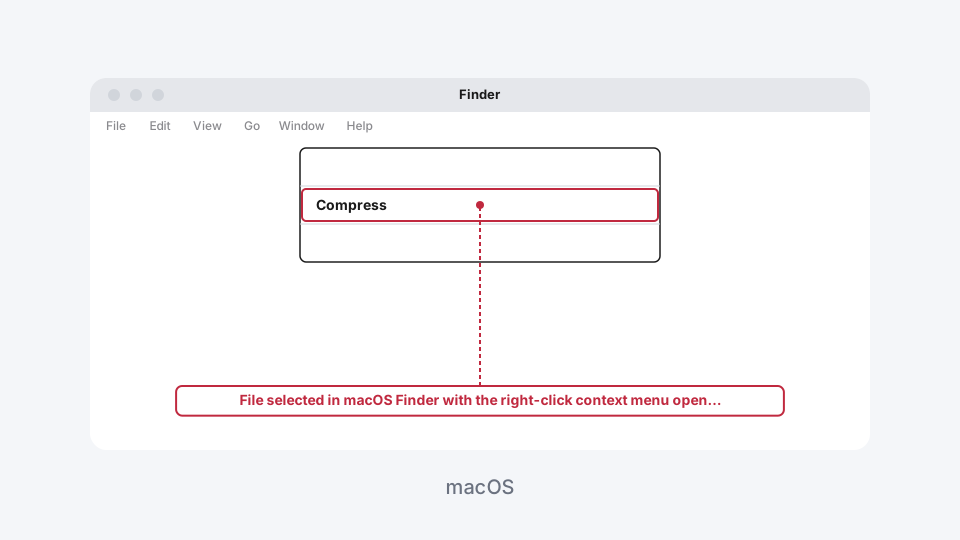
- Finder creates a .zip archive in the same location, named after the item you compressed, or "Archive.zip" if you compressed more than one item at once.
That's it either way. No install, no account, and the result opens on essentially any device without needing to know it came from a Mac or a Windows machine, ZIP is universally supported.
Want a Meaningfully Smaller Archive Than Zip? 7-Zip
For content that genuinely compresses well, like source code, uncompressed audio, or a big batch of plain text or CSV files, 7-Zip's own native .7z format typically compresses 30 to 70 percent better than plain ZIP, according to 7-Zip's own benchmarks, and independent testing has consistently found it noticeably ahead of ZIP too. It's free and open source.
- Download 7-Zip from 7-zip.org, the official site, not a lookalike domain, there have been malware-laced fake installers circulating under the 7-Zip name.
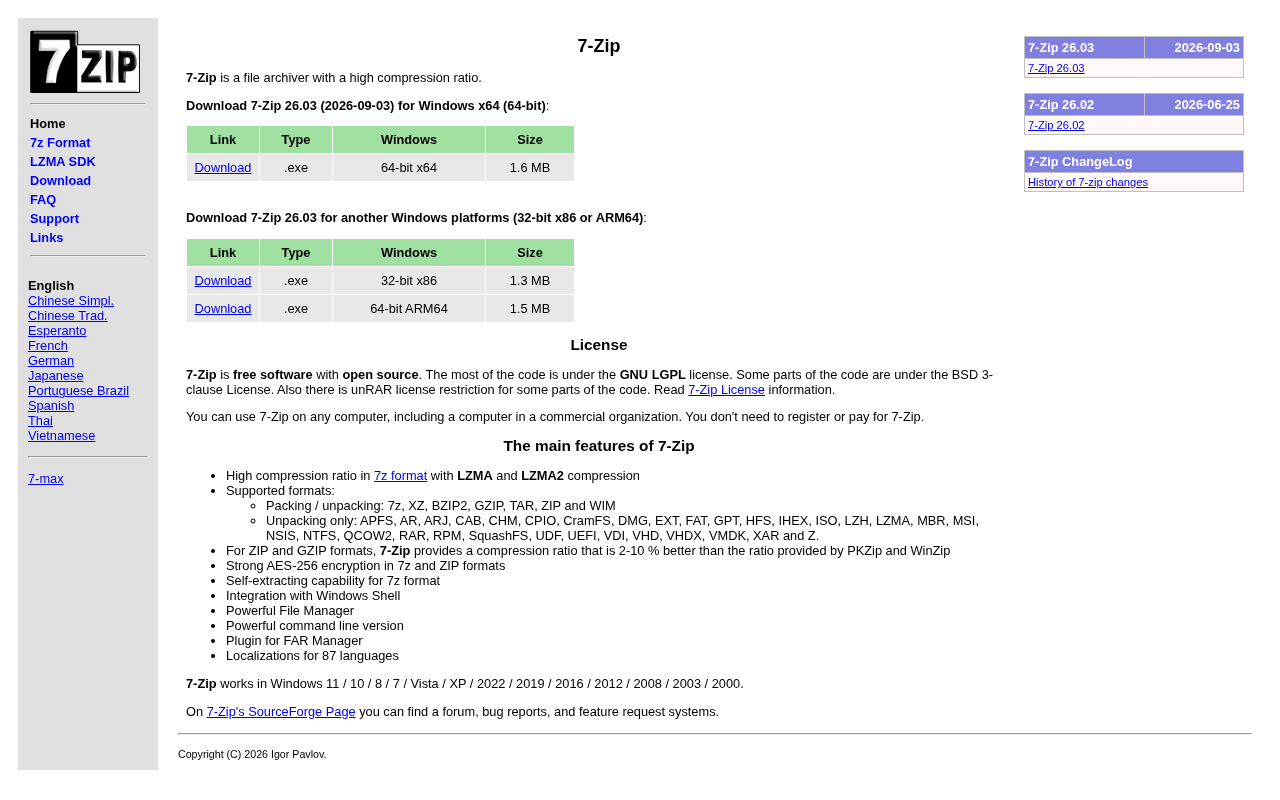
- Install it. On Windows you get a full file manager and right-click integration; on Mac and Linux, 7-Zip itself is command-line only, so you'd need a separate GUI app if you want to click through folders the way you can on Windows.
- Right-click a file or folder, hover 7-Zip, and choose Add to archive.
- In the dialog, set the Archive format to 7z for the best compression, or leave it on zip if the person receiving the file needs to open it without installing anything themselves.
- Click OK. The one real tradeoff: a .7z file needs 7-Zip, or another app that supports it, to open. It isn't built into Windows or macOS the way .zip is, so it's the better choice for your own backups or for someone you know already has 7-Zip, not for a file you're sending to a stranger.
What About WinRAR?
WinRAR is the other name most people already recognize, and it does the same basic job: right-click, add to archive, done, with support for its own .rar format plus the ability to create and open .zip files too. 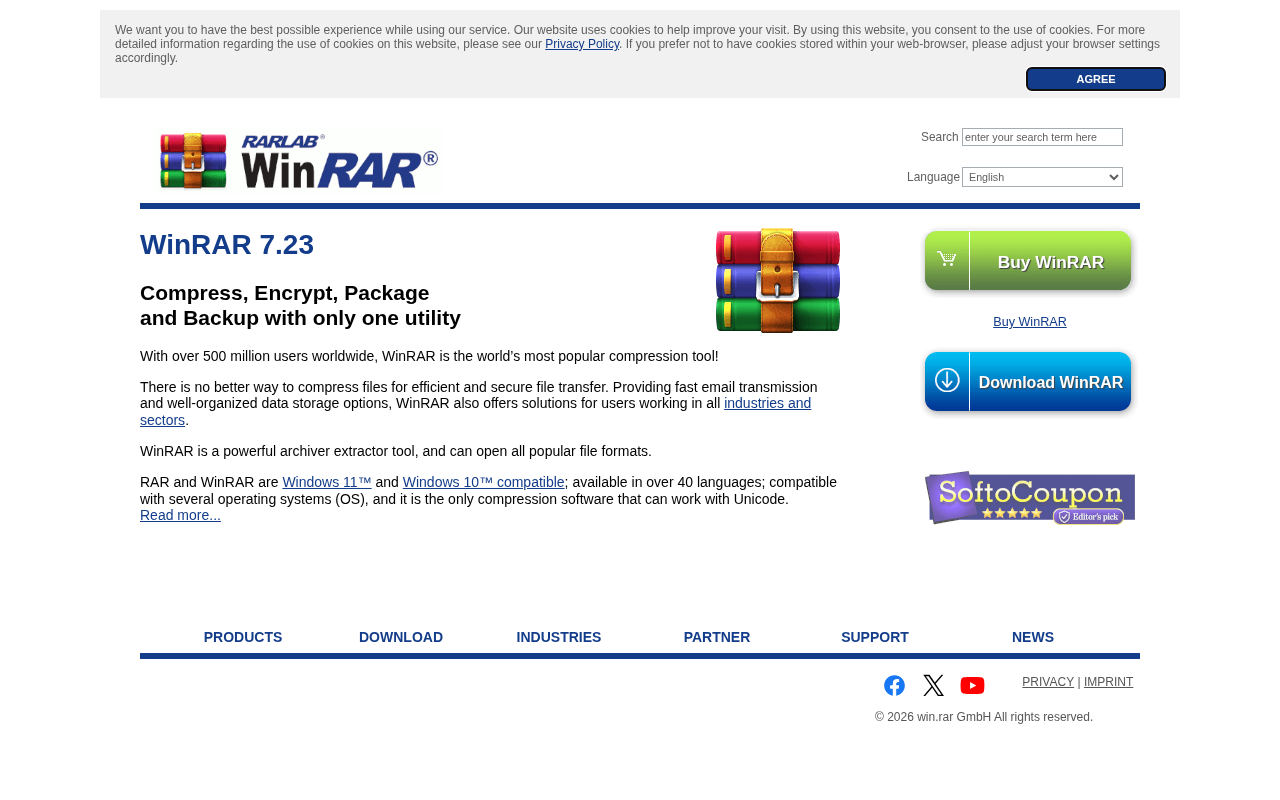
The catch, and it's a famous one, is licensing. WinRAR is technically a 40-day trial, but after that it doesn't actually stop working. It just shows a nag screen reminding you it isn't free every time you open it or create an archive, indefinitely. A license costs $29.99 if you want that reminder gone. For occasional personal use there's no real functional reason to pay, but it's worth knowing going in rather than being surprised by the popup later. For most people, 7-Zip does the same job for free with no nagging at all, which is the more genuinely free option if that's what you're after.
The Short Version
If it's a photo or video, use the format-specific compressor built for it, AI Convertly's tools above, or the equivalent for whatever you're working with, not zip. If it's a PDF, that's its own guide. If it's a document, a folder of files, or anything you mainly need bundled into one attachment, that's exactly what zipping does well, and both Windows and Mac already have it built in for free.
Image Compressor
Shrink file size by quality, or to an exact KB target.