How to Compress a PDF Online for Free
A PDF too big for email or an upload cap is usually the images inside it. Here's how to shrink it for free, from one-click compressors to Mac's built-in tool.
Gmail caps attachments at 25 MB, Outlook at 20 MB, and plenty of application portals set their own limit well below either of those, sometimes as low as 2 MB for a single document. If you've just tried to attach a PDF and gotten bounced, or a form's upload field rejected your file outright, you don't need to rebuild the document from scratch. You need to shrink it, and for the vast majority of PDFs that's a five-minute job.
What's actually taking up the space
Open a 40-page PDF that's somehow 60 MB and the typed text inside it accounts for almost none of that weight. Two things do the real damage: embedded images and embedded fonts. A PDF built from scanned pages is really just a stack of full-resolution photos glued together, one per page, and a single page scanned at print resolution can easily run 2-4 MB before any compression happens to it. A PDF built from a report or slide deck with a handful of high-res photos or screenshots pasted in has the same problem on a smaller scale. Fonts add up too. Embedding a full typeface, or several weights of one, to guarantee the document looks identical on every device it opens on can add a few extra megabytes on its own, though it's rarely the dominant cause the way images are.
That's also why compression results vary so much between PDFs. A scanned contract or a photo-heavy brochure can shrink 70-90% with barely any visible quality loss, since most of that data was redundant to begin with. A PDF that's mostly typed text with no images barely moves, because there's nothing bulky in it to throw away in the first place.
The fastest fix: a one-click online compressor
None of these need an account for a single file, and none of them are AI Convertly's own tool, because there isn't a dedicated PDF compressor here yet. What follows is a genuinely honest rundown of the ones that actually work, roughly fastest and least fiddly first.
Adobe Acrobat's free compressor
Adobe's own tool handles files up to 2 GB and doesn't ask for an account unless you want to save the result to Adobe's cloud afterward.
- Go to adobe.com and open Acrobat's free Compress PDF tool.
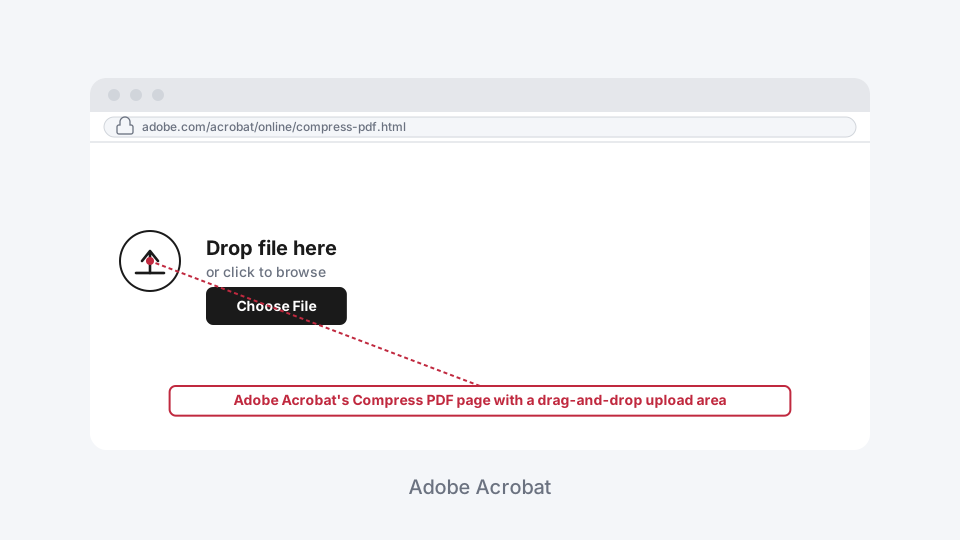
- Drop your PDF onto the page, or click to browse for it.
- Pick a compression strength: High, Medium, or Low. High gets you the smallest file, Low keeps the most image quality, and Medium is the right default for most everyday PDFs.
- Let it process, then download the result.
Smallpdf
Smallpdf's free tier only unlocks its Basic compression level. Moderate and Strong, the two that squeeze harder, are locked behind a Pro subscription. Basic is still worth trying since it's genuinely free with no signup required.
- Go to smallpdf.com and open the Compress PDF tool.
- Drag your file in.
- Smallpdf offers Basic, Moderate, and Strong compression, but only Basic runs without a paid plan. Select it and click Compress.
- Download the compressed file.
iLovePDF
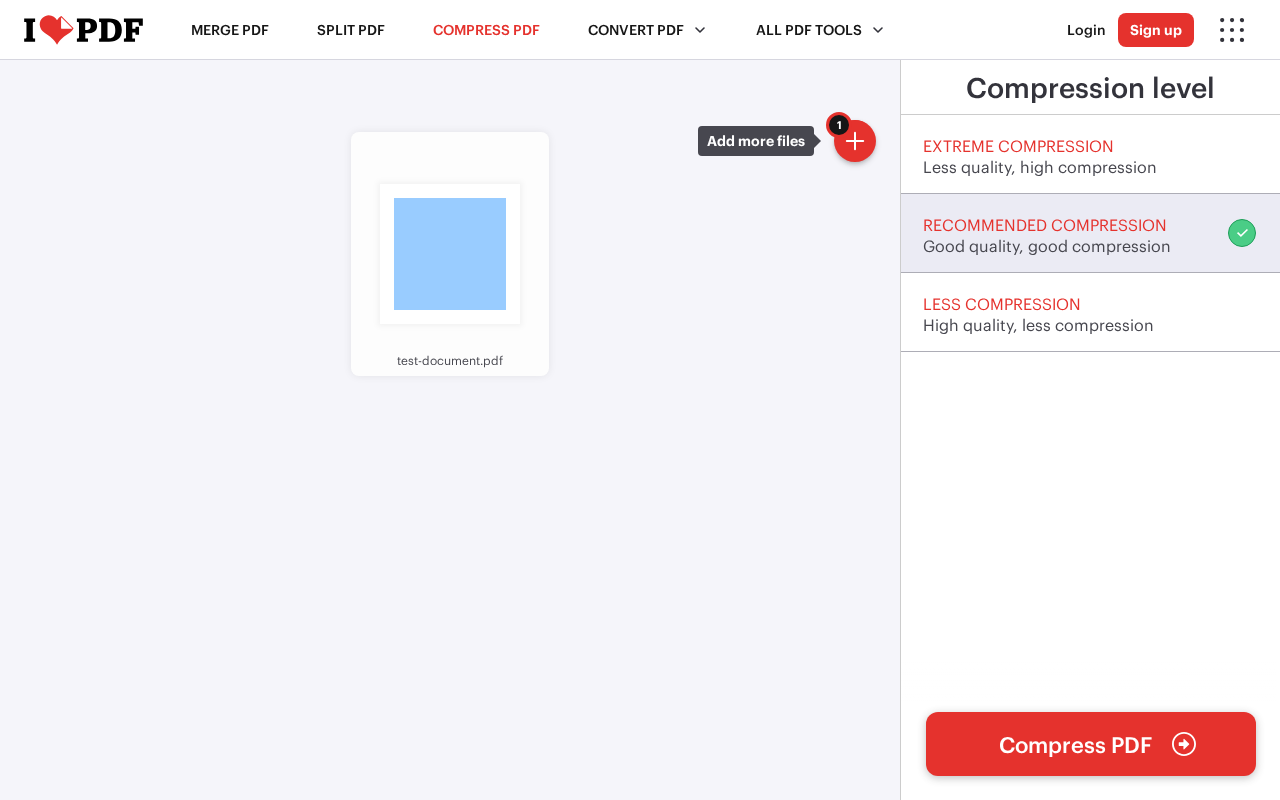
iLovePDF gives you three compression levels up front, Extreme, Recommended, and Less, without gating any of them behind a paywall for a single file.
- Go to ilovepdf.com and open the Compress PDF tool.
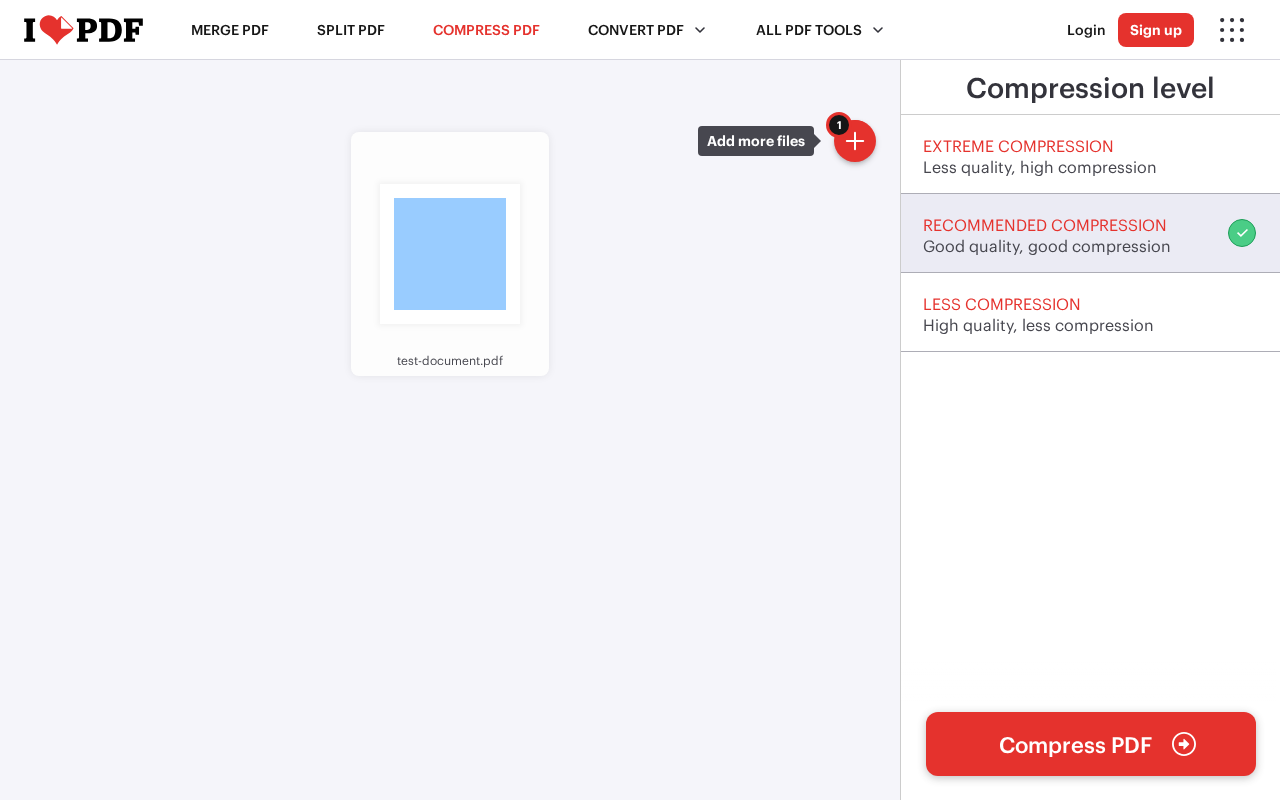
- Upload your file.
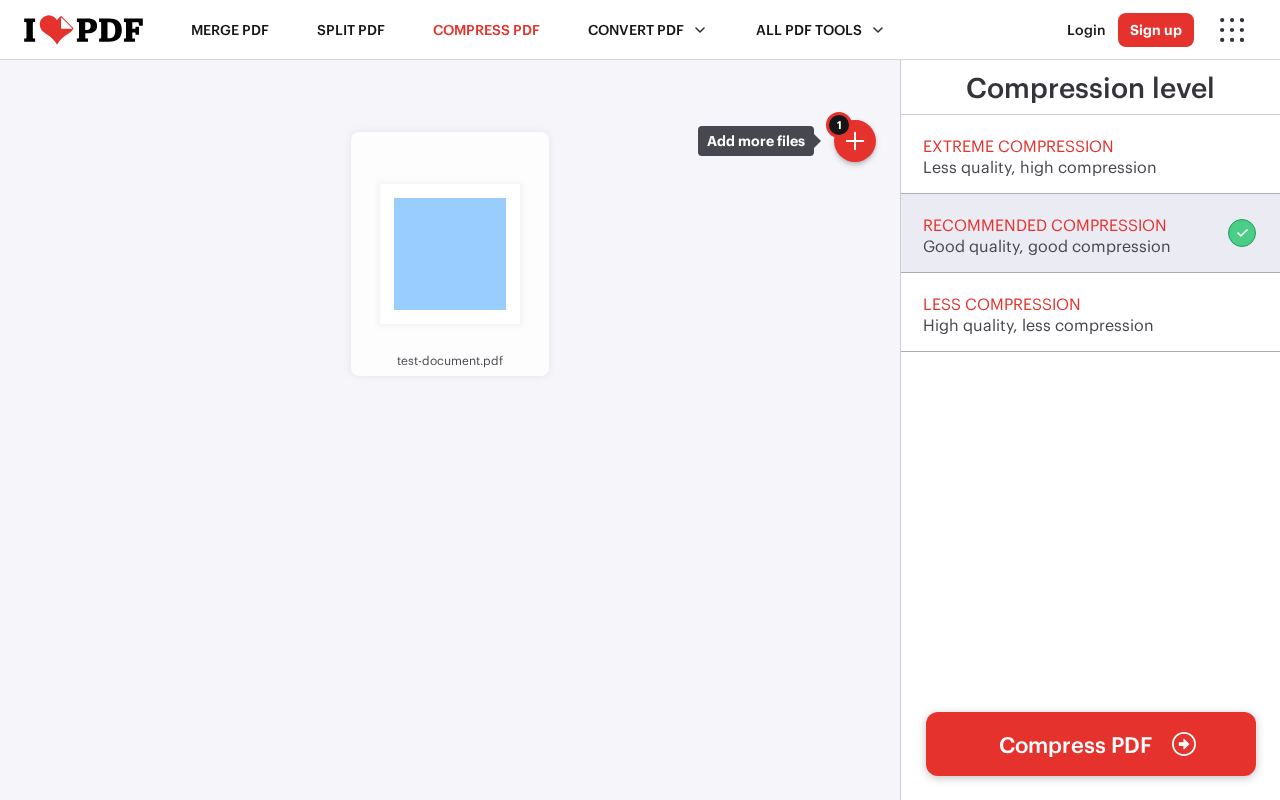
- Choose Extreme Compression, Recommended Compression, or Less Compression. Recommended is the safe middle ground; Extreme is worth trying first if the file is just for internal reference and quality doesn't matter much.
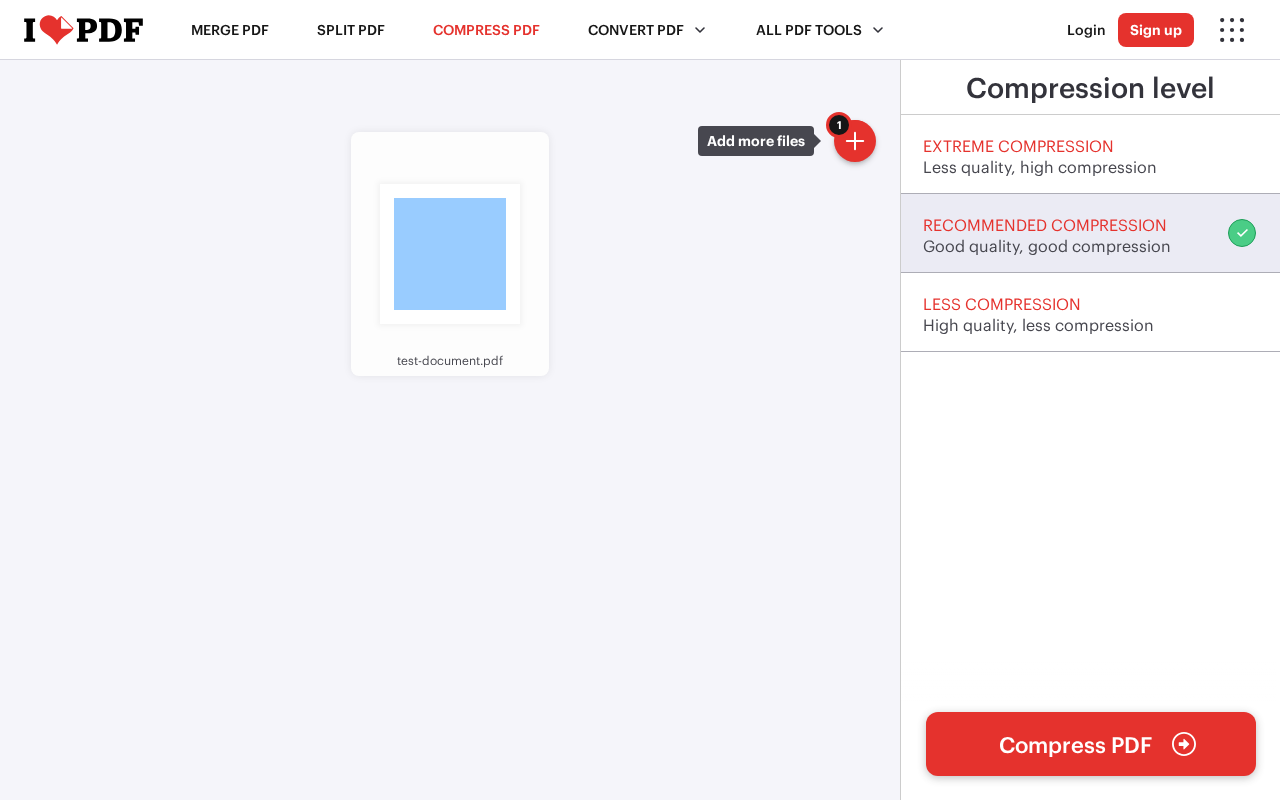
- Click Compress PDF and download the result.
PDF24
PDF24 is the one with no strings attached at all: no file size cap, no signup, no feature gated behind a paid tier. It's ad-supported instead, and it also gives you direct control over image DPI and quality percentage if the presets don't land where you want.
- Go to pdf24.org and open the Compress PDF tool.
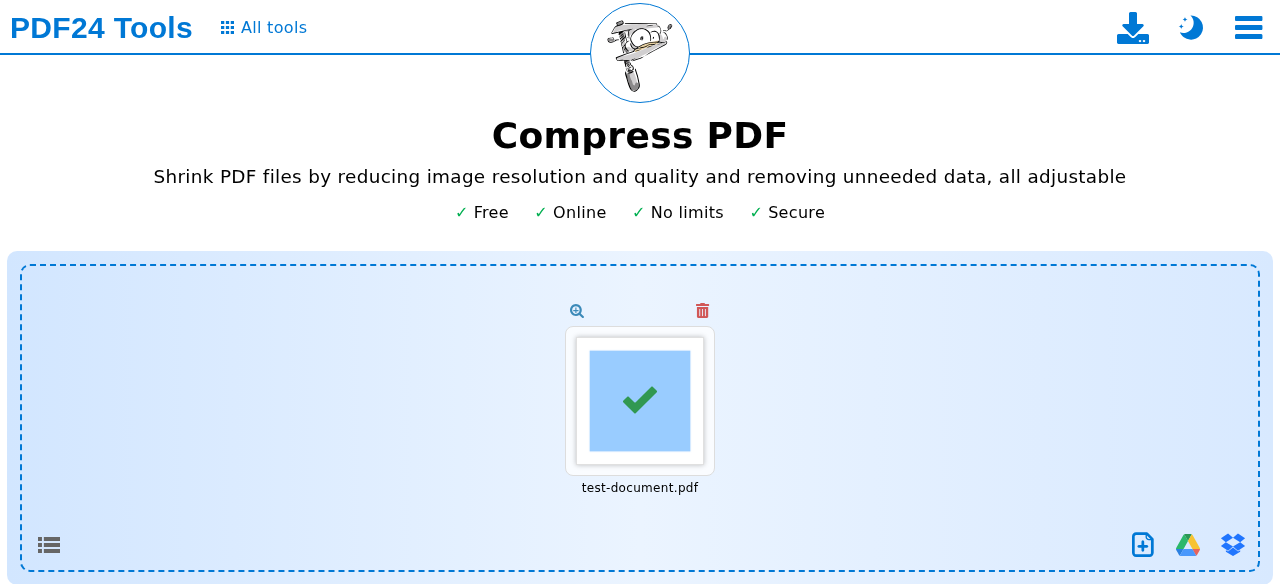
- Add your file.
- Pick a preset, or open the advanced settings to set an exact image DPI and quality percentage yourself.
- Download the compressed PDF. PDF24 also has a free Windows desktop app if you'd rather not upload the file anywhere at all.
On a Mac, you don't need any of these
Preview, the app that opens PDFs by default on macOS, has a built-in compressor that never uploads anything anywhere.
- Open the PDF in Preview.
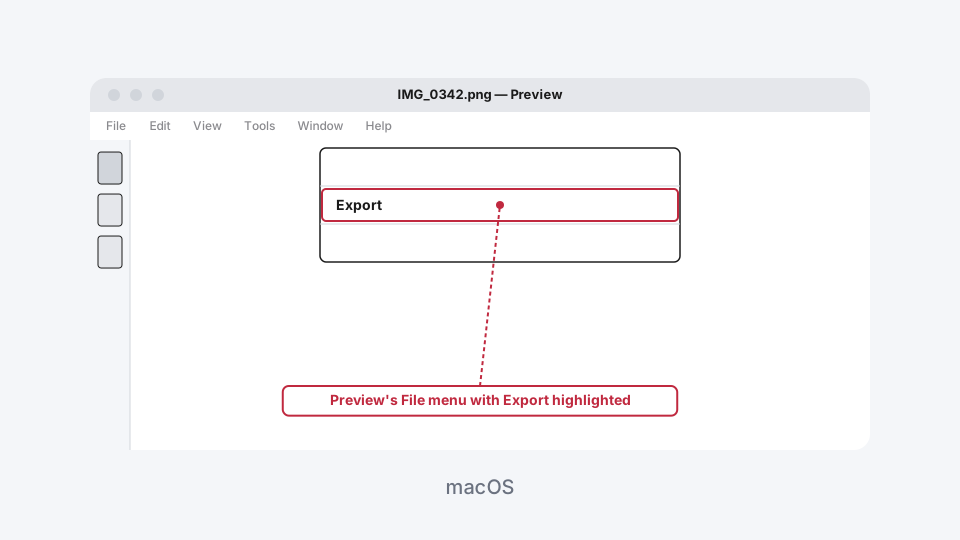
- Go to File > Export.
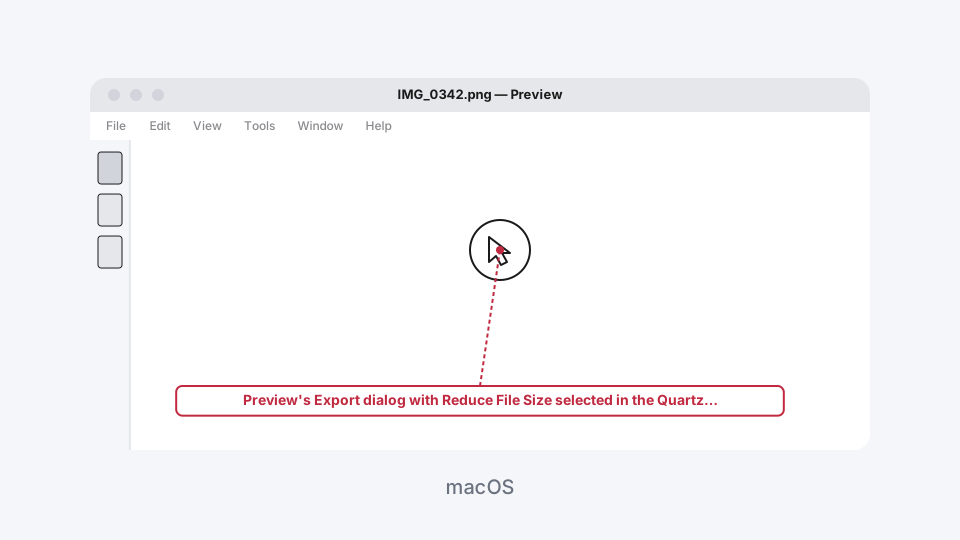
- In the Quartz Filter dropdown, choose Reduce File Size.
- Click Save, then choose whether to replace the original or save a new copy.
Worth knowing before you use it: Reduce File Size applies one fixed compression level, not a choice of strengths, and it can noticeably soften images on a photo-heavy PDF. Save a copy rather than overwriting the original if you're not sure it'll come out looking right.
On Windows, it depends on where the PDF came from
Windows doesn't ship a built-in PDF compressor the way macOS does. If your PDF started life as a Word document, though, Microsoft Word itself can export a smaller version directly, which sidesteps needing an online tool at all.
- Open the original document in Microsoft Word, not the PDF itself, the source .docx file.
- If it has large embedded photos, click one, go to Picture Format > Compress Pictures, choose a target resolution like Web (150 ppi), and uncheck "Apply only to this picture" so it applies to all of them.
- Go to File > Save As (or File > Export), choose PDF as the format, open Options, and select "Minimum size (publishing online)" instead of the Standard setting.
- Save. The resulting PDF is already compressed on export, no separate tool needed.
If the PDF didn't come from a Word file, one of the online tools above is genuinely the simplest route on Windows. There's no equivalent built-in trick using File Explorer the way there is with Preview on a Mac.
If your PDF is actually several scans stitched together
Sometimes a PDF is huge because it's a dozen scanned pages that should have been separate files, or because a form got scanned twice by accident and both copies got merged into one document. Compressing that file will still help, but it's worth checking whether it needs to be that many pages at all first. AI Convertly's Merge PDF tool handles combining pages if you're rebuilding one from scratch, and there's no benefit to compressing before you've settled on the final page order, since re-compressing after merging just means doing the work twice.