How to Resize a Video to 480p, 720p, or 1080p
Upload forms, video calls, and embeds expect a certain resolution, not whatever your camera recorded. Here's how to resize a video to 480p, 720p, or 1080p.
A phone video that plays fine on your own screen can still get flagged as "too large" by an upload form, stutter through a video call, or just look absurdly oversized sitting in a Discord embed or a website background. None of that means the video is broken. It means the resolution, the actual pixel grid it's stored at, doesn't match what the destination expects. Fixing that is a different job from compressing a video to shrink its file size (that guide is here if that's actually what you're after) and it's usually a two-minute fix once you know where to click.
What Changing Resolution Actually Does
Resolution is just the width and height of every frame, measured in pixels. 1920x1080 (1080p) has roughly four times the pixel count of 960x540, and about a quarter of 3840x2160 (4K). Every one of those pixels has to be stored and decoded, so resolution has a direct, unavoidable effect on both file size and how much work a device does to play the video back.
Going smaller is straightforward: the pixels that used to make up a patch of the frame get averaged down into fewer, and the result looks clean because you're throwing away detail that genuinely doesn't need to be there anymore. Going bigger doesn't work the same way in reverse. Scaling a 480p video up to 1080p fills the gaps by guessing what should sit between the pixels that already exist, and no amount of guessing recreates detail that was never captured in the first place. The upscaled file will play in a 1080p slot without breaking anything, but it won't look like footage actually shot at 1080p. If you're resizing up to clear a platform's minimum, that works fine. If you're doing it hoping the video will suddenly look sharper, it won't.
When You'd Actually Need to Resize a Video
A few situations come up constantly, and they're not all the same problem underneath:
- An upload form, application portal, or ad platform rejects the file, or silently downscales it itself in a way that looks worse than resizing it properly first would have.
- A video call or livestream is stuttering because whatever you're sending, a screen share or a webcam feed, is running at a far higher resolution than the call actually needs. Most calls top out well under 1080p in practice, so pushing a 4K recording into one is pure overhead.
- You're embedding a video on a webpage, in an email, or in a chat app, and 4K or even 1080p is serious overkill for a box that renders a few hundred pixels wide. Every extra pixel is bandwidth someone else's device has to fetch and decode for zero visible benefit at that size.
- You need to go the other way, clearing a platform's stated minimum resolution before it'll accept an older or lower-res clip. That's the one case where you're resizing up, not down, and it's worth knowing going in that it fixes compatibility, not sharpness.
How to Actually Resize a Video
1. AI Convertly's video resolution converter (resize a video online, no install)
This is the fastest path if one of the three common resolutions covers what you need, and the file never leaves your device while it processes.
- Open the video resolution converter and drop your file onto it, or click to browse for one. It takes MP4, WebM, MOV, and MKV files.
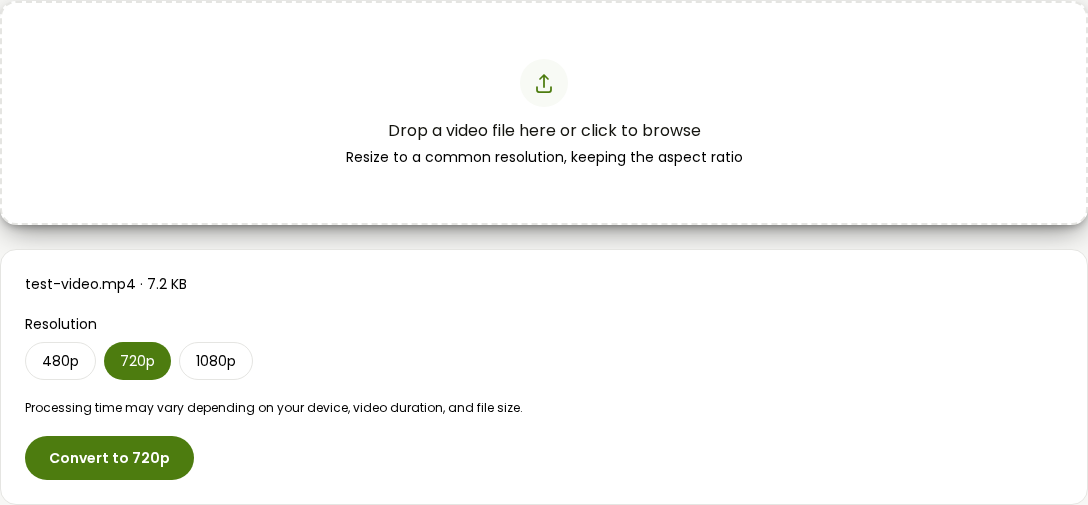
- Pick your target: 480p, 720p, or 1080p. It scales the whole frame to that height and works out the matching width itself, so your aspect ratio stays intact automatically, a vertical phone video stays vertical.
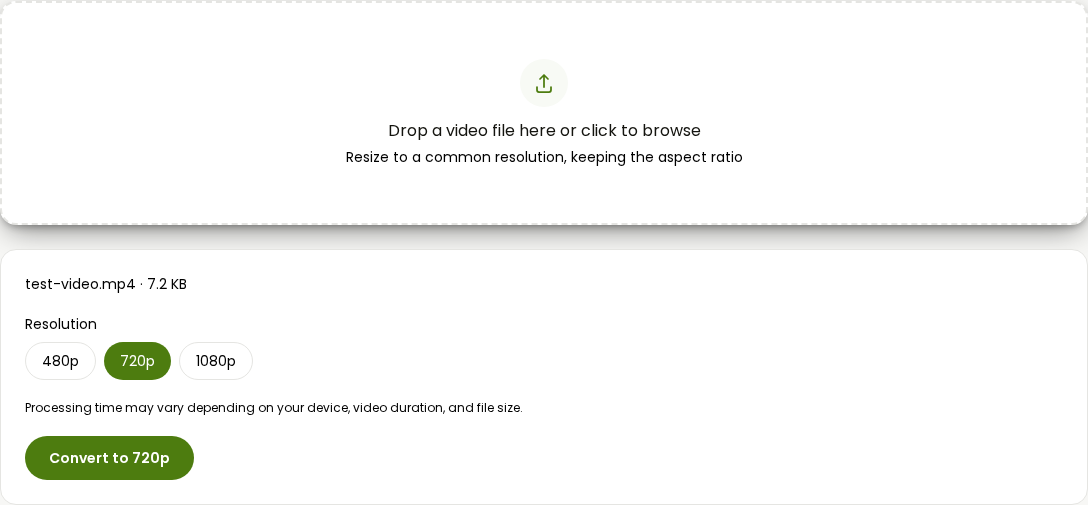
- Click Convert to [height]p and let it process.
- The resized file downloads automatically once it's done.
Two honest limits before you rely on this one: it only offers those three presets, not an exact custom width or height, and it always saves the result as an MP4 regardless of what you uploaded. If you specifically need the output back in WebM or MOV, run it through the video converter afterward to change the container.
2. On Windows: Clipchamp (built in, no install)
Clipchamp comes preinstalled with Windows 11 and is free with a Microsoft account, though it means opening an editor rather than a plain converter.
- Open Clipchamp (or search for it in the Start menu) and start a new project.
- Drag your video onto the timeline.
- Click Export in the top corner of the editor.
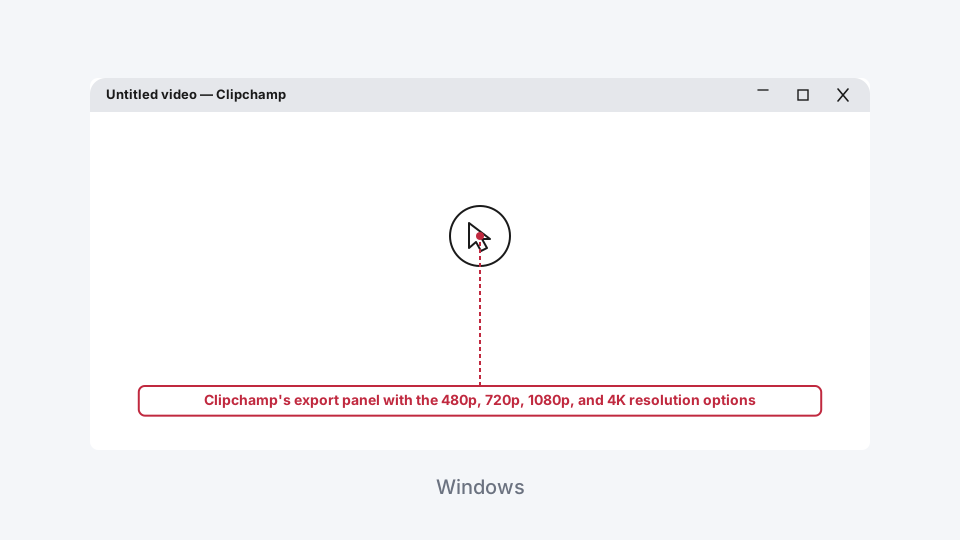
- Pick a resolution: 480p, 720p, 1080p, or 4K.
The catch is the sign-in. Exporting requires a free Microsoft account, though the export itself has no watermark and isn't capped below 1080p.
3. On a Mac: QuickTime Player (built in, no install)
No sign-in, no install, and it works on any video already sitting on the Mac.
- Open the video in QuickTime Player, then go to File > Export As.
- Pick a resolution from the list: 4K, 1080p, 720p, or 480p. Anything larger than your original file's resolution shows up grayed out, QuickTime won't let you upscale by accident.
- For a 4K or 1080p export, pick between Greater Compatibility (H.264) and Smaller File Size (HEVC) when the format prompt appears.
- Name the file, choose where to save it, and click Save.
4. FreeConvert, for an exact custom resolution
If none of the three standard presets are what you actually need, say a specific width and height for a spec sheet or an ad placement, FreeConvert's video converter takes an exact pixel value instead of a fixed list.
- Go to FreeConvert's video converter and upload your file.
- Open the video settings and set your exact width and height in the resolution fields.
- Click Convert and download the result once it finishes.
The tradeoff is the usual one for a server-side tool: your file leaves your device while it processes, and the free tier caps out at 1GB.
5. VLC, if it's already open
VLC can resize on the way to a converted file, though it's more clicks than any option above and works in exact pixels rather than presets.
- Go to Media > Convert/Save, click Add, and select your file.
- Click Convert/Save, pick an output profile like Video - H.264 + MP3 (MP4), then click the wrench icon to customize it.
- In the Video codec tab, check the Resolution box and enter your target width and height.
- Set a destination file and click Start.
6. HandBrake, if you're already adjusting other settings too
If you're also touching frame rate or quality in the same pass, HandBrake handles all three together rather than making you run a file through separate tools. The frame rate walkthrough in this guide covers that combination in more depth than makes sense to repeat here. For resolution alone: open your file, go to the Dimensions tab, and enter a width or height with Keep Aspect Ratio checked so you only need to set one. 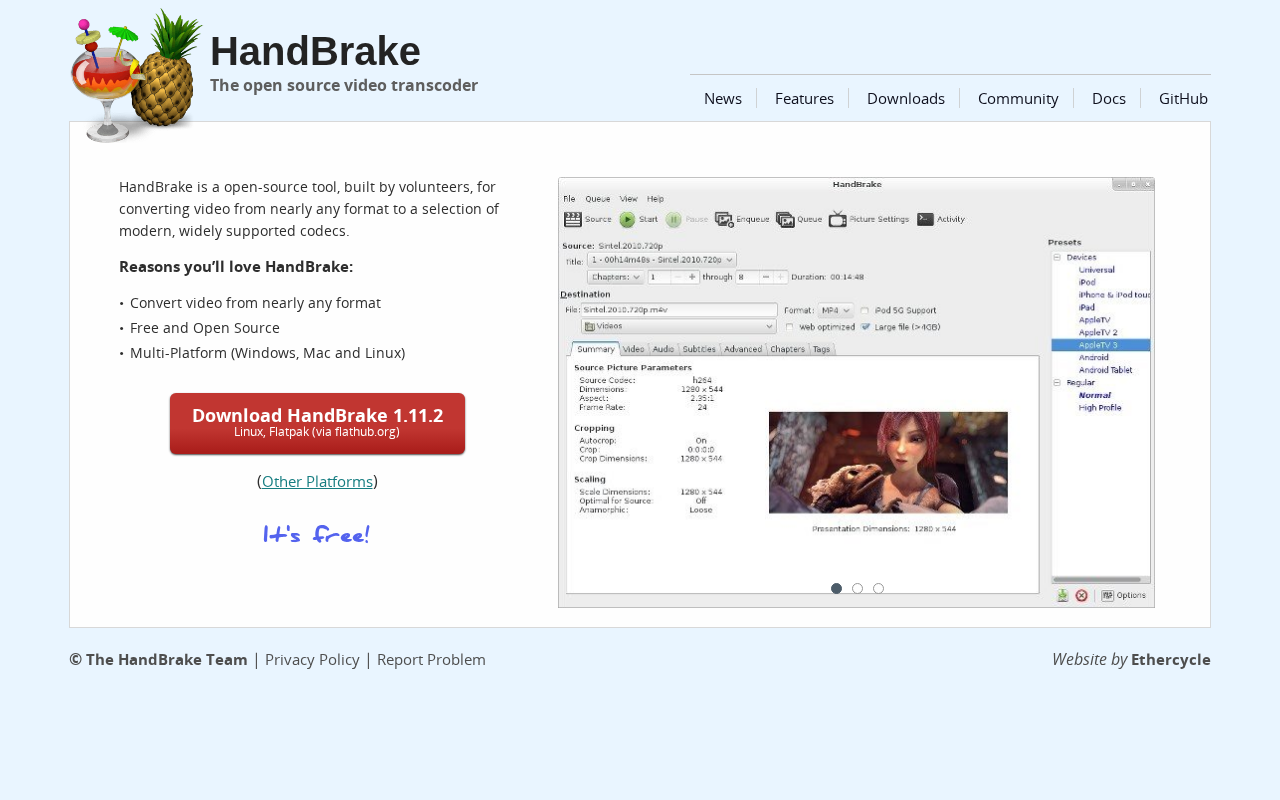
Which One Actually Makes Sense
If one of the three standard resolutions covers it, AI Convertly's converter is the fastest path and nothing ever leaves your device. If you're already in Clipchamp or QuickTime Player for something else, exporting at a different resolution from there saves opening a second tool entirely. Reach for FreeConvert when you need a genuinely custom size, not one of the three presets, and reach for VLC or HandBrake only if you already have one of them open or you're changing more than resolution alone in the same pass.
Video Resolution Converter
Convert a video to 480p, 720p, or 1080p.