PowerToys Image Resizer Alternative for Mac & Browser Users
PowerToys Image Resizer only runs on Windows. Here's what it actually does, and how to get the same batch-resize job done on a Mac or in any browser.
Microsoft's PowerToys Image Resizer is one of those tools people recommend constantly in Windows forums, right-click a folder of photos, pick a preset, and every file comes out resized in one shot. The problem shows up the moment you're on a Mac, a Chromebook, or just don't want to install a whole utility suite: PowerToys is a Windows shell extension. It hooks directly into File Explorer's right-click menu, and there's no Mac build, no Linux build, and no browser version, because it isn't really a standalone app at all, it's an add-on to Windows Explorer itself.
That's not a gap Microsoft is likely to close. Here's what PowerToys Image Resizer actually does, and what genuinely replaces it depending on whether you need one photo done now or a whole folder handled at once.
What PowerToys Image Resizer Actually Does
Once installed, it adds a Resize with Image Resizer entry to the right-click menu for any image or selection of images in File Explorer. You can also drag a selection with the right mouse button to resize-and-save in one motion, or drive it from a command line with PowerToys.ImageResizerCLI.exe for scripted batches.
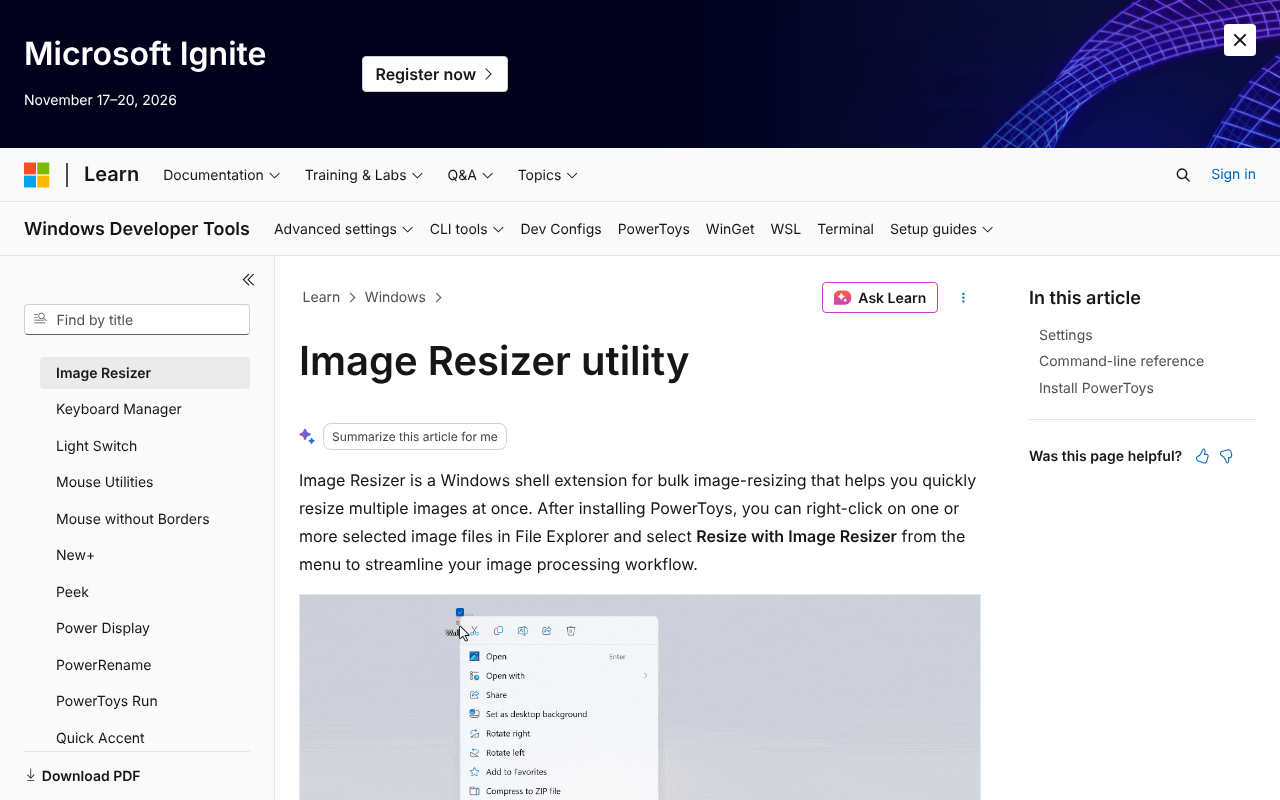
Inside, it offers four built-in presets, Small, Medium, Large, and Phone, plus custom sizes you define yourself in pixels, inches, centimeters, or percent. Three fit modes control how the output actually matches that target: Fit scales the whole image to fit inside the box without cropping, Fill scales and crops to fill the box exactly, and Stretch forces the exact dimensions regardless of the original proportions, distorting the image if the aspect ratios don't match. An Ignore the orientation of pictures option lets you process a mixed batch of portrait and landscape photos to the same effective size without it swapping width and height on you. The CLI adds JPEG quality control (1-100), metadata stripping, and a shrink-only mode that skips any file already smaller than the target.
The part that actually matters for most people searching for this, though, isn't any single setting. It's that selecting fifty photos and choosing one menu item resizes all fifty. That's the real job to replace, not just "resize an image."
Resize One Image Right Now, No Install, Works on Any OS
If what you actually need right now is just one photo, not a folder, AI Convertly's Image Resizer runs entirely in your browser's own JavaScript, so it works identically on macOS, Windows, Chromebooks, or Linux, nothing to download, nothing sent to a server.
- Open the Image Resizer and drop your photo onto the upload area.
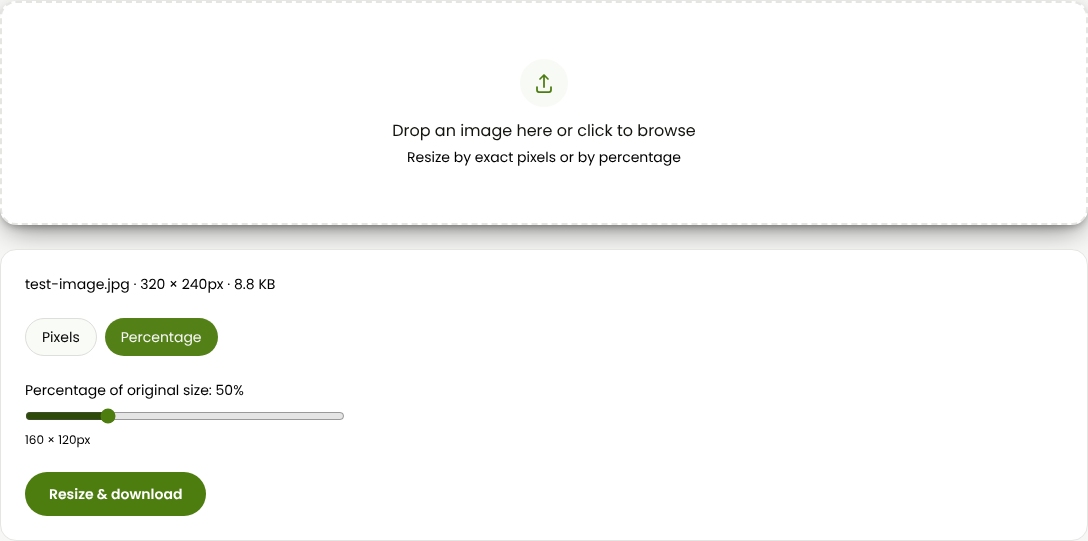
Stay on Pixels for an exact width and height, or switch to Percentage for a relative scale with Lock aspect ratio keeping the proportions intact as you type.
Click Resize & download.
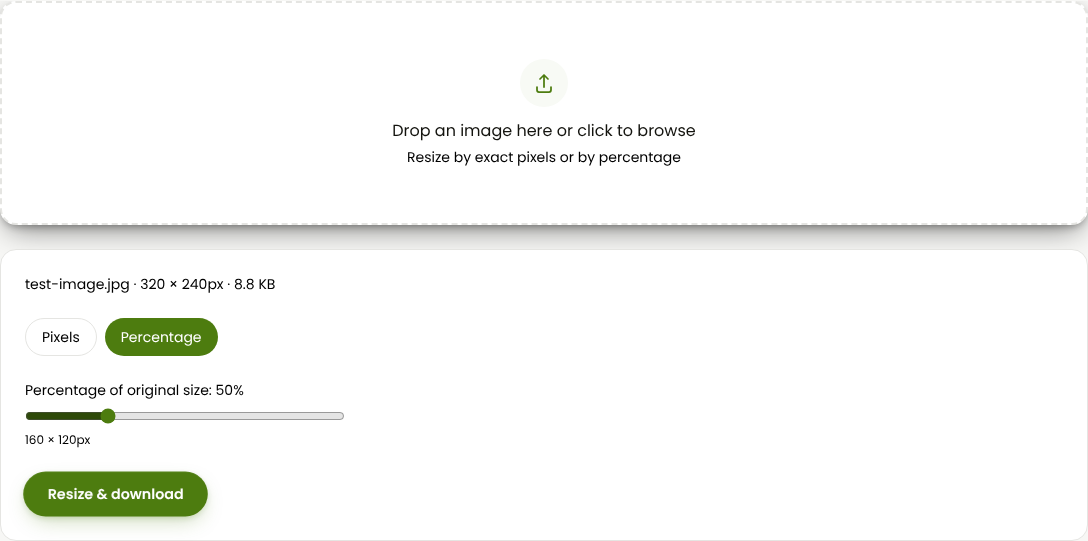
Where this honestly falls short of PowerToys: it handles one file at a time, with no batch button, no saved presets, and no Fit/Fill/Stretch crop modes. If a single resize is genuinely all you need, that's rarely a problem. If you're processing a whole folder, keep reading.
Batch-Resize a Whole Folder in Any Browser
The closest real equivalent to PowerToys' "select many, resize once" workflow, without installing anything and without it being Windows-only, is a browser tool built specifically for batches. Go to birme.net.
- Drag your whole folder of images onto the drop area, or click to browse and select them all at once. It takes JPG, PNG, WebP, and AVIF. Each one lands as its own thumbnail with a crop handle, next to the Width, Height, and Ratio fields.
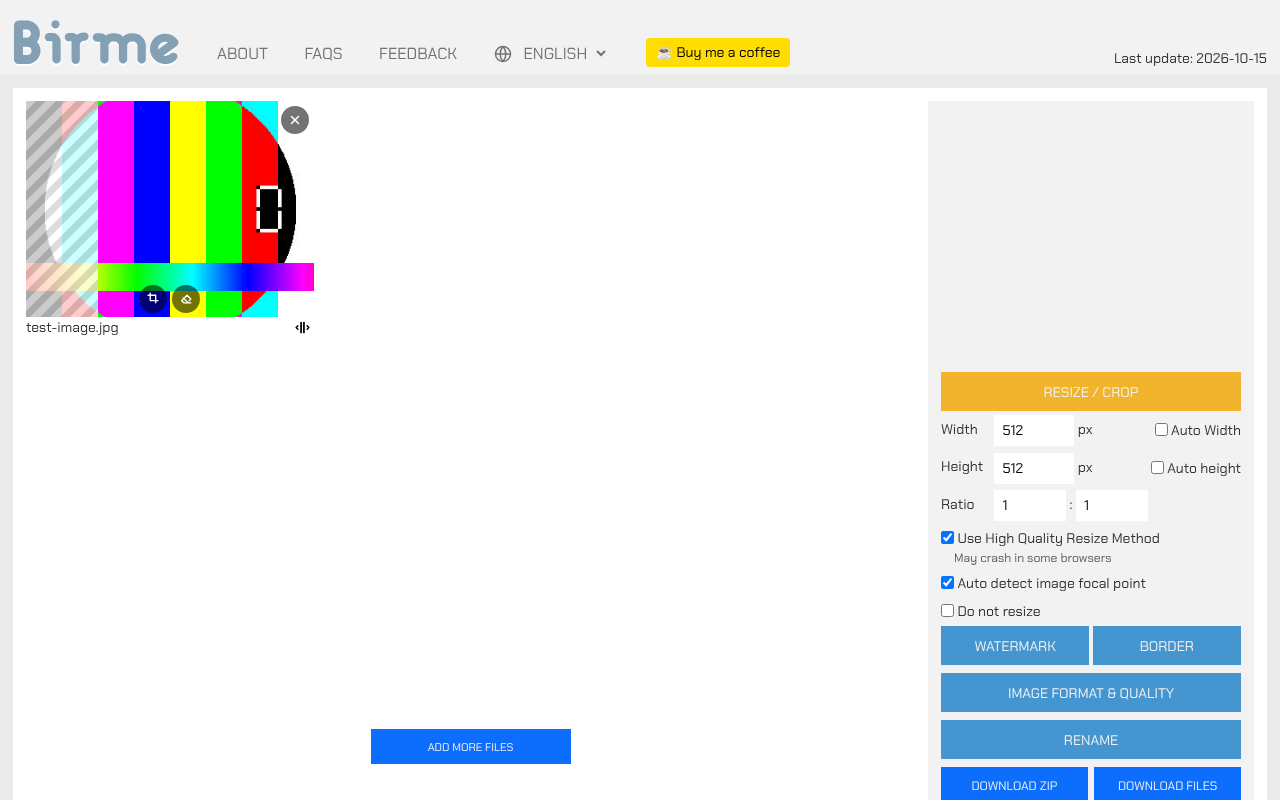
- Enter a width and height in pixels, leaving one field on Auto to keep it proportional, the same idea as locking aspect ratio. A "Do not resize" option skips resizing entirely if you only want format conversion.
- Pick an output format, keep the original or convert everything to JPEG, WebP, or AVIF, and set a quality percentage (around 80% is a reasonable default for web use).
- Click Download zip to get every resized file back in one archive, or Download Files to save them individually.
The tradeoff against PowerToys: processing is genuinely client-side (the tool states images aren't uploaded to a server), but it's still a website, so you're trusting that claim rather than it being enforced by your own OS the way a local utility is. It's also missing PowerToys' saved custom presets and its ignore-orientation option, there's no memory between visits. What it adds that PowerToys doesn't have at all: an automatic focal-point crop when you need Fill-style cropping, and it runs the same way on a Mac, a Chromebook, or Windows without caring which one you're on.
Already on a Mac? Batch-Resize With Preview, No Install Either
macOS ships with a built-in way to resize many photos at once, Preview, though the workflow is noticeably clunkier than a right-click menu.
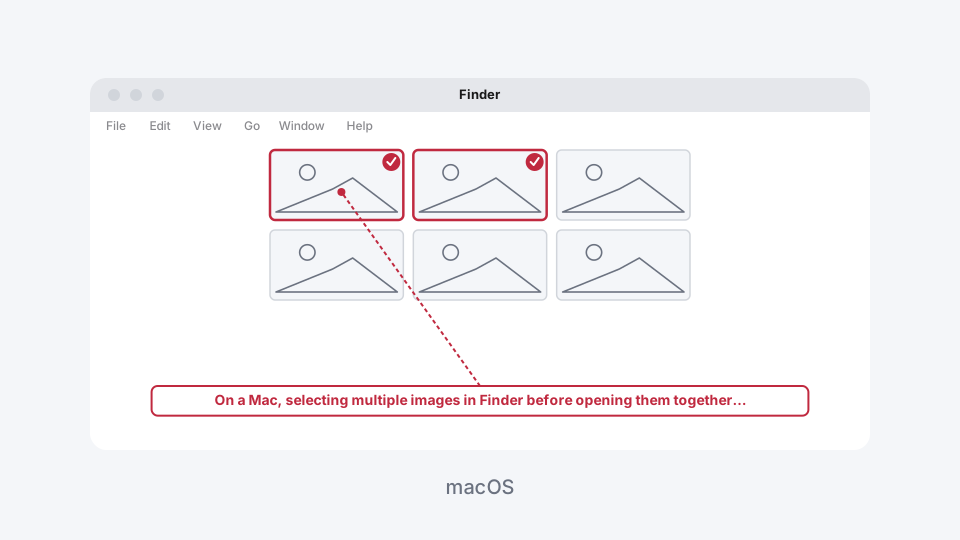
- In Finder, select every image you want resized, right-click, choose Open With, then Preview. This opens all of them in one window with a thumbnail strip down the left side.
In Preview's menu bar, go to Edit → Select All to select every thumbnail in the strip.
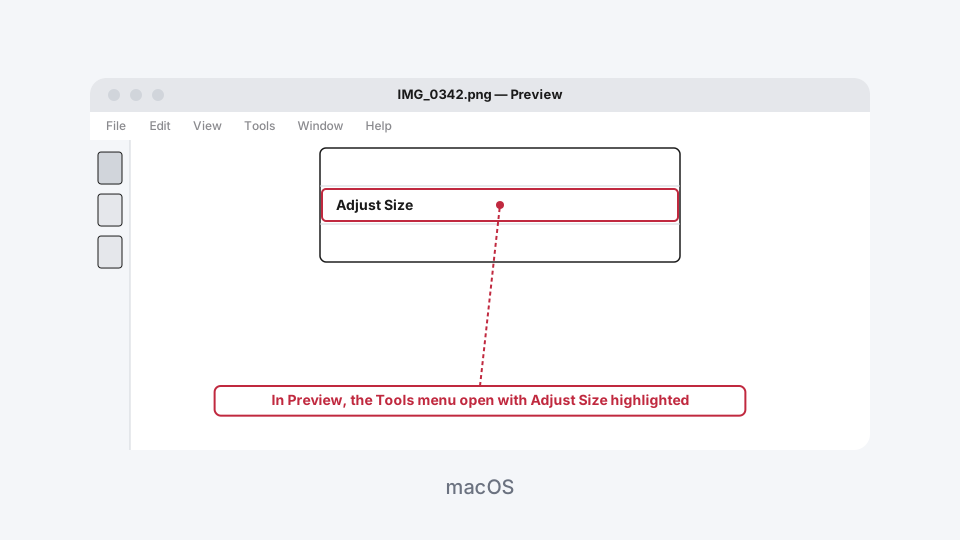
Click Tools → Adjust Size…
- Set a Fit Into preset, or type an exact width or height with the other field left blank to scale proportionally. Keep Scale proportionally and Resample image checked.
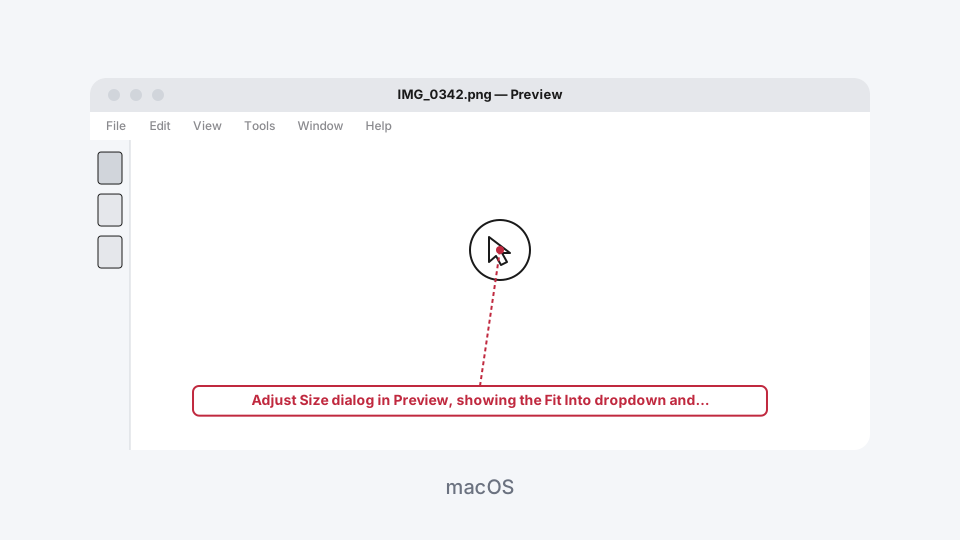
Click OK. The resize applies to every selected image at once, exactly like PowerToys' single-click batch job.
Quit Preview. It'll prompt you to save changes for every single image, one dialog after another, with no "apply to all" option. Pressing Enter repeatedly gets through them, but on a folder of fifty photos, that's fifty prompts, not one click.
That last step is the real difference from PowerToys, which writes every resized file in a single pass with no per-file confirmation at all. Preview gets you there for free with nothing to install, it's just more tedious the bigger the batch gets.
Which One Should You Actually Use?
For one photo, right now, on any device: AI Convertly's Image Resizer, nothing to install and nothing leaves your browser. For a real folder of images and you don't want a per-file save prompt, a browser batch tool like birme.net gets closest to PowerToys' actual workflow, minus the saved presets. If you're already on a Mac and don't mind clicking through save prompts at the end, Preview's Select All plus Adjust Size handles it with zero extra software. And if you're reading this on a Windows machine wondering whether to bother with any of the above, you already have the best option installed or one free download away, PowerToys Image Resizer's right-click menu is still the fastest way to do this job on Windows itself.
For resizing by exact pixels versus percentage in more depth, this guide covers the difference and when each one matters. And if the real goal is a smaller file size rather than smaller dimensions, reducing an image's file size without changing its dimensions is the separate problem that solves.
Image Resizer
Resize photos by exact pixels or by percentage.