How to Reduce Image File Size Without Changing Dimensions
A smaller file doesn't require smaller pixels. Here's how compression and format choice shrink a photo's size while its width and height stay exactly the same.
You've got an image at exactly the dimensions you need, a product photo sized to a listing template, a header image cropped to spec, a screenshot at the resolution a doc requires, and it's still too big in KB or MB. Shrinking the pixel dimensions would fix the file size, but it would also break the one thing you already got right. What you actually want is an image size reducer that leaves width and height alone and only touches how the image is stored.
That's a real, separate job from resizing. Resizing throws away pixels. Reducing file size without changing dimensions throws away something else entirely: redundant or imperceptible detail inside the pixels you already have.
Why Some Images Shrink Easily and Others Barely Budge
It comes down to whether the format is lossy or lossless, and what's actually in the picture.
JPEG and WebP are lossy. They're built to throw away detail the human eye mostly doesn't notice, smoothing out subtle color gradients and dropping high-frequency detail, in exchange for a much smaller file. That trade works great on photos, which are full of exactly the kind of soft, gradual detail lossy compression is good at approximating.
PNG is lossless. It stores every pixel exactly, which is why a PNG re-saved at a different "quality" setting doesn't get smaller the way a JPEG does. PNG has no quality slider because there's no quality to sacrifice. That's the right tradeoff for a screenshot, a logo, or flat-color graphics with sharp edges and a handful of colors, where lossy compression would introduce ugly artifacts around the edges. It's the wrong format for a photo, where PNG usually ends up several times larger than an equivalent JPEG for no visible benefit.
So if you actually want to reduce image size without moving a single pixel, the real lever is almost always one of two things: dial down how aggressively a lossy format compresses, or convert a photo that's sitting in PNG over to JPEG or WebP.
Fastest Way to Reduce Image Size: AI Convertly's Image Compressor
This runs entirely in your browser, nothing uploads anywhere, and its Quality mode never touches pixel dimensions, only how much detail gets thrown away when the file is re-encoded.
- Open the Image Compressor.
- Drop a JPG, PNG, or WebP image onto the upload area, or click it to browse. Anything that isn't already JPG or WebP gets converted to JPG automatically, since JPG compresses far better than PNG for anything photographic.
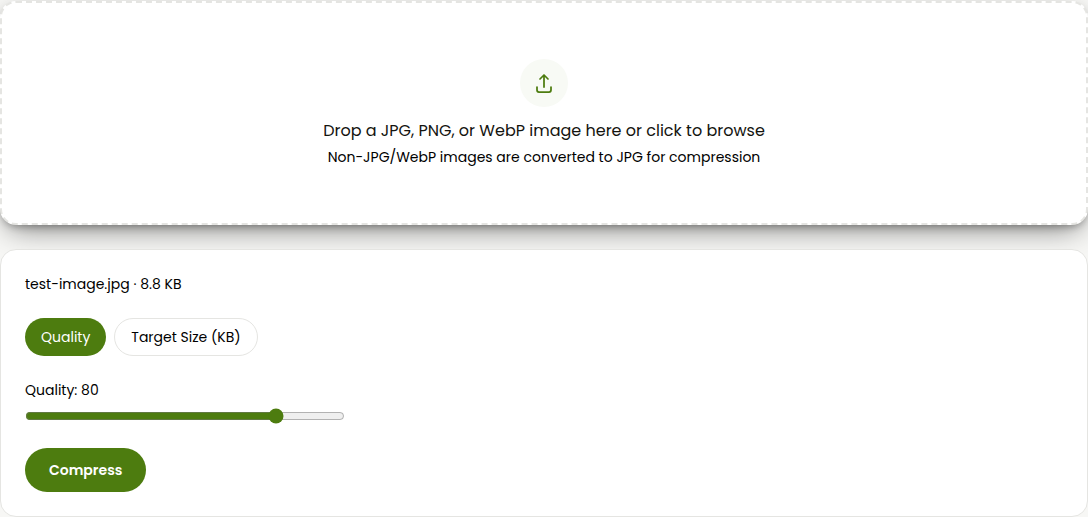
- Once it loads, you'll see the filename and original file size, plus two mode buttons: Quality and Target Size (KB).
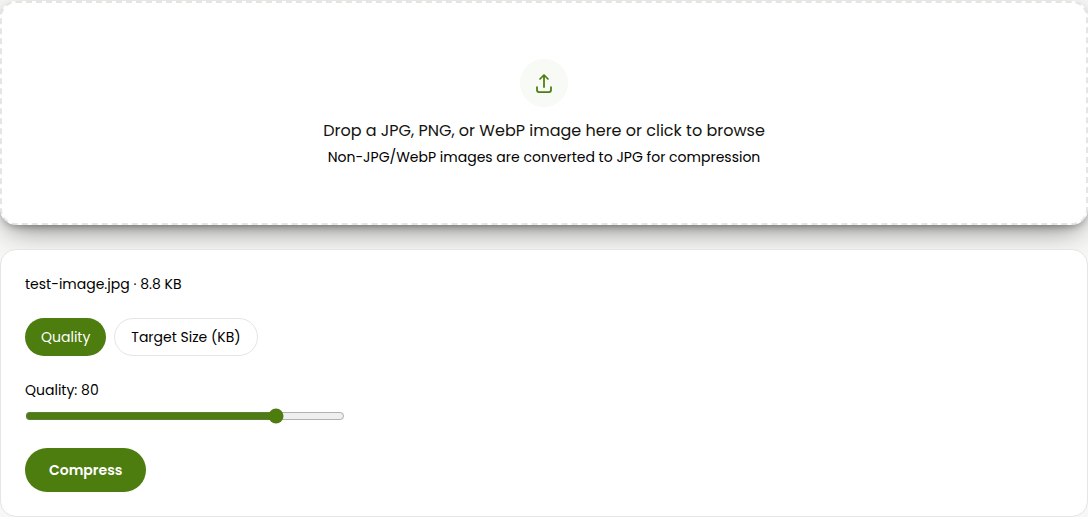
- Stay on Quality, the mode that matters here. It defaults to 80. Drag it down, dimensions never change in this mode, only how much detail survives the re-encode.
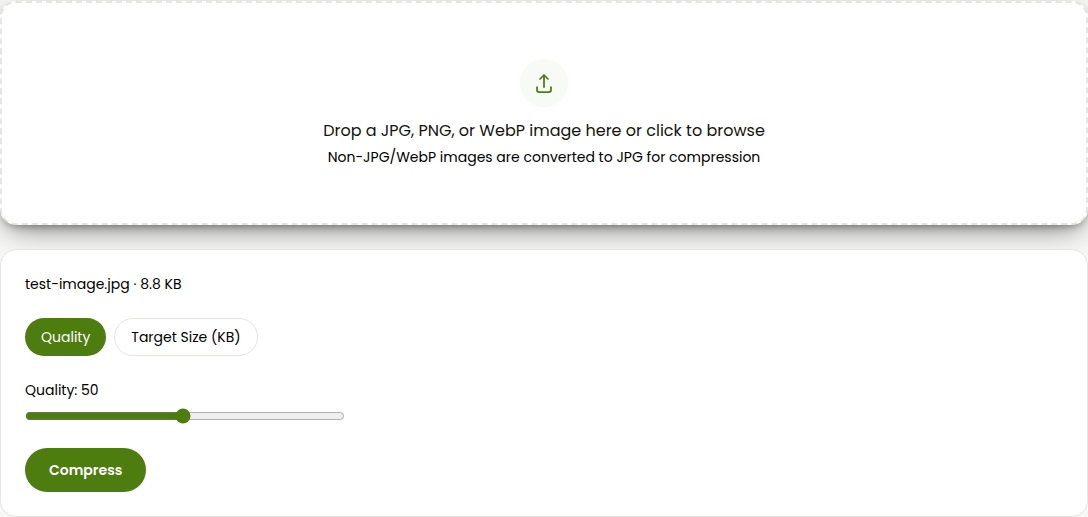
- Click Compress.
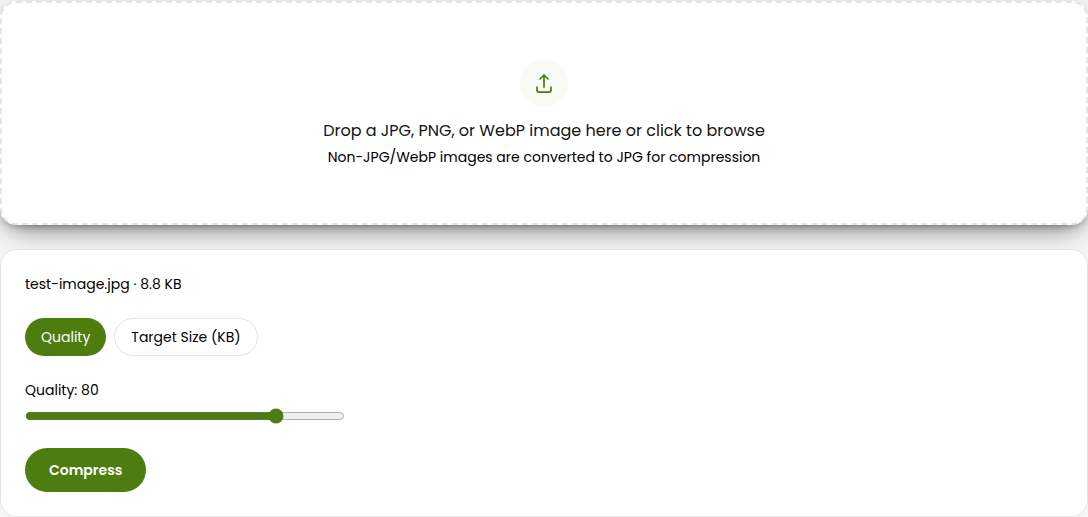
- The result panel shows the size before and after, plus the percentage saved. If it's still bigger than you'd like, drag the slider lower and compress again, there's no limit on how many passes you run.
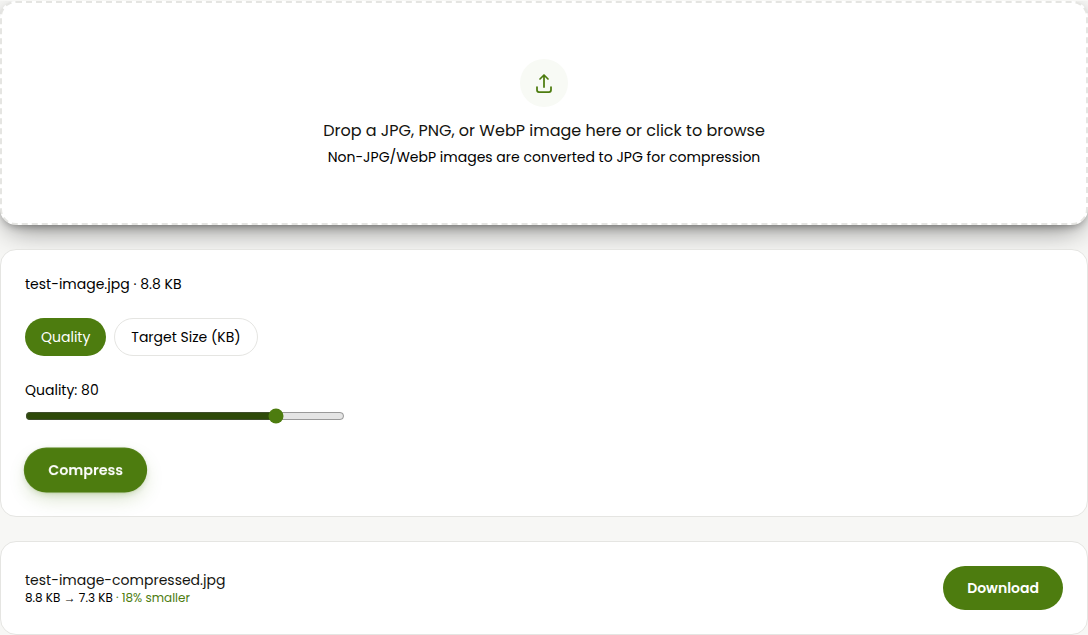
- Click Download.
Quality 60 to 75 is a reasonable range for most photos, low enough to matter, rarely low enough to look bad. If you have a specific number to hit rather than "as small as reasonable," the tool's other mode, Target Size (KB), does that too, though it may shrink pixel dimensions as a last resort if quality alone can't reach a very tight number. Quality mode never will.
TinyPNG: Fastest If You Don't Mind a Web Upload
TinyPNG is a long-standing favorite for exactly this job, and it's genuinely good at it. The tradeoff versus a browser-only tool is that your file leaves your device and goes to TinyPNG's servers for processing.
- Go to tinypng.com and drop your image (or up to 20 at once) onto the upload area. The free tier caps out at 5 MB per image.
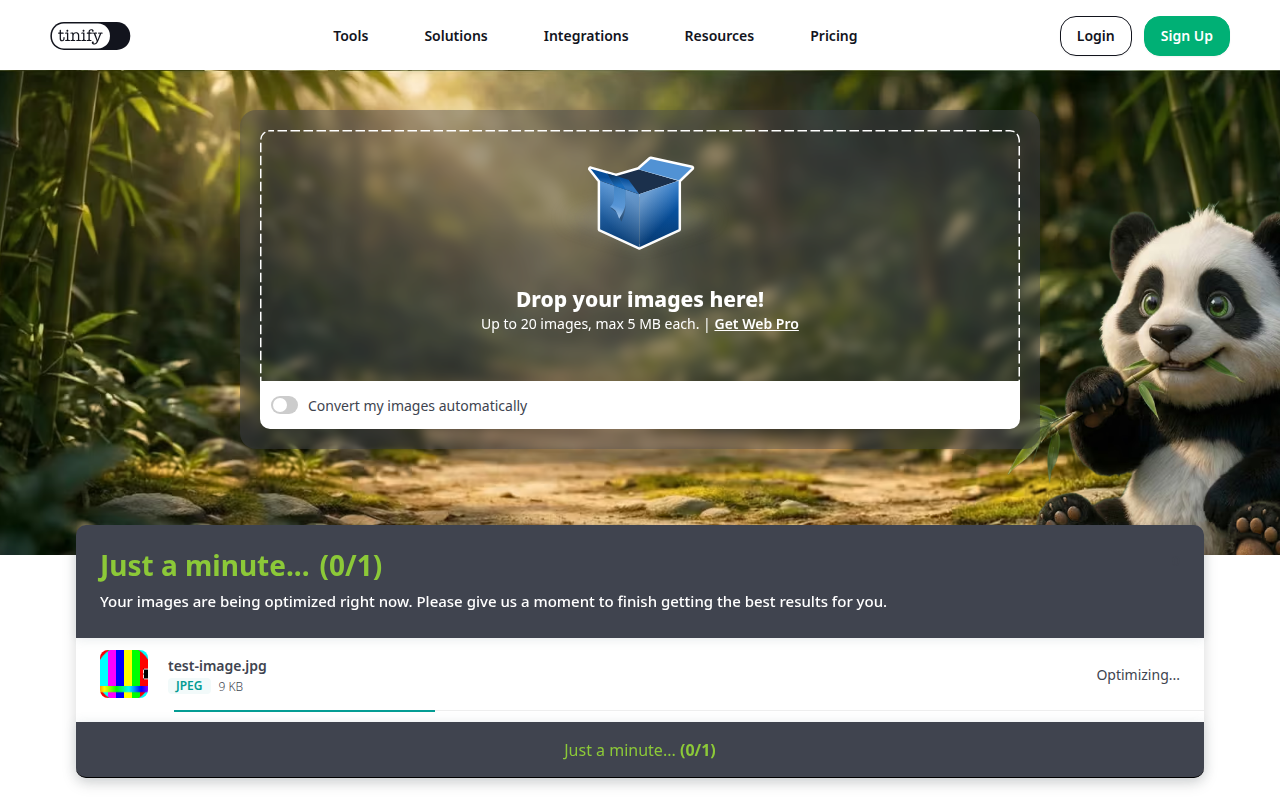
- TinyPNG runs its own lossy compression automatically, no slider to set, and shows the result with an interactive before/after comparison slider you can drag across the image to see exactly what changed.
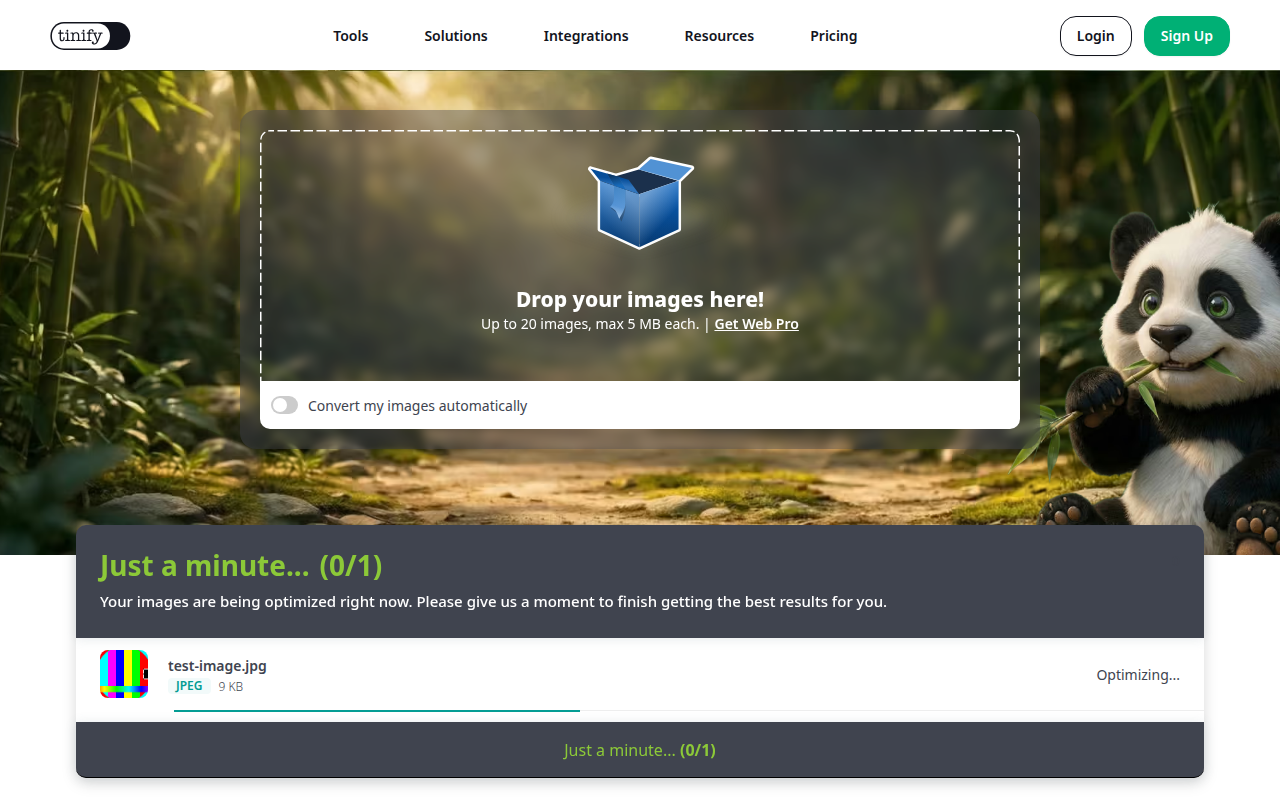
- Download the result, individually or as a ZIP if you compressed a batch.
There's no manual quality control here, TinyPNG picks the compression level for you based on the image content, which is either a convenience or a limitation depending on how much you want to fine-tune the tradeoff yourself.
Squoosh: For Comparing Codecs Side by Side
Squoosh is Google's open-source image compression tool, and unlike TinyPNG, everything happens locally in your browser, nothing uploads. It's the more involved option because it exposes real codec choices (MozJPEG, WebP, AVIF, and others) instead of picking one for you, which is exactly the point if you want to see the tradeoff yourself rather than trust a black box.
- Go to squoosh.app and drop in your image.
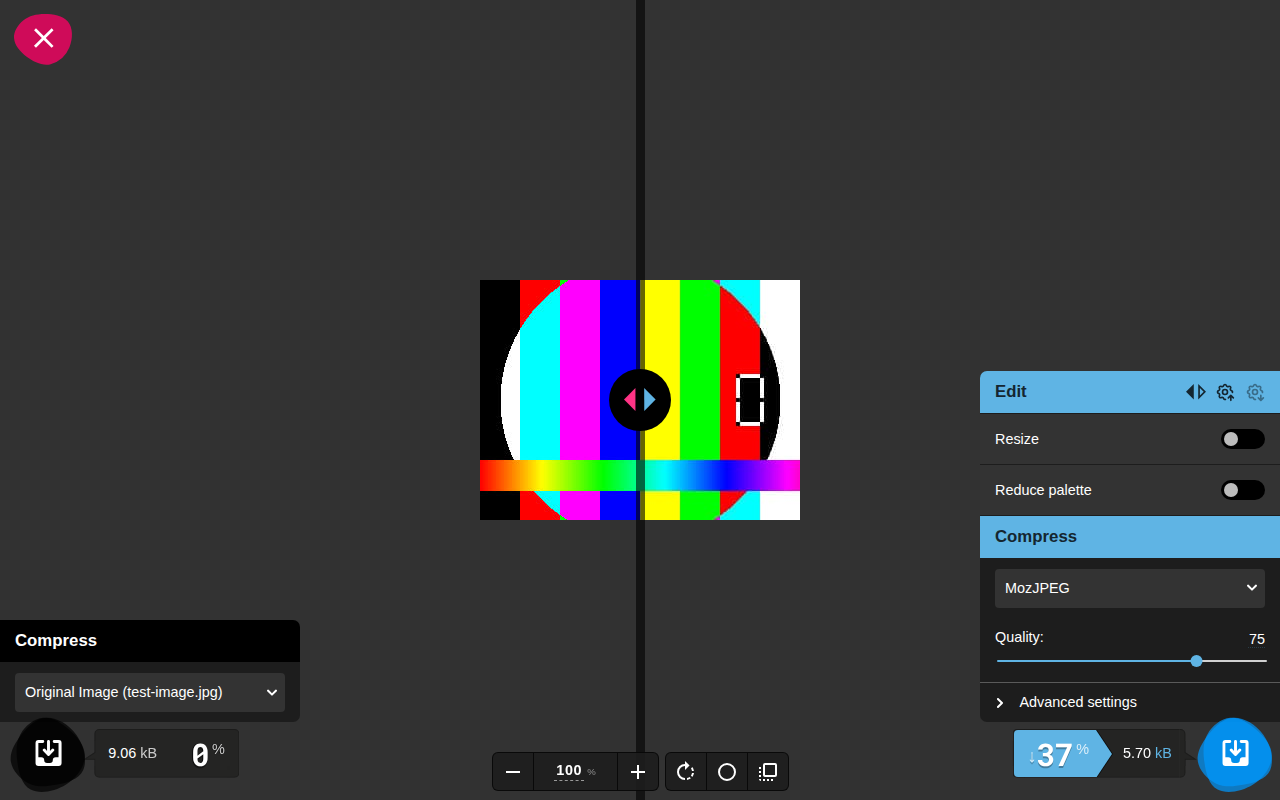
- Squoosh shows a split view, original on one side, compressed preview on the other, with a quality slider and a codec dropdown. Drag the divider to compare them directly at 1:1 pixel scale.
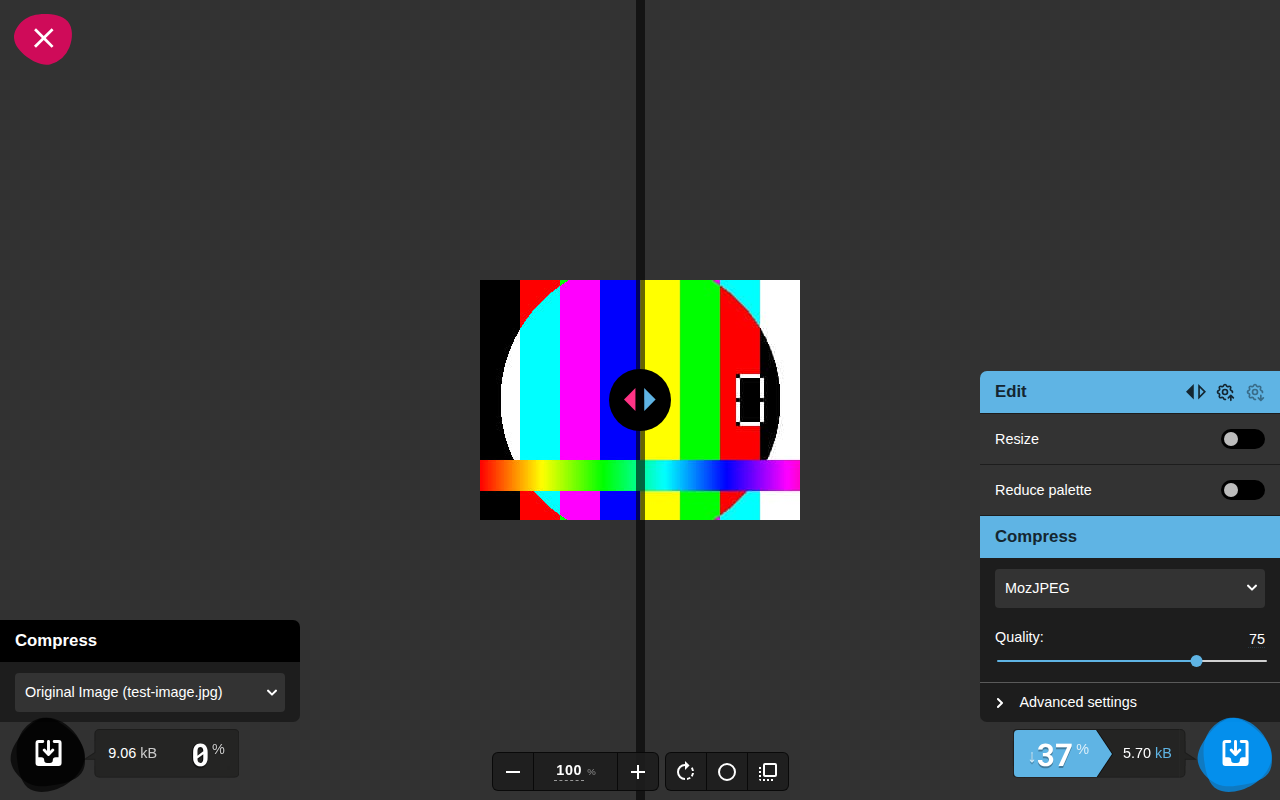
- Adjust quality until the file size shown at the bottom hits a number you're happy with, then download.
Because the comparison is visual and side by side, it's the best option here if you want to actually see what you're trading away, not just trust a percentage.
For a Whole Folder at Once: iLoveIMG
None of the above batch more than one file gracefully in the browser. If you've got a folder of product photos or screenshots that all need the same treatment, iLoveIMG's Compress Image tool handles JPG, PNG, and GIF uploads in bulk.
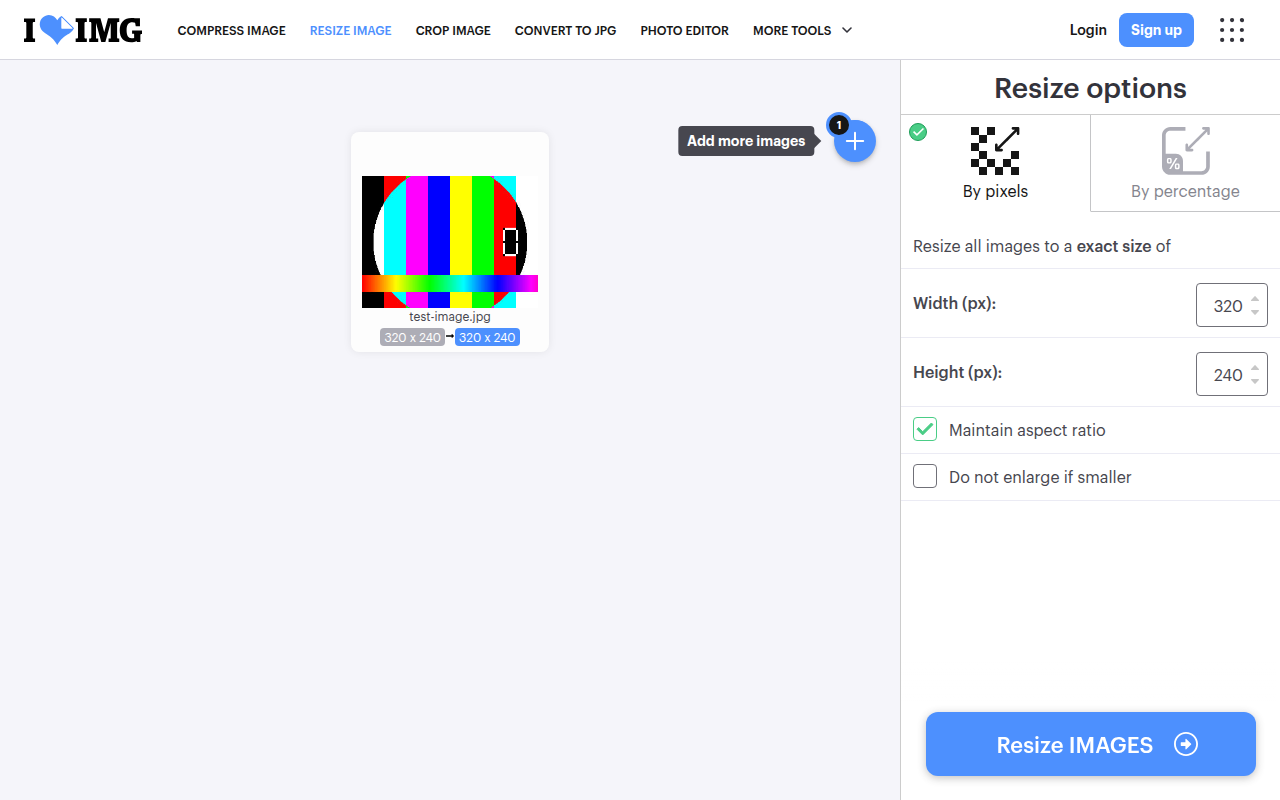
Upload the batch, let it compress, and download everything as a single ZIP. Like TinyPNG, this is a server-side tool, so weigh that against how much time batch handling saves you over running files through a browser-only tool one at a time.
On a Mac, Using Preview
Preview can do this without installing anything, as long as you skip the resize step entirely and go straight to export.
- Open the image in Preview.
- Go to File → Export.
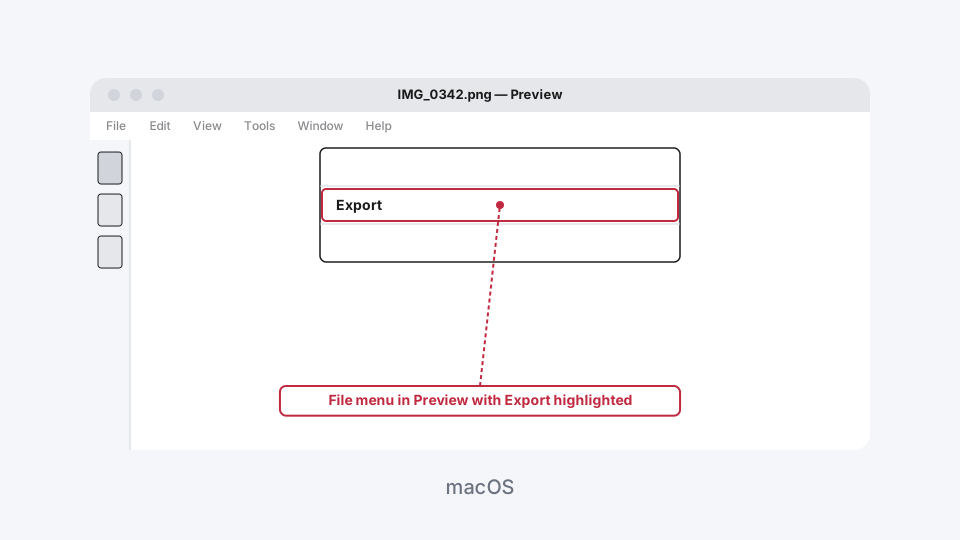
- Set the format to JPEG.
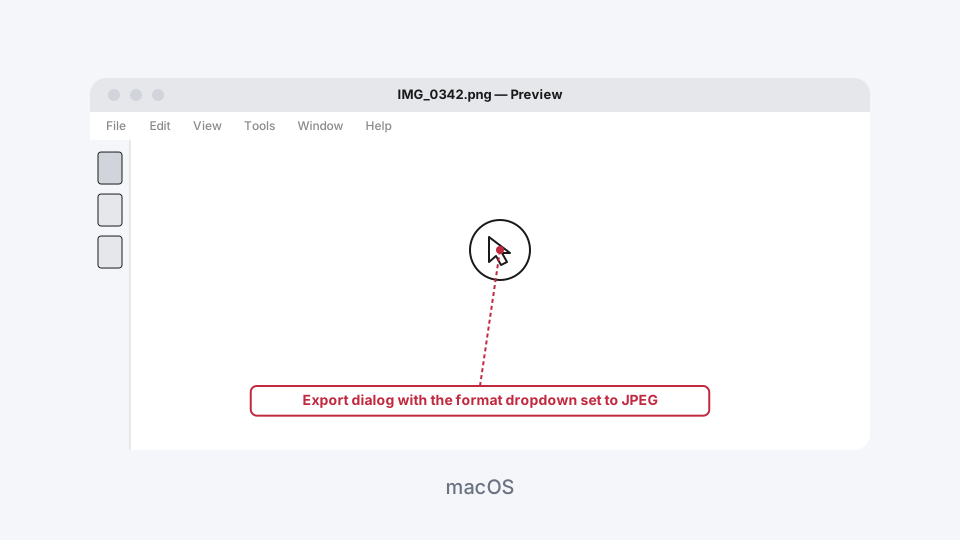
- Drag the Quality slider down and click Save. Don't open Tools → Adjust Size first. That's the dimension-changing step, and it's not what you want here.
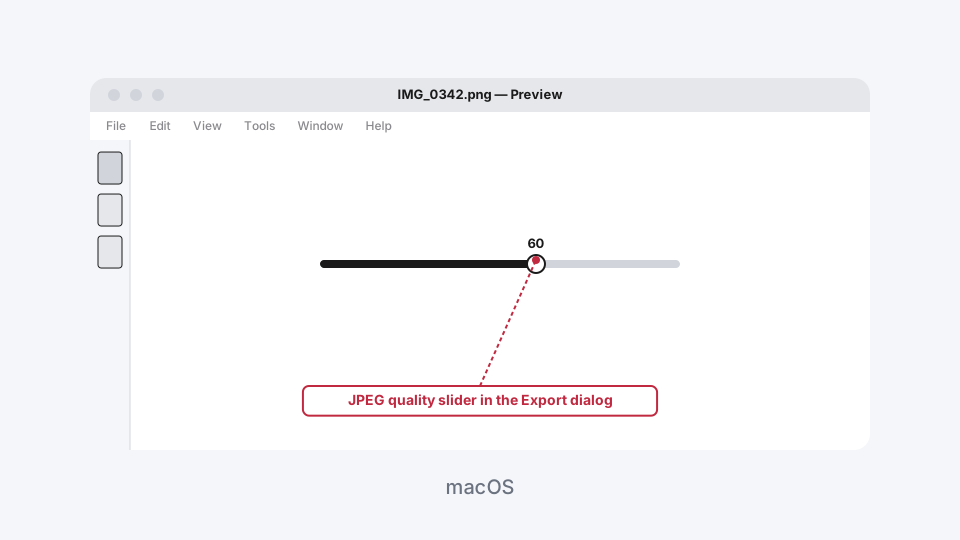
- Check the result in Finder with Cmd+I and re-export at a lower quality if it's still too big.
On Windows
Windows doesn't have a built-in equivalent. Paint can resize an image, changing its dimensions, but neither Paint nor the Photos app exposes a JPEG quality slider the way Preview does, so there's no native way to shrink a photo's file size on Windows without also shrinking its pixels. Right-clicking a photo and zipping it doesn't help either. JPEG is already a compressed format, so a ZIP on top of it saves next to nothing (full explanation here if you're curious why). A browser-based compressor is the more capable option on Windows for this specific job, not just the more convenient one.
Which One Should You Actually Use?
For a one-off photo, the Image Compressor's Quality mode is the fastest path that guarantees your dimensions never move, and nothing leaves your device. If you want TinyPNG's automatic tuning and don't mind a web upload, it's a solid one-click alternative. Squoosh is worth the extra step if you want to see exactly what a given quality level costs you before committing. For a whole folder at once, iLoveIMG's batch handling beats doing them one by one. And if you're on a Mac and only need one file, Preview's export dialog does the job without opening anything new, Windows users don't have that option and are better served by a browser tool either way.
Image Compressor
Shrink file size by quality, or to an exact KB target.