How to Resize an Image by Exact Pixels or Percentage
Resizing to exact pixel dimensions and resizing by percentage are different jobs. Here's how to do each one with a browser tool, iLoveIMG, Preview, or Paint.
"Resize image" covers two genuinely different jobs. Sometimes you need exact numbers: a listing site wants 1600 x 1200px, a form caps uploads at 2000px wide, a template expects a precise square. Other times you just want the photo smaller or bigger without caring about the exact figure, drag a slider to half size, or double it for a print order. Pixels and percentage are two different controls for two different questions, and mixing them up is why people end up with an image that's technically resized but still the wrong shape for whatever they needed it for.
If what you're actually chasing is a specific file size in KB rather than a pixel dimension, like a visa photo or exam upload with a strict size cap, that's a related but separate problem with its own tradeoffs. This guide covers hitting an exact KB target instead. Everything below is about dimensions, not file size, though the two aren't unrelated: fewer pixels almost always means a smaller file too.
Pixels vs. percentage: which one do you need?
Reach for pixels when something external is dictating the number: a website's upload spec, a print size in inches at a known DPI, a template with fixed dimensions, an app icon or banner spec. You need the output to be exactly 800 x 600px or whatever the spec says, not approximately that size.
Reach for percentage when there's no external number at all, just a relative goal: half the size, twice the size, "small enough to email without choking." You don't care if the result is 1247px or 1250px wide, only that it's roughly proportional to where you started.
Both modes do the same underlying math (percentage just means "pixels, calculated relative to the original"), but which one you pick determines whether you get the number you actually need or a number that happens to be close.
Resize by Exact Pixels or Percentage With the Image Resizer
AI Convertly's Image Resizer handles both modes in one tool, runs entirely in the browser, and doesn't touch a server, so there's no upload wait and no size limit tied to a free-tier cap.
- Open the Image Resizer.
- Drop your image onto the upload area, or click it to browse. It takes JPG, PNG, WebP, and most other common image formats.
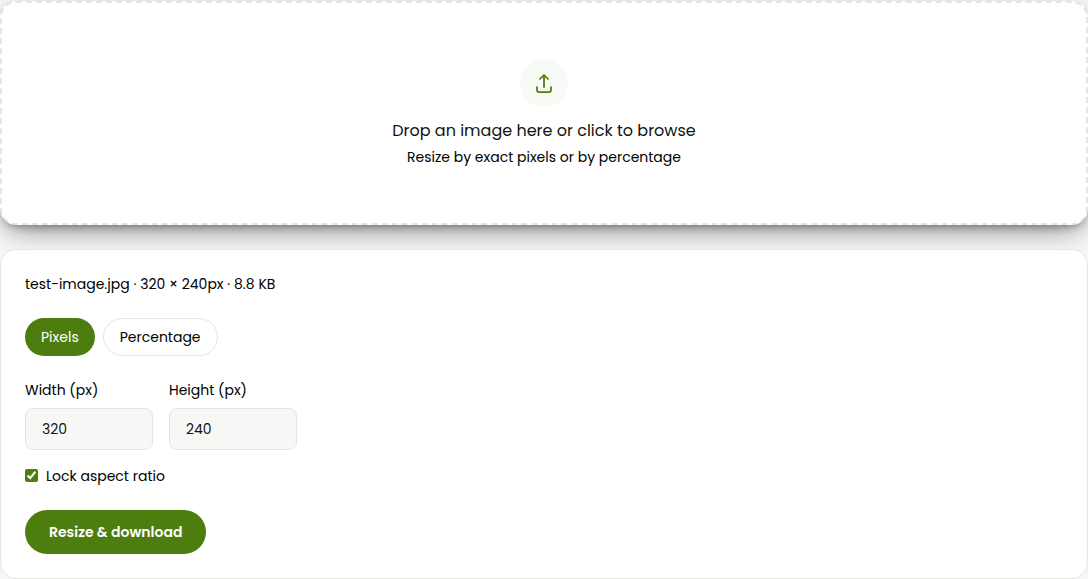
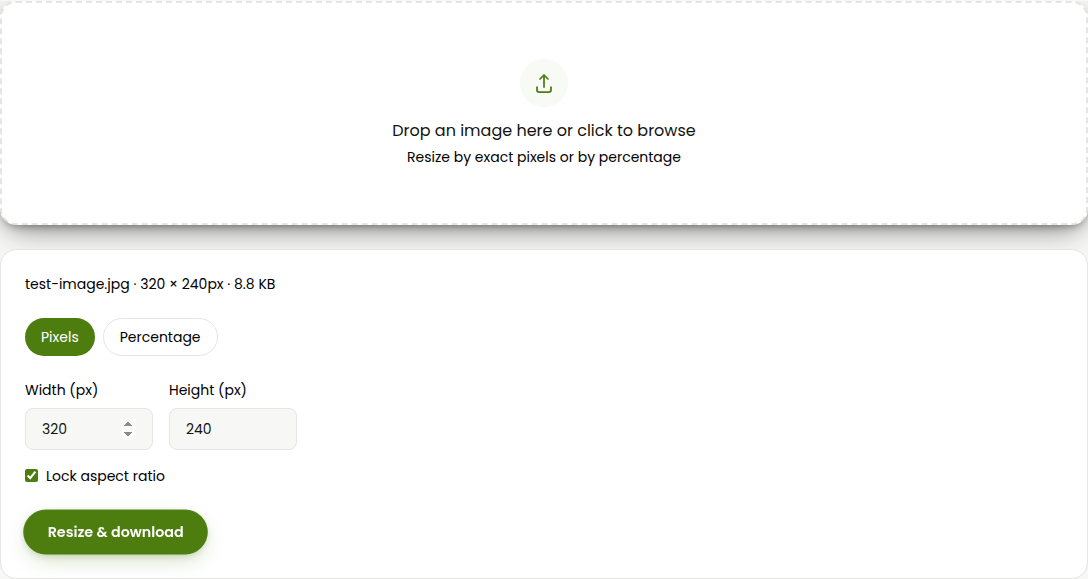
- Once it loads, you'll see the filename, original dimensions, and file size printed together, along with two pill buttons: Pixels and Percentage.
- For an exact size, stay on Pixels and type the width and height you need into the two fields.
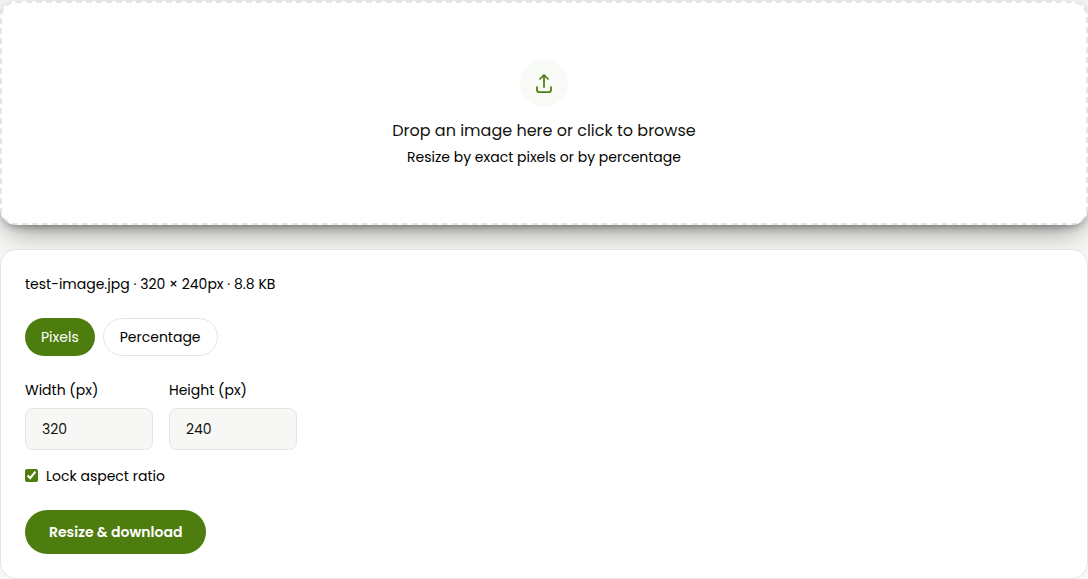
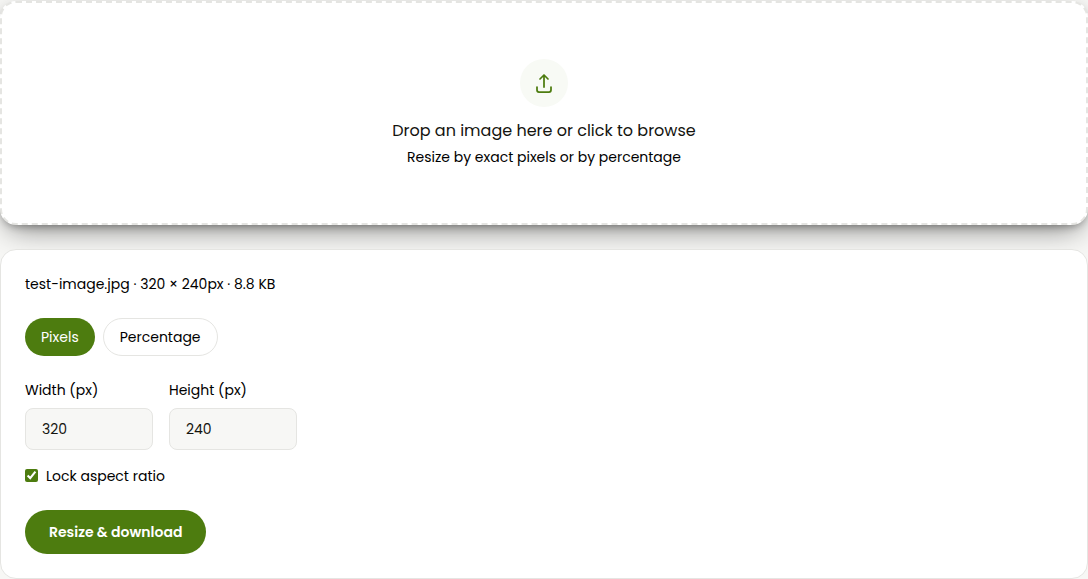
- Lock aspect ratio is checked by default, so typing a width automatically recalculates the height to match the original proportions. Uncheck it only if you deliberately want to stretch or squash the image, which is rarely what you want for a photo.
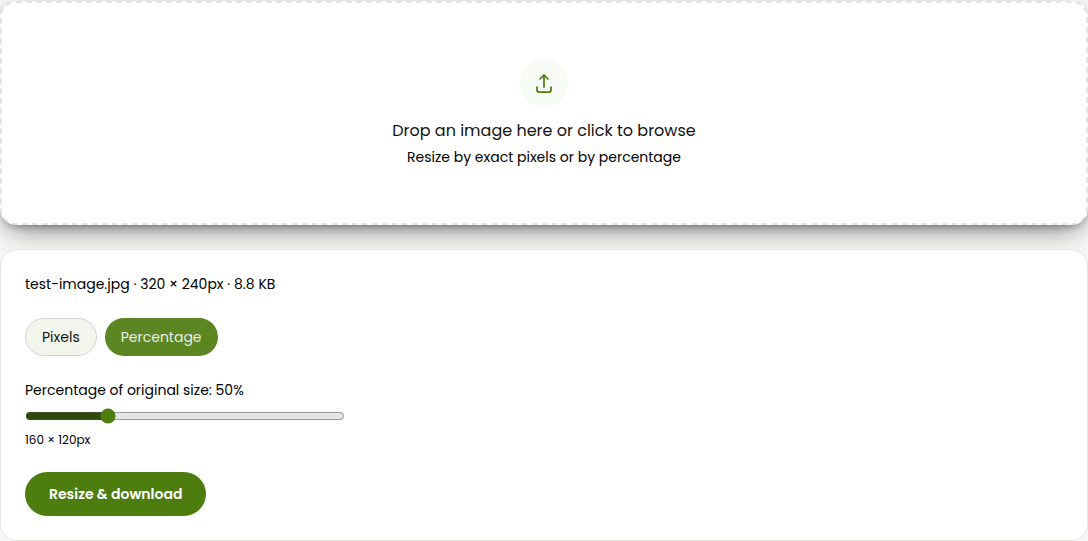
- For a relative resize instead, click Percentage. Drag the slider and watch the resulting pixel dimensions update live underneath it, so you always know the exact output size before committing to it.
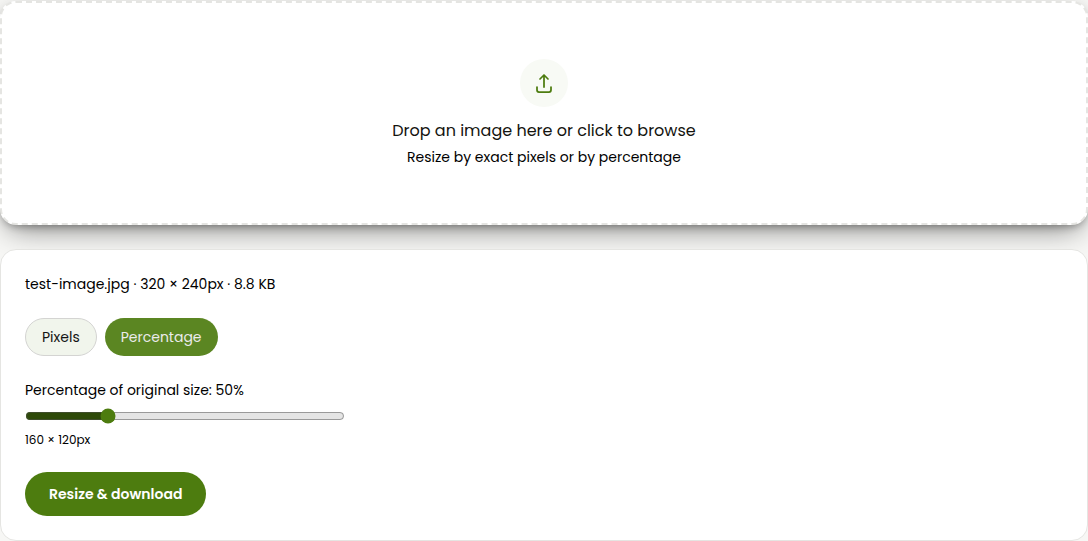
- The slider actually runs from 1% to 200%, so you can enlarge an image up to double its original size, not just shrink it. Worth knowing, but worth using carefully: stretching pixels that don't exist yet always costs some sharpness, and it gets noticeable past about 150%.
- Click Resize & download.
- The file downloads automatically in the same format you uploaded (JPG stays JPG, PNG stays PNG), with "-resized" added to the filename, so the original is never overwritten.
There's no separate crop step here. The output keeps the same aspect ratio as your crop-free original unless you unlock it, so if what you actually need is to cut part of the frame out rather than scale the whole thing down, that's a different tool.
For Batch Resizing: iLoveIMG
If you've got a folder of images that all need the same treatment rather than one file, a browser-based batch tool saves a lot of repetitive clicking. iLoveIMG's Resize Image tool is a solid free option for this.
- Go to iLoveIMG's Resize Image tool and upload all the images you want resized at once.
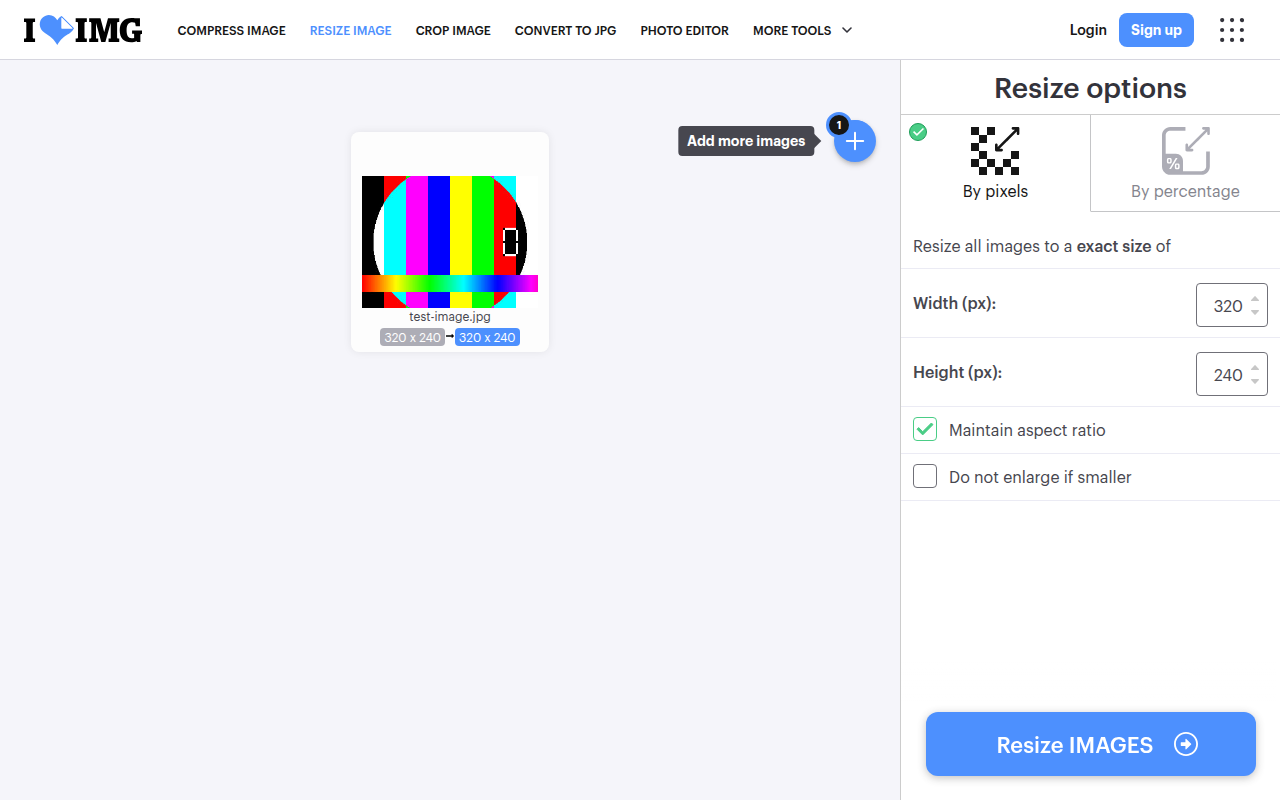
- Choose By pixels for an exact width and height, or By % for a proportional scale, then set your value.
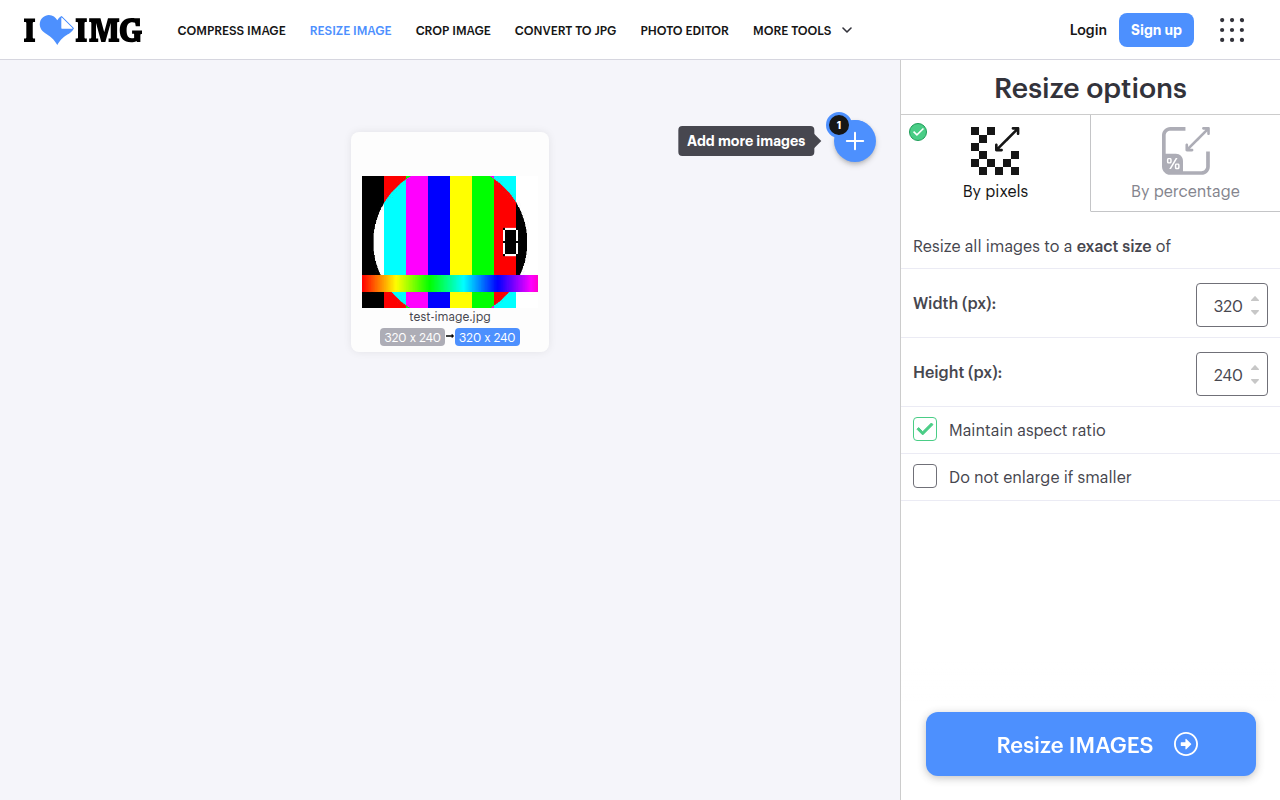
- Turn on Maintain aspect ratio if you want proportions preserved (recommended for photos), and check Do not enlarge if smaller if you're processing a mixed batch and don't want smaller images stretched up past their original size.
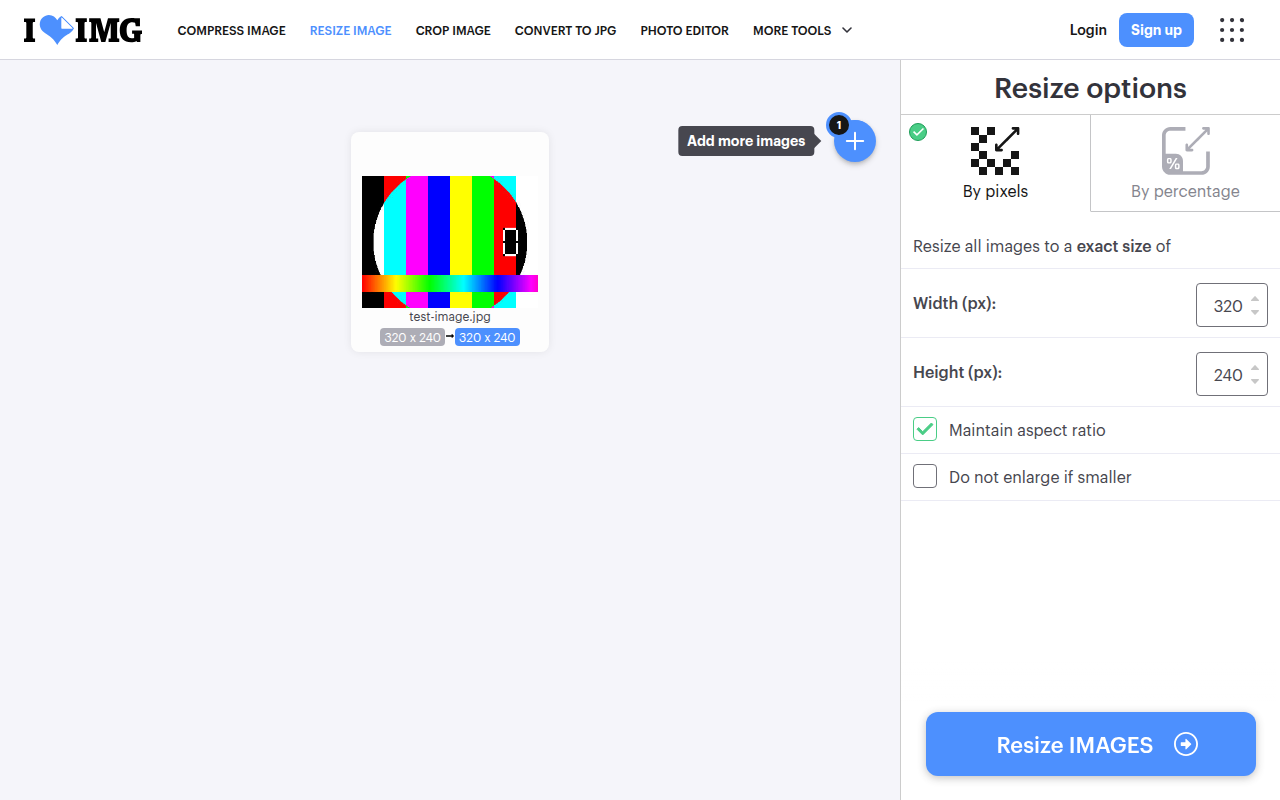
- Run the resize and download the results, either individually or as a single ZIP.
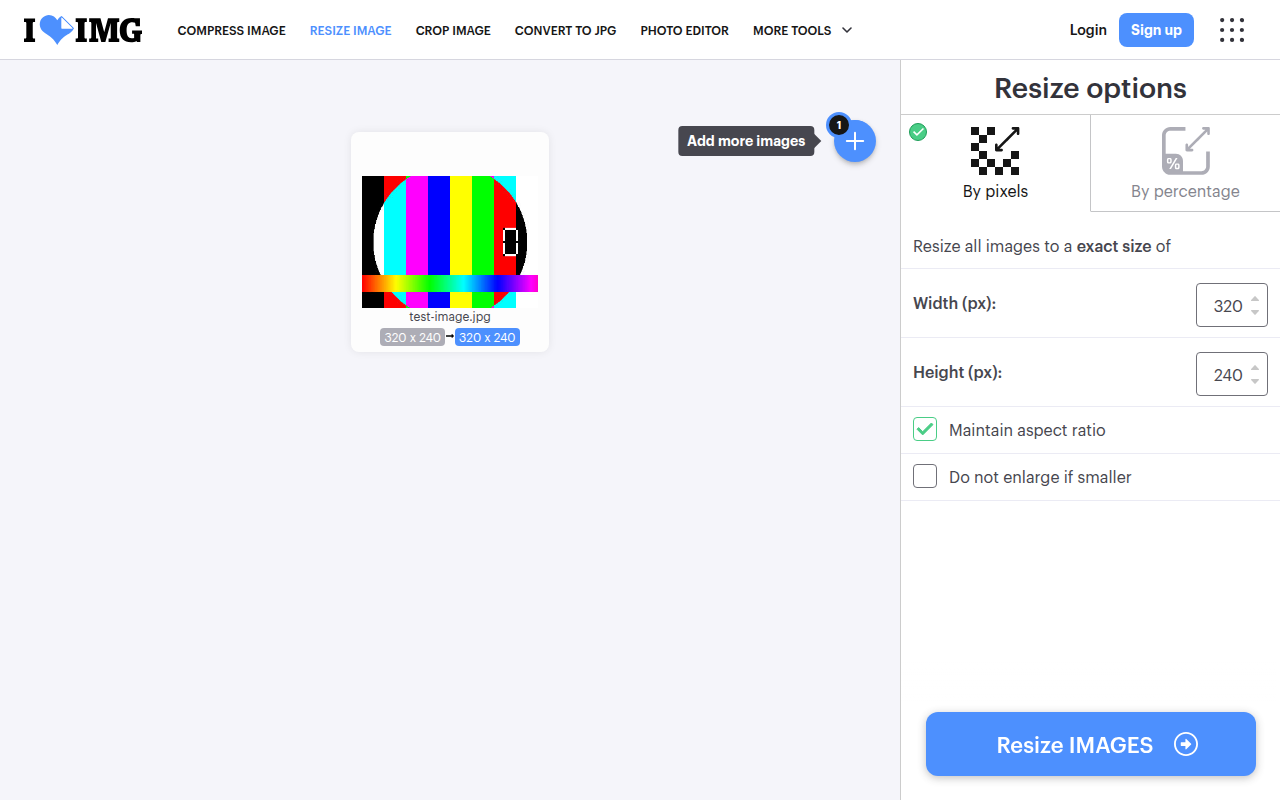
The batch handling is the real advantage here over a single-image tool. The tradeoff is that it's a web upload, so your files leave your device and sit on iLoveIMG's servers for however long processing takes, and free usage is capped if you're doing this constantly rather than as an occasional batch job.
On a Mac, Using Preview
Already on a Mac and only need one or two files done? Preview can do a genuinely exact pixel resize without installing anything.
- Open the image in Preview.
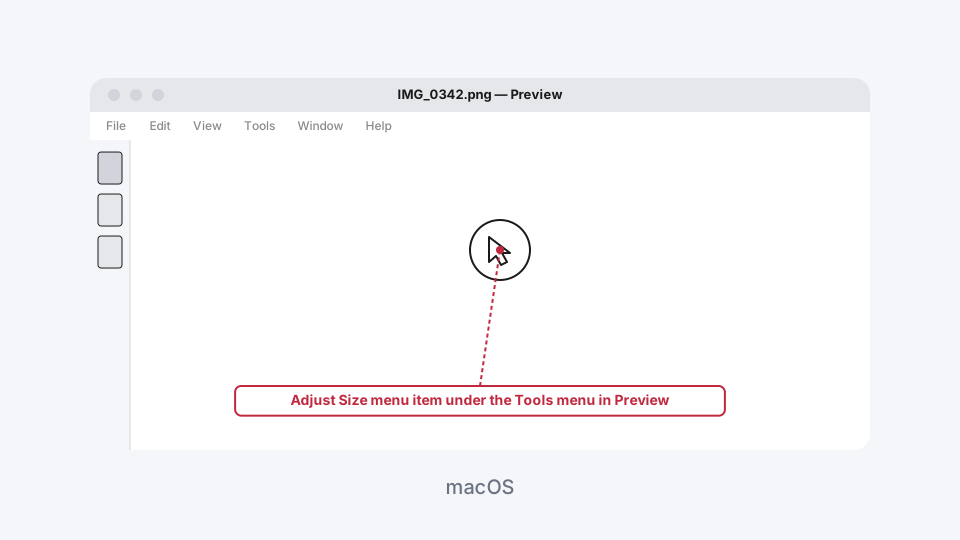
- Go to Tools → Adjust Size.
- In the dialog, you'll see Width and Height fields with a units dropdown next to them. Leave it on pixels for an exact size, or switch it to percent for a relative resize.
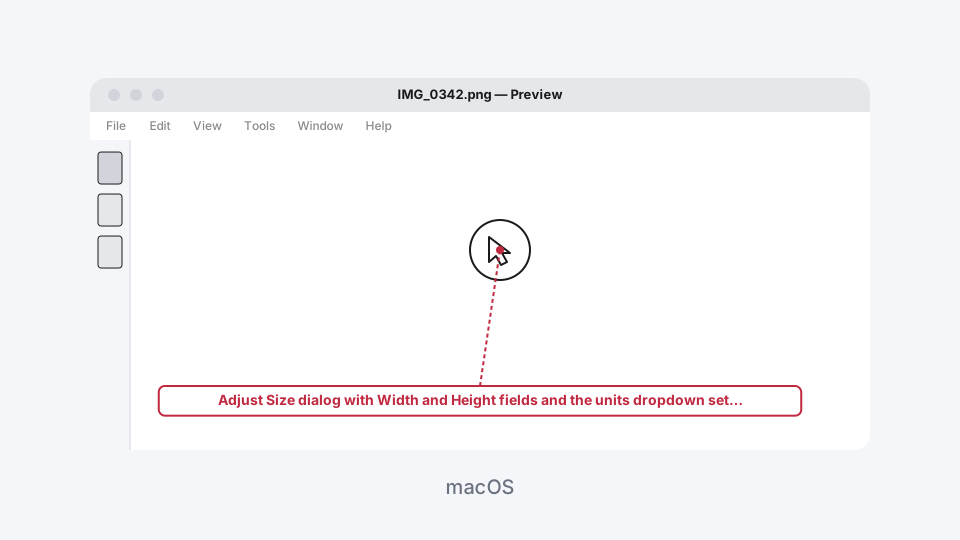
- Scale proportionally is checked by default, same idea as the lock aspect ratio option above: change one dimension and the other follows automatically.
- Leave Resample image checked. Unchecking it changes the image's resolution metadata without actually changing its pixel count, which is useful for print sizing but won't get you a smaller file or a specific pixel dimension.
- Click OK, then save or export the result.
On Windows, Using Paint
Windows doesn't need a third-party install for this either. Paint's built-in resize tool covers both pixels and percentage cleanly.
- Open the image in Paint.
- In Windows 11, click Image in the top menu and choose Resize and skew, or just press Ctrl+W. (Windows 10 puts the same option on the Home ribbon tab, same shortcut.)
- The resize dialog has a mode dropdown for Pixels or Percentage. Pick whichever matches what you're trying to do.
- Maintain aspect ratio is on by default here too, so one dimension follows the other automatically unless you turn it off.
- Enter your value and click OK, then save the file.
The Photos app also has a resize option tucked under its three-dot menu, but it's less precise about exact pixel control than Paint, so Paint is the more reliable built-in choice when the exact number actually matters. If you're resizing the same way over and over on a lot of files, Microsoft's free PowerToys utility adds a right-click "Resize pictures" option with saved presets, which is worth knowing about but is really its own separate topic once you're doing this often enough to want it automated.
Which Method Should You Actually Use?
For a one-off image where you need an exact pixel size or a clean percentage scale, the Image Resizer gets you there in a few clicks with a live preview of the exact output dimensions before you commit, and nothing leaves your device. If you're processing a whole folder of images identically, iLoveIMG's batch handling saves real time over doing them one by one. And if you're already sitting in Preview or Paint for something else, both handle a quick resize perfectly well without opening anything new. All of them ultimately do the same math. What changes is how much control you get over the process and how many files you can push through it at once.
Image Resizer
Resize photos by exact pixels or by percentage.