iLoveIMG Alternatives: Free Browser-Based Image Tools
iLoveIMG covers more tools, but it uploads your photo and caps free use. Here's how AI Convertly's resizer, compressor, and converter compare, plus Squoosh.
iLoveIMG shows up near the top for almost any "resize image online" or "compress image free" search, and it genuinely does a lot: resizing, compressing, cropping, converting, watermarking, even a meme generator and an AI background remover, all from one site. What its own pages don't lead with is that every one of those tools uploads your photo to iLoveIMG's servers first, and the free tier caps how many times a day you can do that before it asks you to sign up or pay.
If you just need one photo resized or compressed right now and don't want to hand it to a server to do that, here's what actually handles the job without the upload, and where iLoveIMG still wins because it does things these alternatives simply don't.
AI Convertly's resizer, compressor, and converter (free, no upload, no account)
These are the tools built into this site, so they go first, and they're genuinely worth trying first: every one of them runs the resize or compression math on your own device, in the browser tab you're already looking at, instead of sending your photo anywhere.
Resizing an image by pixels or percentage
- Open the Image Resizer.
- Drop your photo onto the upload area, or click it to browse.
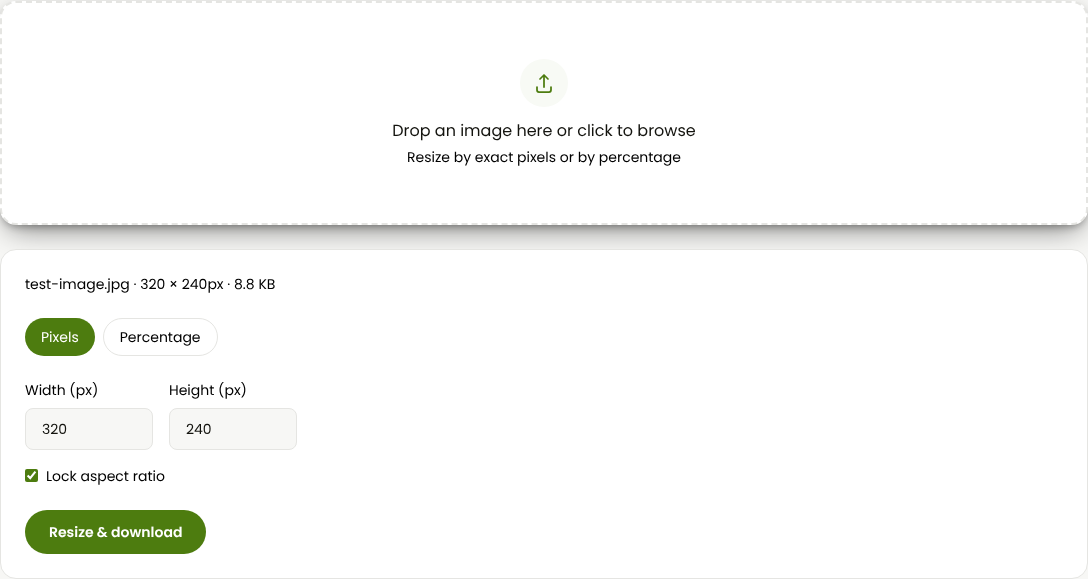
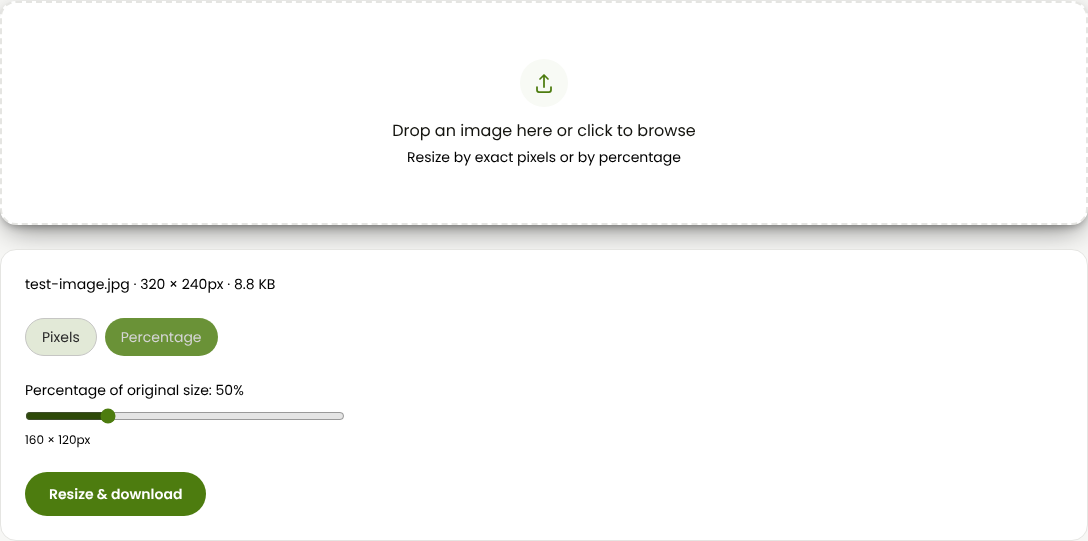
- Pick Pixels if you need an exact width and height, or Percentage if you just want it smaller by a proportion. Pixels mode keeps a Lock aspect ratio checkbox on by default, so typing a new width adjusts the height to match automatically.
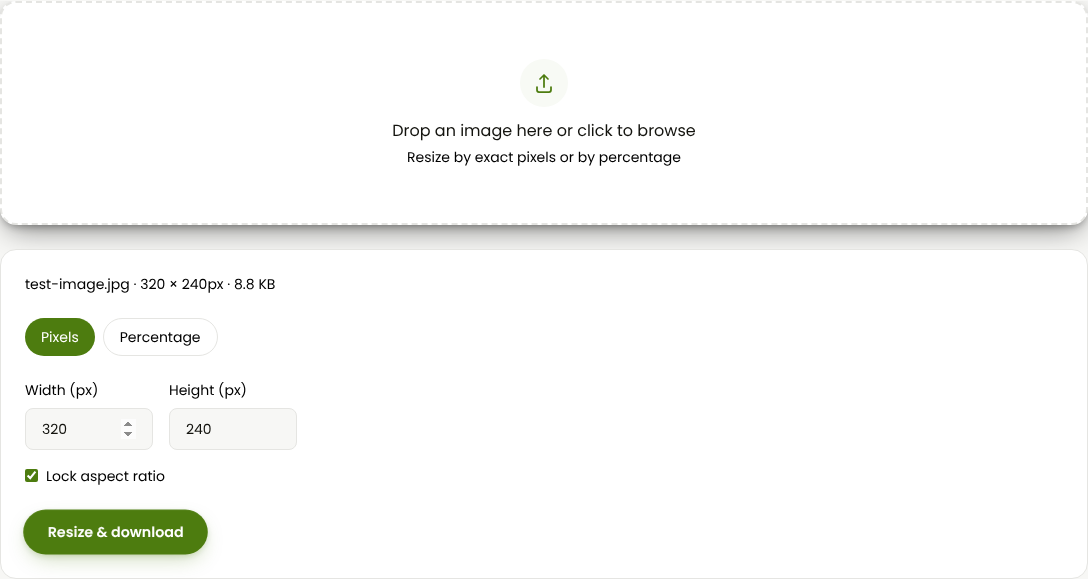
- Click Resize & download. The file saves straight to your downloads folder, no result screen to wait on.
Compressing a photo, by quality or by exact target size
- Open the Image Compressor.
- Drop in a JPG, PNG, or WebP (anything else gets converted to JPG automatically, since JPG compresses far better than PNG for photos).
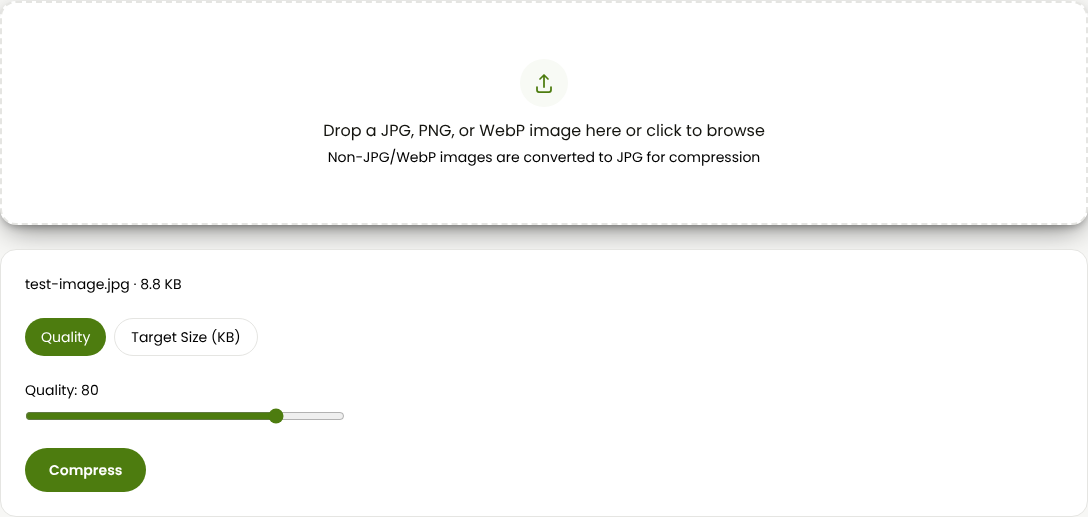
- Use the Quality tab and drag the slider if you want to control the tradeoff yourself, or switch to Target Size (KB), type a number, and let the tool search for a quality level that lands close to it.
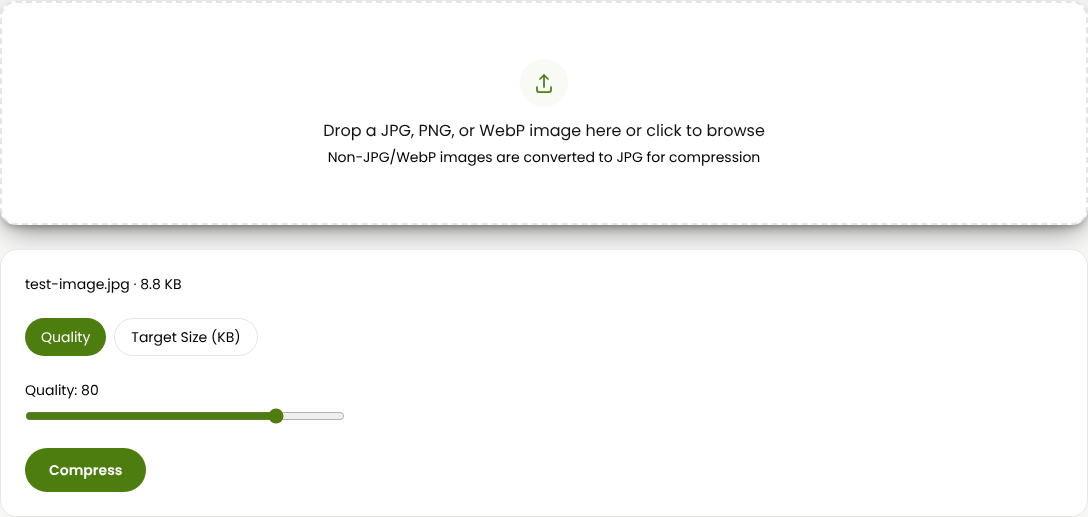
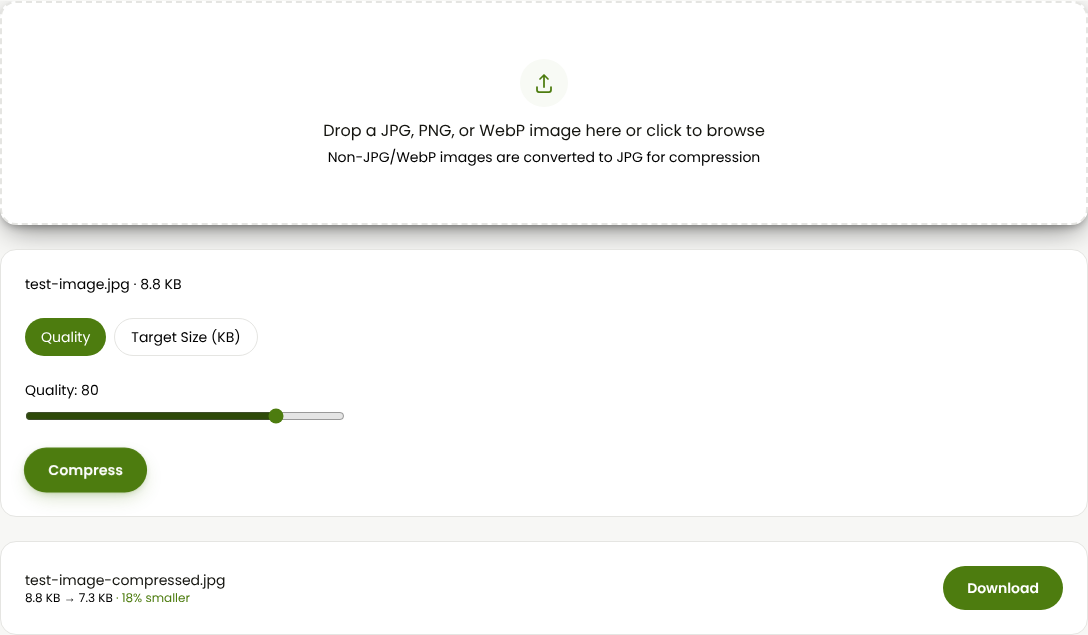
- Click Compress (or Compress to Target Size). The result panel shows the before and after size side by side.
Converting between formats
- Open the Universal Image Converter.
- Drop in your file. It reads JPG, PNG, WebP, GIF, BMP, AVIF, or TIFF.
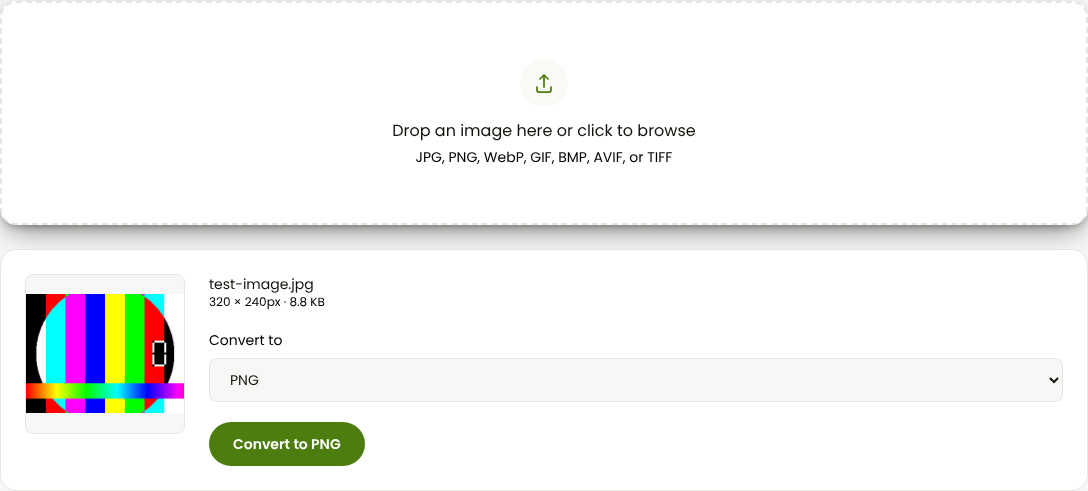
- Pick your target format from the Convert to dropdown. A Quality slider appears for formats that support one.
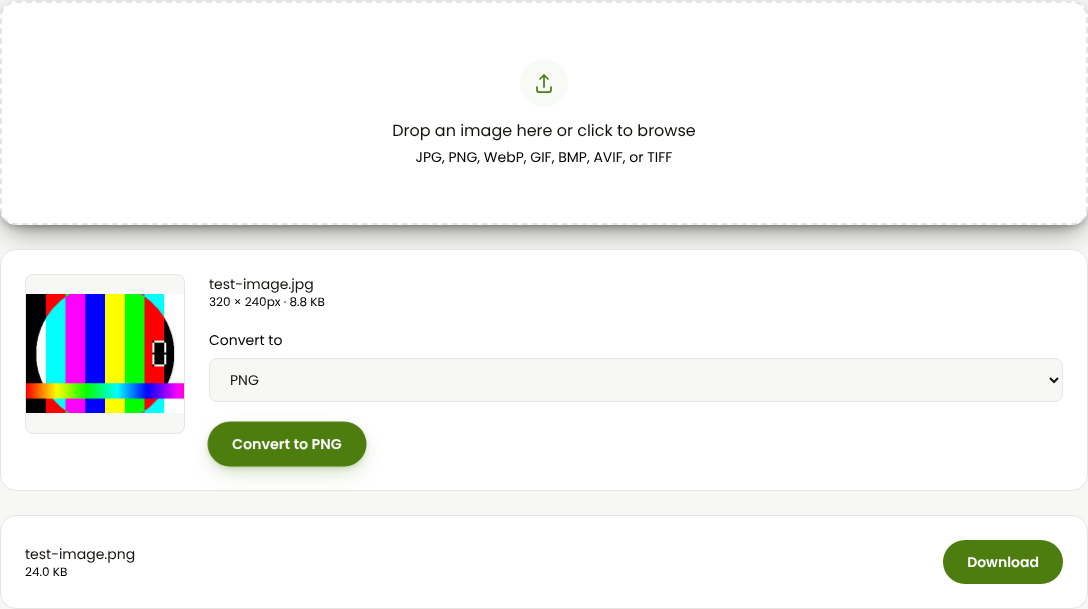
- Click Convert to [format], then Download.
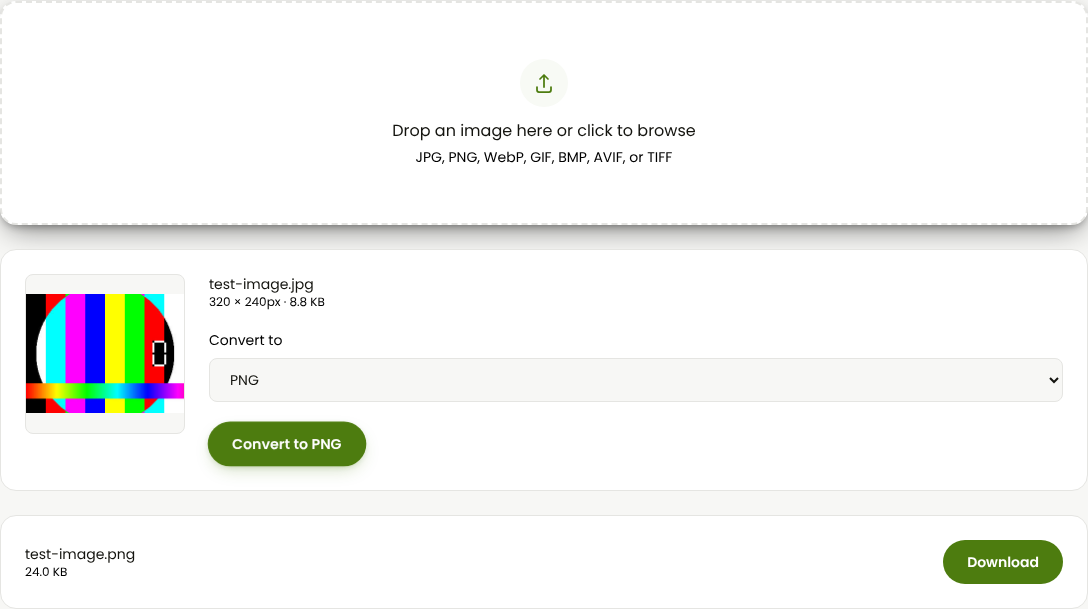
Where this genuinely falls short of iLoveIMG: there's no cropping tool, no watermarking tool, no meme generator, no AI background remover or upscaler, and no batch mode for doing a folder of photos at once. Each tool here handles one file at a time, by design, since there's no server queue managing a batch job. If any of those specific things is what you actually need, iLoveIMG is doing something this site genuinely doesn't do yet.
iLoveIMG itself (more tools, but a free-tier cap and a server upload)
iLoveIMG's own tool list is wide: Compress, Resize, Crop, Convert to JPG, Convert from JPG, a Photo editor, Upscale Image, Remove background, Watermark, Meme generator, Rotate, HTML to Image, and Blur face. For anything beyond basic resize, compress, or format conversion, it's covering ground AI Convertly's current toolset doesn't.
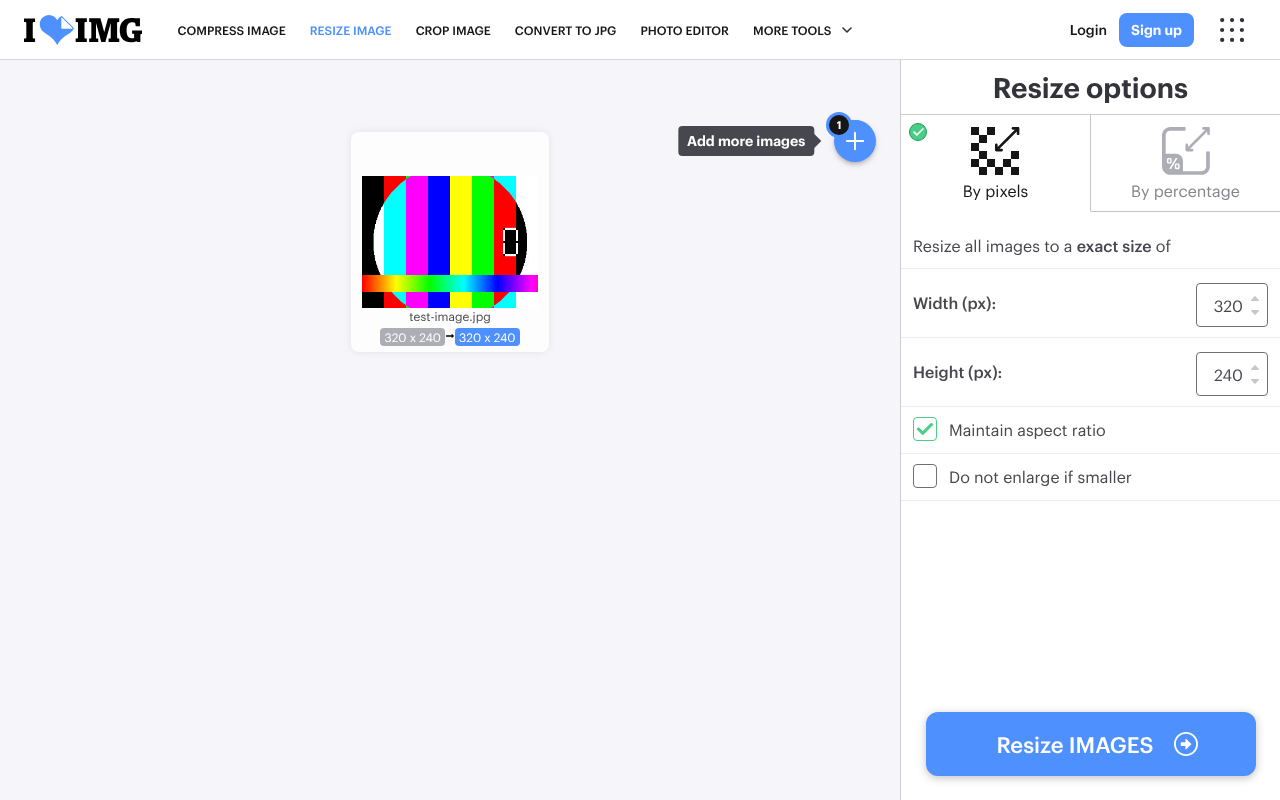
- Go to iloveimg.com and pick a tool, for example Resize IMAGE.
- Upload a file from your computer, or pull one in from Google Drive or Dropbox. Resize offers pixel or percentage options, a Maintain aspect ratio checkbox, and a Do not enlarge if smaller safeguard, and it accepts multiple files at once for bulk resizing.
- The file uploads to iLoveIMG's servers, processes there, and comes back as a download.
The free tier is real, but it's metered: iLoveIMG's own pricing page caps free accounts at a fixed number of operations per tool (30 compress tasks a month on the free plan versus 120 on Premium, for example) and a 200 MB file size ceiling per task, versus 4 GB on Premium. The free tier also shows ads and doesn't require registration for occasional single-file use, though heavier or repeated use pushes you toward creating an account or upgrading. Premium runs $9 a month billed monthly, or $5 a month billed annually ($60/year), and removes ads, raises the file size ceiling, and adds AI credits and unlimited processing; a Business tier with SSO and a dedicated account manager is priced separately for teams of 25 or more.
None of that matters for most one-off jobs; a single photo resize or compression almost never hits those caps. It matters if you're processing images regularly, in bulk, or if sending your files to a third-party server for processing isn't something you're comfortable with for that particular photo.
Squoosh (Google's browser-based compressor, no upload either)
If the specific thing you want from iLoveIMG is just compression or format conversion, and you'd rather not have your photo touch a server at all, Squoosh is a genuine alternative worth knowing about. It's a free tool from Google's Chrome Labs team, and like AI Convertly, it processes entirely in your browser: "images never leave your device," in the tool's own words.
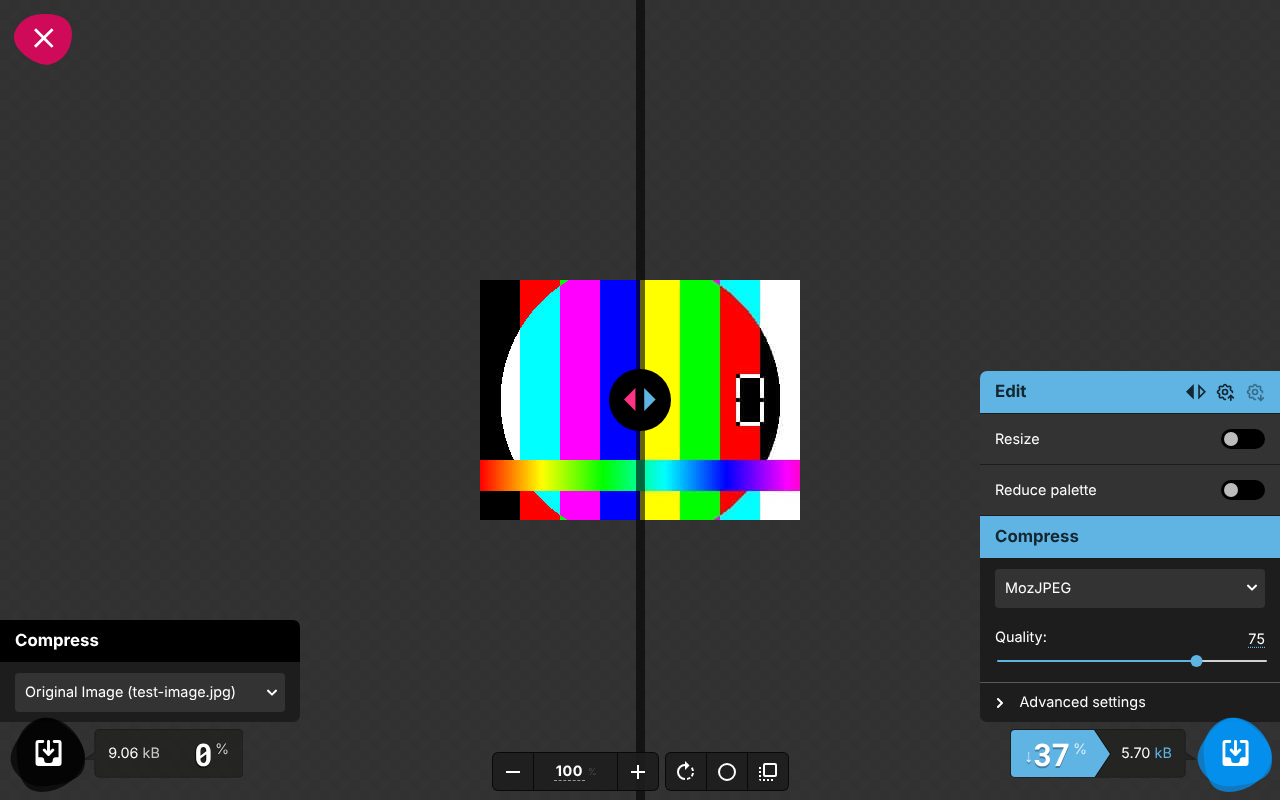
- Go to squoosh.app and drop in an image, or click to browse for one.
- Squoosh shows a before/after slider so you can see exactly what a given setting does to the image before committing to it.
- Pick a codec (MozJPEG, WebP, AVIF, OxiPNG, and a few others) and adjust its quality setting. Each codec change updates the preview and the projected file size live.
- Click the download icon once you're happy with the result.
Squoosh is sharper on compression specifically than either of the other two tools here, since it lets you compare codecs side by side before committing. What it doesn't do is resize by typing exact pixel dimensions the way AI Convertly's resizer or iLoveIMG's resize tool do, and it has no crop, watermark, or batch tooling at all. It's a one-job tool, and a genuinely good one for that one job.
Which one to actually use
For a single photo you need resized, compressed, or converted right now, and you'd rather it never leave your device: AI Convertly's tools do the job directly, with no account, no ads, and no upload. If the job is specifically squeezing a photo down as small as possible and you want to compare codecs before committing, Squoosh does that one thing particularly well, also without uploading anywhere. If what you actually need is cropping, watermarking, a meme generator, AI background removal or upscaling, or you're processing a genuine batch of files in bulk, iLoveIMG is the one of these three that actually offers those, and its free tier is real for occasional use, just metered once you lean on it hard.
For more on getting a photo under an exact size limit for a form, resizing a photo to an exact KB size covers that specific case in more depth, and reducing an image's file size without changing its dimensions covers compression and format choice on their own.
Image Resizer
Resize photos by exact pixels or by percentage.