Why "YouTube Video Converter" Sites Often Don't Work
Most YouTube converter sites break constantly, run ad-heavy or unsafe, and violate YouTube's terms outright. Here's what actually gets you a file you can convert.
Search "YouTube video converter" and you'll get a wall of sites promising to turn any link into an MP4 in seconds. Half of them are broken the day you try. The other half load, but the "Download" button opens three ad tabs before anything happens, or the file that comes out won't actually play, or there's a fake progress bar sitting on top of a download for something that isn't the video you asked for. This isn't bad luck. It's close to the norm for this entire category of site, and it's worth understanding why before looking at what actually works.
Why these sites are built to fail
A site that lets you paste a YouTube link and get a video file back has to reverse-engineer how YouTube's player fetches and decrypts video data, which is exactly the kind of thing YouTube actively works to prevent. Their terms of service are direct about it: accessing or downloading content through anything other than an official feature in the Service isn't permitted. YouTube changes the signing scheme these sites depend on often enough that a converter working today can be broken by next week, which is the real reason so many of these tools feel randomly unreliable. It's not a bug on their end so much as the entire model being built on a moving target.
That instability is also what pushes a lot of these sites toward aggressive monetization. Running a service that has to keep patching around a platform actively trying to block it isn't cheap, and legitimate ad networks are wary of hosting on sites in that position. What fills the gap is exactly what you'd expect: pop-unders, fake "Download" buttons that aren't the real one, and in enough documented cases to matter, outright malware bundled with the "converted" file. None of this is universal, some of these sites are just poorly maintained rather than actively hostile, but there's no way to tell which is which before you've already clicked through.
That's the honest reason AI Convertly doesn't have a "paste a YouTube link" tool, and never will. It's not a missing feature. Converting a file you already have is a completely different, much safer problem than pulling one off a platform that doesn't want it pulled, and the two shouldn't be confused with each other.
What you can actually download from YouTube
If the video is genuinely yours to have as a file, there are a few real paths, and none of them involve a converter site.
It's a video you uploaded yourself
Creators can download their own uploads directly from YouTube, no third-party tool needed.
- Sign in to YouTube Studio and open Content in the left sidebar.
- Find the video in your list, click the three-dot menu next to it, and choose Download.
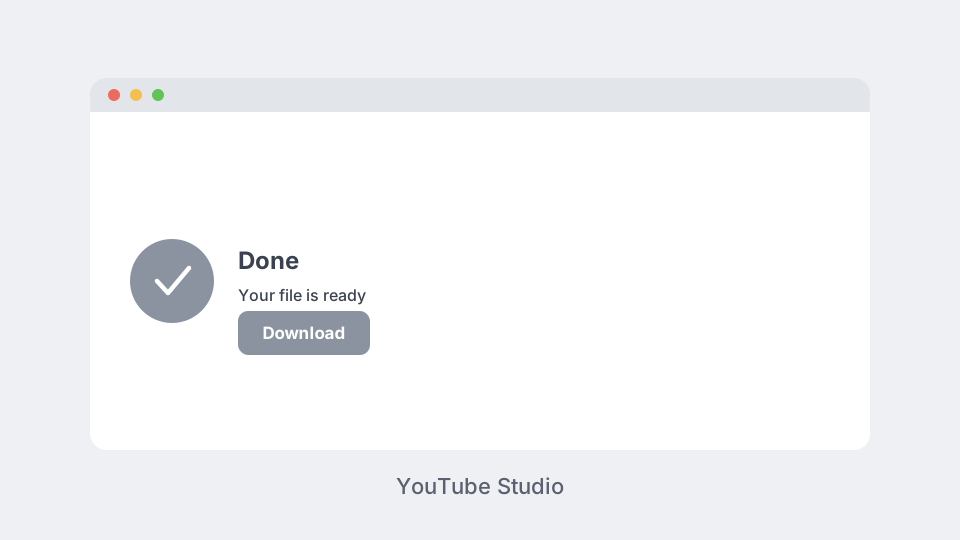
That saves an actual MP4 file to your device, in 720p or 360p depending on the original upload. The one real limit: YouTube caps you at downloading any individual video five times per day, which is plenty for normal use but worth knowing if you're scripting something.
You have YouTube Premium
Premium's offline downloads feel like they should solve this, and it's worth being upfront that they don't. Those downloads are DRM-protected files locked inside the YouTube app, not standalone video files sitting in a folder somewhere. They expire after 29 days, they only play inside YouTube's own app, and there's no legitimate way to pull them out as an MP4 to convert or use anywhere else. If your goal is a real file you can open in another app, Premium's download button isn't the tool for that job, however it might look at first.
Someone sent it to you, or you recorded it yourself
This is the most common version of "I have a video and need it in a different format," and it's the one this whole site is actually built for. A file that landed in your Downloads folder from a text, an email, a shared drive, or your own screen recording is already exactly what a converter needs: a file sitting on your device, not a link.
If you're trying to capture something playing on screen rather than download it, both major operating systems have this built in already, no installing anything, no browser extension asking for permissions it has no business needing.
On a Mac, Screenshot (Shift-Command-5) includes a screen recording mode right in the same panel.
On Windows, Win+G opens the Xbox Game Bar, which has a record button built in.
Once you have the file, converting it is the easy part
Whatever got you to an actual video file on your device, this is where AI Convertly's video converter does its job: it converts between MP4, WebM, and MOV entirely in your browser, using your own device's processing power. Nothing gets uploaded anywhere, which matters more here than in most conversion scenarios, since a file you screen-recorded or pulled from your own channel is still your content sitting on your own machine either way.
- Open the video converter and drop your file onto the upload area.
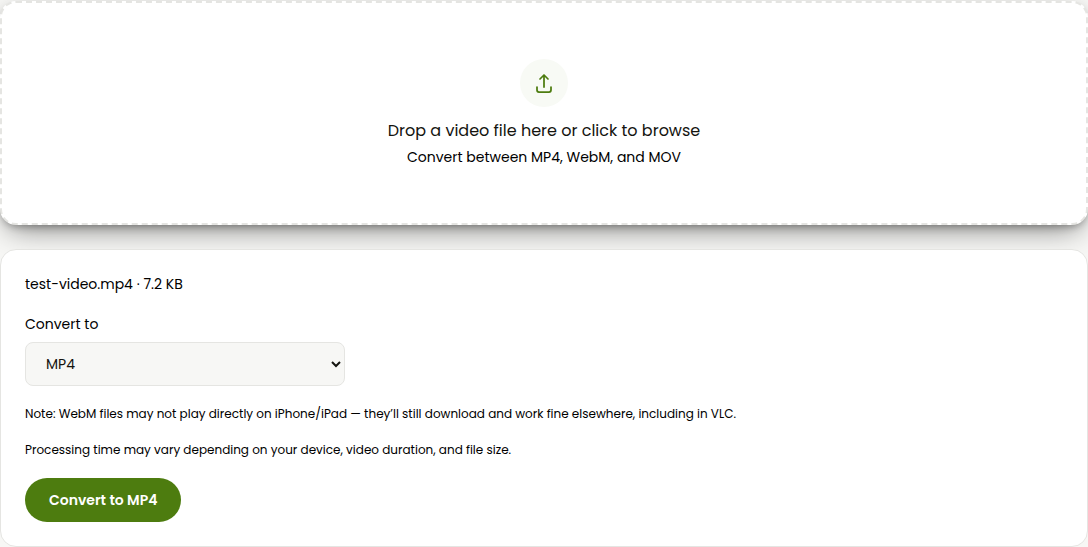
- Pick your target format from the dropdown that appears once the file loads.
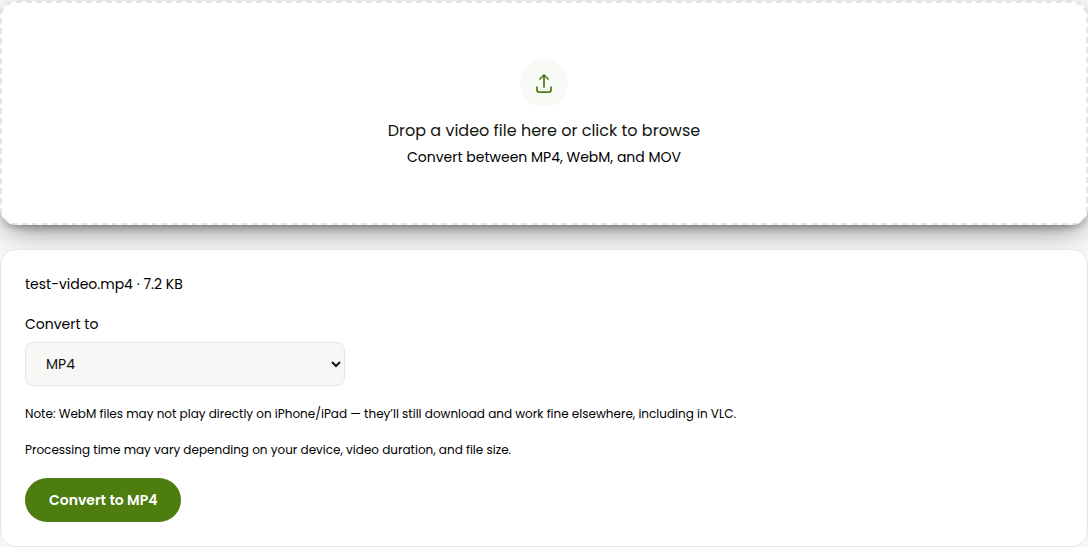
- Click Convert. The file downloads to your device automatically the moment it's done, no separate download page or email link.
There's no sign-up, no watermark, and no daily cap, since nothing is metered on a server somewhere. The realistic limit is your own device: very large files take longer since your browser is doing the encoding work, and HEVC (H.265) footage, common out of some phone camera apps, isn't supported yet.
If you need a format outside MP4, WebM, and MOV, or you're converting a whole batch of clips at once rather than a single file, the full breakdown of video converter options covers FreeConvert, CloudConvert, and VLC for exactly those cases.
The actual difference
A "YouTube converter" site is trying to solve a problem YouTube is actively working against, which is why so many of them are unstable, ad-choked, or worse. Downloading your own upload through YouTube Studio, or converting a file you already legitimately have, isn't that problem at all. It's just a file on your device that needs to be in a different format, and that part has always been the straightforward half.
Video Converter
Convert between MP4, WebM, and MOV.