Free Online Video Converter With No Sign-Up or Watermark
AI Convertly's video converter is free with no sign-up, no watermark, and no daily cap, unlike FreeConvert or CloudConvert. Here's how the limits compare.
Type "free video converter" into a search bar and you'll land on a dozen sites that all say the same thing on the homepage. Then you actually try to use one: it asks for an email halfway through, or the finished file has a logo stamped across the corner, or it converts fine until file five and suddenly wants you to sign up for more. "Free" on most of these sites means free up to a point you don't find out about until you hit it.
Here's what that point actually looks like on the sites people land on most, and where a converter that never had that point in the first place fits in.
Why "free" video converters have a catch at all
Server-based converters upload your file, run the conversion on their own machines, and stream the result back. That costs them real compute and bandwidth per file, so the free tier has to be capped somewhere: minutes of processing per day, a maximum file size, a limit on simultaneous conversions, or a watermark that nudges you toward the paid plan. None of that is dishonest exactly, it's just rarely the first thing the homepage tells you.
A converter that runs the whole encode on your own device sidesteps that cost structure entirely. There's no server bill per conversion, so there's nothing to ration.
AI Convertly's video converter (runs on your device, no account, no cap)
This is the one built into this site, so it goes first, and it's also the one worth trying first regardless: it converts between MP4, WebM, and MOV entirely in your browser using your own device's processing power. Nothing gets uploaded anywhere.
- Open the video converter.
- Drop your video file onto the upload area, or click it to browse for one.
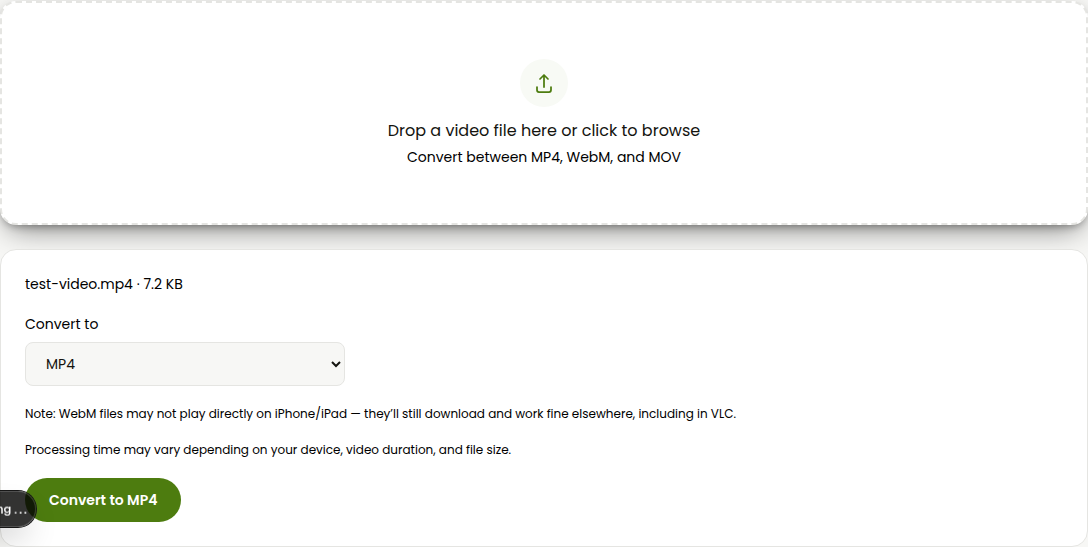
- Once the file loads, pick your target format from the dropdown: MP4, WebM, or MOV.
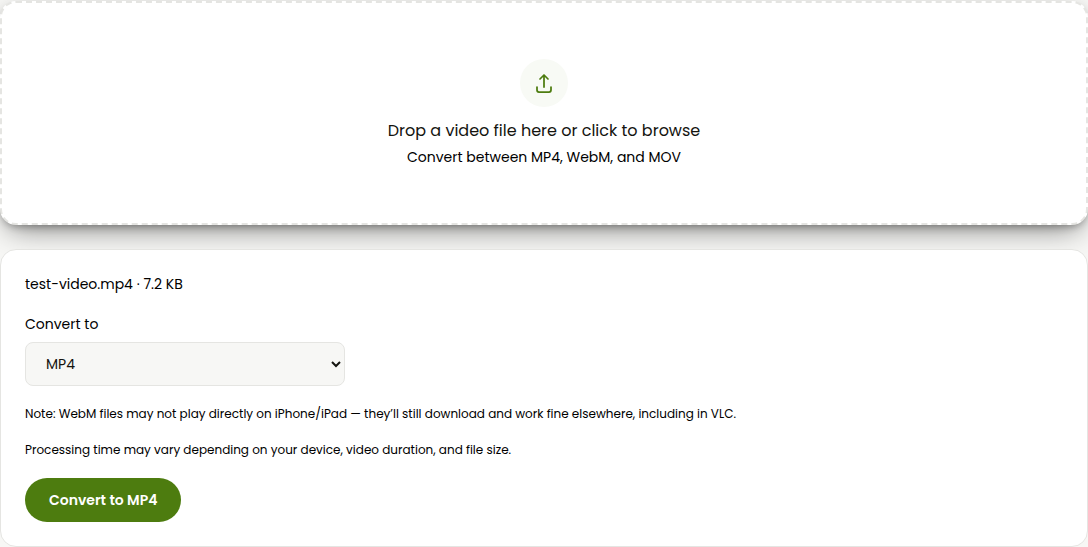
- Click Convert. The button shows a spinner and switches to "Working…" while it processes.
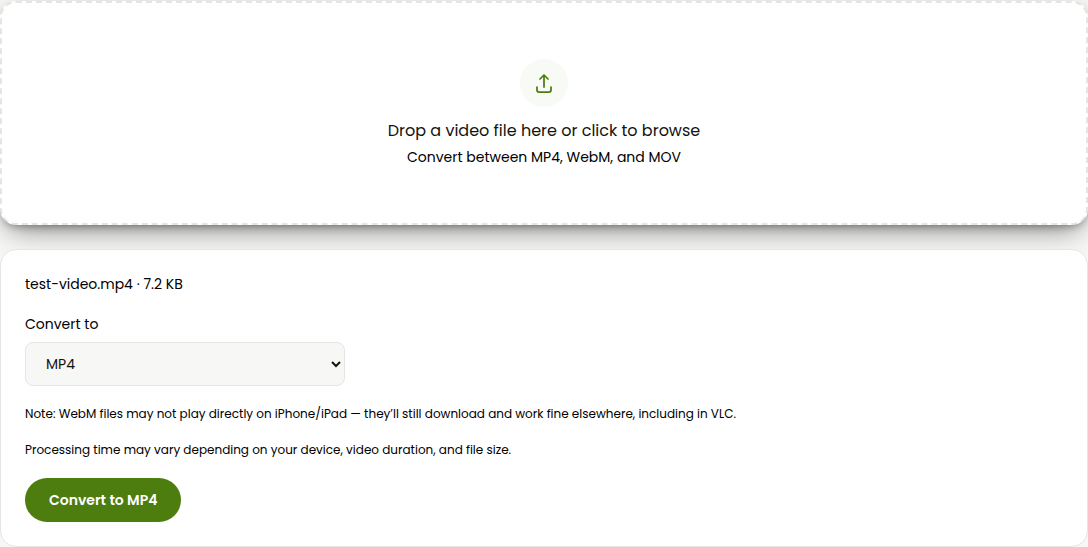
- The converted file downloads straight to your device the moment it finishes. No download page, no "your file is ready, click here" email.
There's no daily limit because there's no server tracking how many conversions you've used today, and no watermark because there's no premium tier it's trying to upsell you into. The honest limit is your own device: files over about 200 MB will take noticeably longer and use more memory, since your browser is doing the work a server would otherwise do, and a handful of codecs, mainly HEVC (H.265) footage exported from apps like CapCut, aren't supported yet. If you hit that, re-exporting the source as H.264 first and converting again works. One more real caveat worth knowing up front: a WebM file made here (or anywhere) won't play directly on iPhone or iPad, though it downloads and works fine everywhere else, VLC included. That's an Apple limitation, not something specific to this tool.
FreeConvert (genuinely free to start, but capped hard per file)
FreeConvert is one of the sites people mean when they search "online video converter free," and it's a fair comparison because it really doesn't force sign-up for basic use.
- Go to FreeConvert and click Choose Files, or drag your video onto the page.
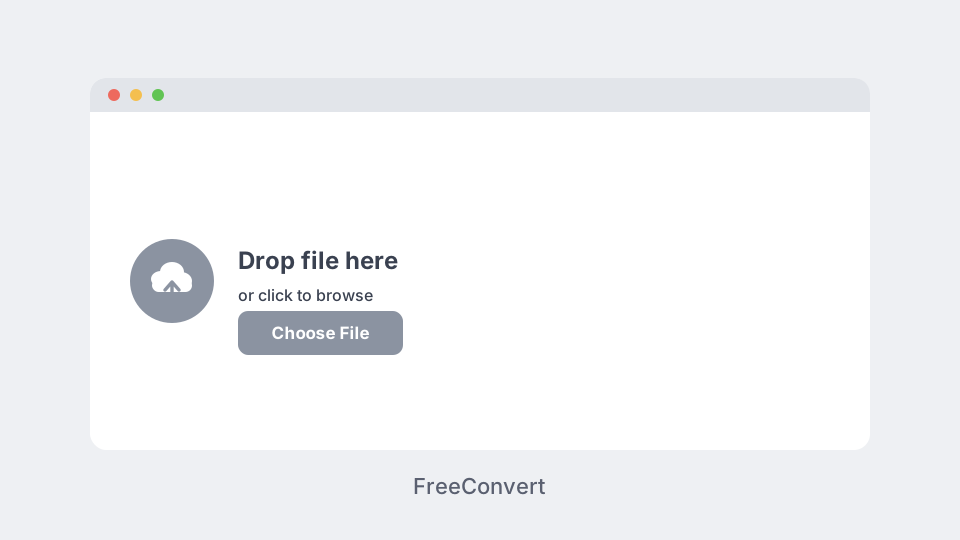
- Pick your target format from the list, then click Convert.

- Wait through the upload and processing bar.
- Click Download once it finishes.
The catch shows up the moment your file runs long: the free tier caps you at 5 minutes of processing time per file and 20 minutes total per day, which in practice means roughly 20 short conversions a day before it asks you to upgrade. A quick clip clears that fine. A full-length screen recording or a longer video won't, and going past 1 GB requires a paid account regardless of processing time. No watermark on the actual output, to its credit, but your file does sit on FreeConvert's servers for however long the conversion takes, which AI Convertly's browser-based approach avoids entirely.
CloudConvert (similar shape, different numbers)
CloudConvert runs the same basic way, upload, pick a format, download, but doles out free usage as daily credits instead of minutes.
- Go to CloudConvert and drop your file onto the homepage converter, or click to browse.
- Select your output format from the video options.
- Start the conversion and wait for it to process.
- Download the result once it's marked finished.
Free use gets you 10 conversion credits a day, a 1 GB file size ceiling, and a 5-minute cap on processing time, with your conversions sitting at low priority in the queue behind paying users. That last part matters more than it sounds: on a busy day, a low-priority free conversion can sit waiting noticeably longer than the same file would on a converter that doesn't have to share server capacity with anyone else's paid jobs.
On a Mac, QuickTime Player Skips the Upload Entirely
If your only goal is getting a video into MP4 and you don't need WebM specifically, QuickTime Player, already sitting in Applications, covers it without touching a browser at all.
- Right-click the video file, choose Open With, then QuickTime Player.
- Go to File, then Export As.
- Pick a resolution, 1080p covers most cases, and choose a save location.
QuickTime only exports to its own MOV-flavored MP4. It won't touch WebM, so this only helps if MP4 or MOV is genuinely all you need.
On Windows, Clipchamp Does the Same Job
Windows 11 ships Clipchamp for free, and it covers the same idea: import a clip, export it as MP4, no browser involved.
- Open Clipchamp from the Start menu and import your video.
- Click Export in the top right and choose a resolution.
Clipchamp exports to MP4 only, same limitation as QuickTime in the other direction. Neither one is a real substitute for a converter if WebM is actually what you need.
VLC, if you want more control than any of the above give you
VLC handles all three formats and a long list of others, and it's free with no account of any kind, but the conversion feature is buried behind a menu most people never open.
- Open VLC, then go to Media, then Convert/Save.
- Add your file, click Convert/Save again, then pick a profile matching your target format and hit Start.
The interface assumes you already know roughly what a codec profile is, which makes it a worse first stop than any of the browser options above for a one-off conversion. Where it earns its place is bulk work: pointing it at a folder full of clips and converting them all with the same settings, something none of the web tools here are built for.
Which one to actually use
For a single file, right now, with no strings attached: AI Convertly's converter, since nothing about it is metered and there's no server involved to leak your file to in the first place. FreeConvert is a reasonable fallback if you specifically need a format outside MP4, WebM, and MOV, as long as your file is short enough to clear the 5-minute cap. CloudConvert is worth knowing about but doesn't really beat FreeConvert for this specific job. And if you're converting a whole folder of clips rather than one file, that's the one case where VLC's clunkier interface actually pays off over any of the online tools.
For more on why your file needed converting in the first place, how video conversion works walks through what MP4, WebM, and MOV actually are under the hood.
Video Converter
Convert between MP4, WebM, and MOV.