How to Open a HEIC File (No Special Software Needed)
Windows or an old app won't open your iPhone photo? Convert HEIC to JPG free in your browser with AI Convertly, or use one of four other real fixes.
You AirDropped or emailed yourself a photo from an iPhone, and now your computer refuses to open it. The filename ends in .HEIC, and Windows, or an old app, or a website upload form just shrugs. You're not doing anything wrong. This is one of the most common file-format headaches around, and the fastest fix takes about ten seconds: convert the photo to JPG in your browser.
Why HEIC Won't Open Everywhere
HEIC stands for High Efficiency Image Container. Apple made it the default photo format on iPhones back in iOS 11 (2017), and it's still the default today on iPhone 7 and newer. The appeal is real: HEIC photos look just as good as JPEGs but take up roughly half the storage space, which matters when you're shooting thousands of photos on a phone with limited storage.
The catch is that HEIC is a much newer, less universally supported format than JPEG. Apple's own devices (iPhone, iPad, Mac) all handle it natively, and Apple documents exactly which models support it. Plenty of other software, especially older or non-Apple programs, still doesn't know what to do with a .HEIC file, which is exactly why it opens fine on the phone that took it and nowhere else.
Convert It to JPG With AI Convertly
If you just need to open this one photo right now, on whatever device you're using, converting it is faster than installing anything. AI Convertly's HEIC to JPG converter does the whole job in your browser: nothing uploads to a server, there's no app to trust with your photos, and it works identically on Windows, Mac, Chromebook, or anything else with a browser, because the conversion happens locally on your own device.
- Open the HEIC to JPG tool.
- Drop your HEIC (or HEIF) photo onto the upload area, or click it to browse your files. You can drop in more than one at once if you've got a batch to convert.

- Conversion starts the moment the file loads, no separate "Convert" button to click. A short "Converting…" spinner appears while it decodes the HEIC data and re-encodes it as a JPG.

- When it's done, you'll see a JPG thumbnail with the new filename underneath it. Click Download on an individual photo, or Download all if you converted several at once.
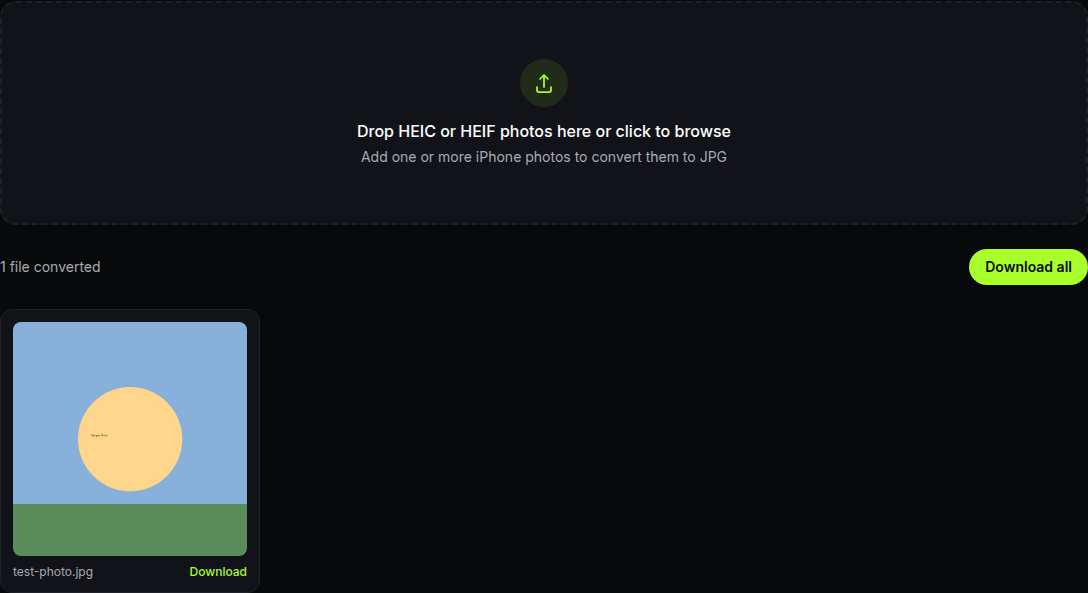
That's it. HEIC and JPEG both store a single compressed image, so turning one into the other doesn't lose any meaningful quality. You're just repackaging the same photo into a format almost everything can read. If you're converting this photo for a form with a strict file size limit, like a visa or exam upload, our guide on resizing a photo to an exact KB size covers that next step.
On a Mac, iPad, or iPhone? You Don't Need to Do Anything
If you're opening the file on a Mac, iPad, or another iPhone, HEIC just works. It's Apple's own format, and Preview, Photos, and Quick Look all display it natively on any device on Apple's supported-models list, going back as far as the iPhone 7 and iPad Air 3rd generation. If a HEIC file won't open on an Apple device that's on that list, the file itself is likely corrupted or incomplete, not a format problem, and converting it (as above) is the more reliable fix than troubleshooting the original file.
Add Native HEIC Support to Windows
If you're on Windows 10 or 11 and you get HEIC photos regularly, it's worth teaching your PC to understand the format permanently instead of converting files one at a time.
- Open the Microsoft Store and search for HEIF Image Extensions, or go straight to its store listing.
- Click Get (or Install) to add it. It's a free download from Microsoft.
- If Windows also offers the companion HEVC Video Extensions at the same time, install that too. Some HEIC files use HEVC-based encoding internally, and without it you can end up with a generic file icon instead of a real thumbnail.
- Once both are installed, HEIC photos will show real thumbnails in File Explorer and open directly in the Photos app, the same as a JPEG would, with no further steps.
This is the better option if HEIC keeps showing up in your downloads and email attachments and you're tired of dealing with it file by file. It's a one-time setup that fixes every future HEIC photo on that PC, not just the one in front of you right now.
Another Browser-Based Converter: iLoveIMG
AI Convertly isn't the only site that converts HEIC to JPG in the browser. iLoveIMG's Convert to JPG tool does the same basic job and is worth knowing about as a backup.
- Go to iloveimg.com and open its Convert to JPG tool.
- Click Select images (or drag your HEIC photo into the drop zone).

- Choose a conversion quality. "Recommended Quality" is free and covers most photos fine; the "High Quality" option that keeps the original pixel dimensions is marked Premium, meaning it sits behind a paid plan.

- Click Convert, wait for it to process, then download the result.

The honest difference between this and AI Convertly's tool: iLoveIMG uploads your photo to its servers to do the conversion, and its best quality setting is paywalled. AI Convertly's HEIC to JPG tool runs the whole conversion locally in your browser at full quality, for free, which is the simpler choice if either of those matters to you.
Stop Getting HEIC Files in the First Place
If it's your iPhone taking the photos and you'd rather avoid this problem going forward, you can tell it to shoot JPEG instead of HEIC:
- Open Settings → Camera → Formats.
- Choose Most Compatible instead of "High Efficiency."
New photos will save as JPEG, which opens everywhere without a second thought. The tradeoff is storage: JPEGs at the same quality take up roughly twice the space, so this is worth doing only if compatibility matters more to you than saving space on your phone. It only affects new photos, it won't convert anything you've already taken, and Apple's own support page covers the same toggle if you want to double-check the exact wording on your iOS version.
Which Fix Should You Actually Use?
For a one-off photo you need open right now, converting it with AI Convertly's HEIC to JPG tool is faster than installing anything, and it doesn't touch a server to do it. If you're the one taking the photos and sending them to people who keep hitting this wall, switching your iPhone to "Most Compatible" means they never see the problem in the first place. And if you're on Windows and HEIC shows up in your inbox regularly, installing HEIF Image Extensions once is worth the two minutes so your PC just handles it from now on. iLoveIMG is a fine fallback if AI Convertly's tool is ever unreachable for you, but between the two, the local, no-upload version is the one with nothing to think twice about.
HEIC to JPG
Convert iPhone photos to JPG that opens everywhere.