How to Convert MP4 to MP3: Extract Audio from Any Video
Converting MP4 to MP3 means pulling out the audio track and re-encoding it, not renaming a file. Here's how, in your browser, in VLC, or with your OS's own tools.
Someone sends you a video and all you actually want is the audio: a voice memo recorded on a phone, a lecture someone filmed instead of just recording, a song pulled off a downloaded clip, a podcast episode that only exists as a video file. Renaming the file from .mp4 to .mp3 doesn't work, and if you've tried it you already know why: the file either won't open at all, or your media player throws an error about an unsupported or corrupt file.
Why you can't just rename the file
MP4 is a container that holds a video stream and an audio stream together, muxed into one file. MP3 only knows how to hold audio, nothing else. Slapping a new extension on an MP4 doesn't touch what's actually inside it, so every media player that reads the file's real structure (not just its extension) still sees a video container it doesn't know what to do with.
Actually converting means two things happen: the video stream gets thrown away entirely, and the audio stream gets decoded and re-encoded into MP3's own format. That second part matters if the original audio was AAC (the usual codec inside an MP4), since you're going from one lossy format to another. In practice the difference is inaudible on a voice recording or a normal music track at a reasonable bitrate, but it's why re-converting the same file back and forth repeatedly will eventually degrade it a little.
AI Convertly's MP4 to MP3 tool (browser-based, nothing uploaded)
This is the tool built into this site, so it goes first: it strips and re-encodes the audio entirely on your own device, using your browser's processing power, and the video file never gets sent anywhere.
- Open the MP4 to MP3 tool.
- Drop your video file onto the upload area, or click it to browse. It reads MP4, WebM, MOV, and MKV, not just files that are literally already MP4.
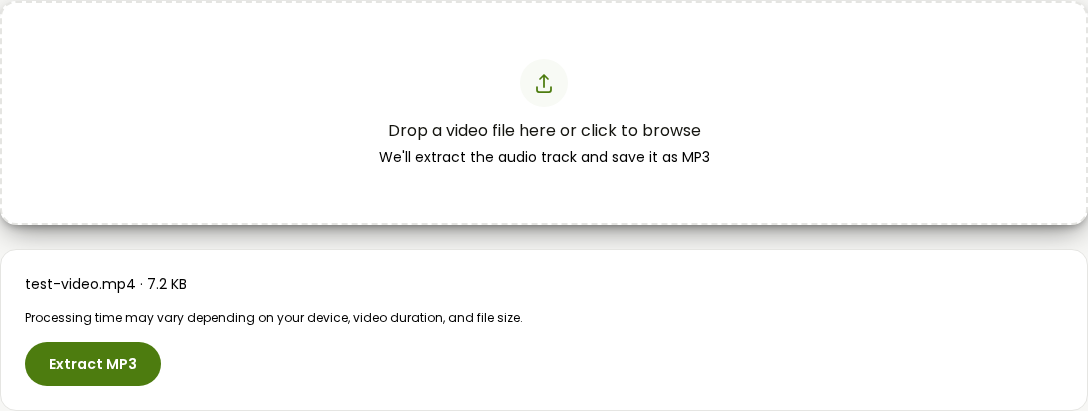
- Click Extract MP3.
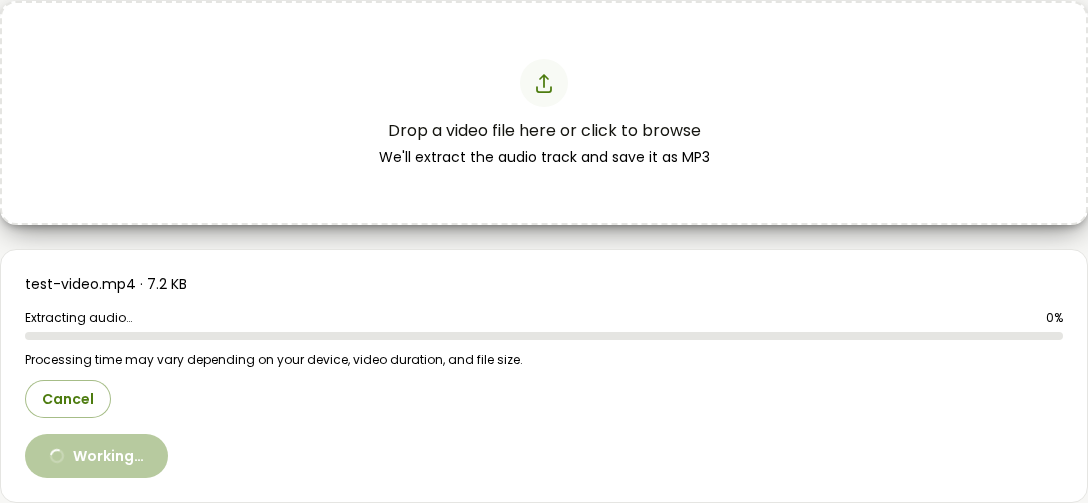
- The MP3 saves automatically once it's ready. Processing time depends on the video's length. A five-minute clip takes a few seconds; a two-hour recording takes longer, since your device is doing the actual decoding and encoding work rather than a server.
The honest limits: it reads the audio track whatever the codec, but if a video's own video codec is one your browser can't decode at all, the file won't load in the first place. There's no file size cap tied to a server quota, but a very large file will still take a while and use real memory in the tab while it processes.
Online converters like FreeConvert and CloudConvert (quick, but your file leaves your device)
If you're on a locked-down computer where nothing runs locally, or you just want to compare, FreeConvert and CloudConvert both do a genuine MP4-to-MP3 conversion with no forced sign-up for a single file. FreeConvert's free tier caps uploads at 1GB per file; CloudConvert doesn't publish a hard number on its converter page but works the same way for a normal-sized clip.
- Go to FreeConvert's MP4 to MP3 converter and click Choose Files, then pick your video.
- Click Convert to MP3 and wait for the upload and processing to finish.
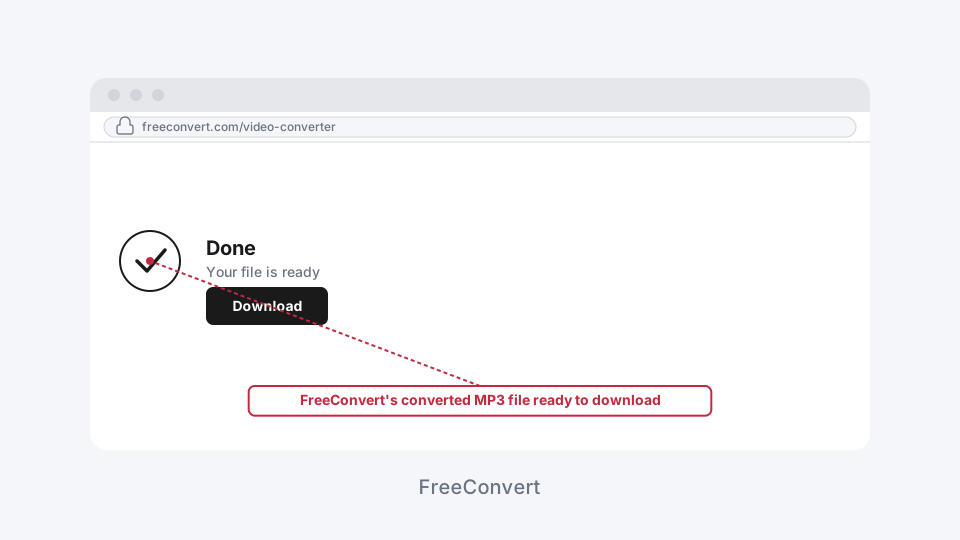
- Click Download once it says Done.
The tradeoff worth actually weighing: your file leaves your device and sits on someone else's server for the length of the conversion. For a random movie clip that's nothing. For a voice memo of a private conversation, a work meeting recording, or anything you wouldn't want stored somewhere else even briefly, that's a real reason to prefer a tool that never uploads anything in the first place.
VLC Media Player (a real MP3, nothing uploaded, more clicks)
A lot of people already have VLC installed, and it genuinely writes a standard MP3 file rather than relabeling anything. It's more steps than a dedicated converter, and the menu path is different on Windows versus Mac.
On Windows
- Open VLC and go to Media > Convert / Save.
- Click Add, select your video file, then click Convert / Save again.
- Under Profile, choose Audio - MP3 from the dropdown.
- Under Destination, click Browse, pick a save location, and remove any file extension VLC pre-filled in the filename (it appends .mp3 itself based on the profile).
- Click Start.
On a Mac
- Open VLC and go to File > Convert / Stream.
- Click Open Media, select your video file, then continue to the profile screen.
- Under Choose Profile, pick Audio - MP3.
- In the Save As field, type a filename and make sure it ends in .mp3 yourself this time, since Mac's version doesn't always append it automatically.
- Click Save.
Windows 11's built-in Clipchamp (no extra install)
Clipchamp ships with Windows 11, so if VLC isn't installed and you don't want to install anything new, it's already there. It's a video editor rather than a dedicated converter, so getting audio-only out of it takes a couple of extra steps.
- Open Clipchamp and import your video into the media panel.
- Drag it onto the timeline.
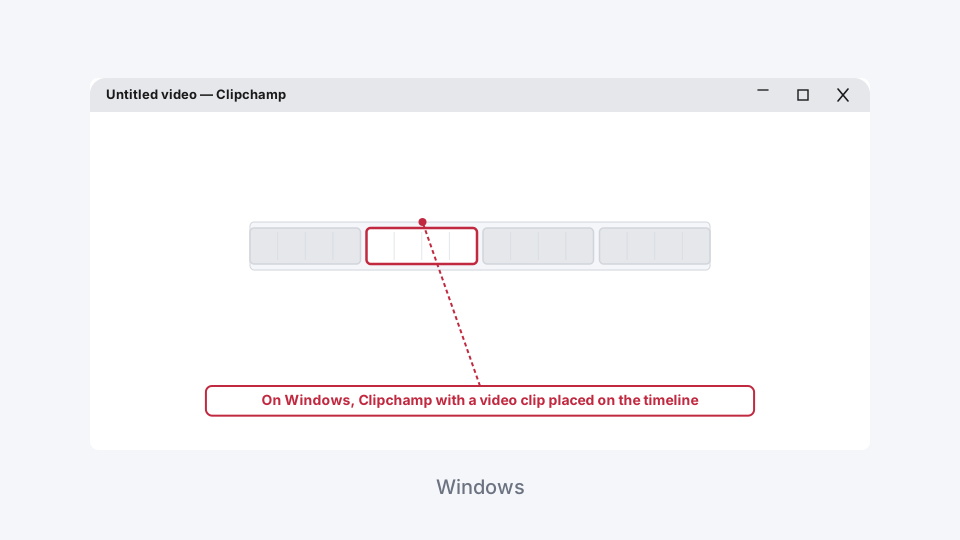
- Select the clip, open the Audio tab in the properties panel, and click Detach Audio. The audio now sits as its own track below the video.
- Select the video track (not the audio) and delete it, leaving just the detached audio on the timeline.
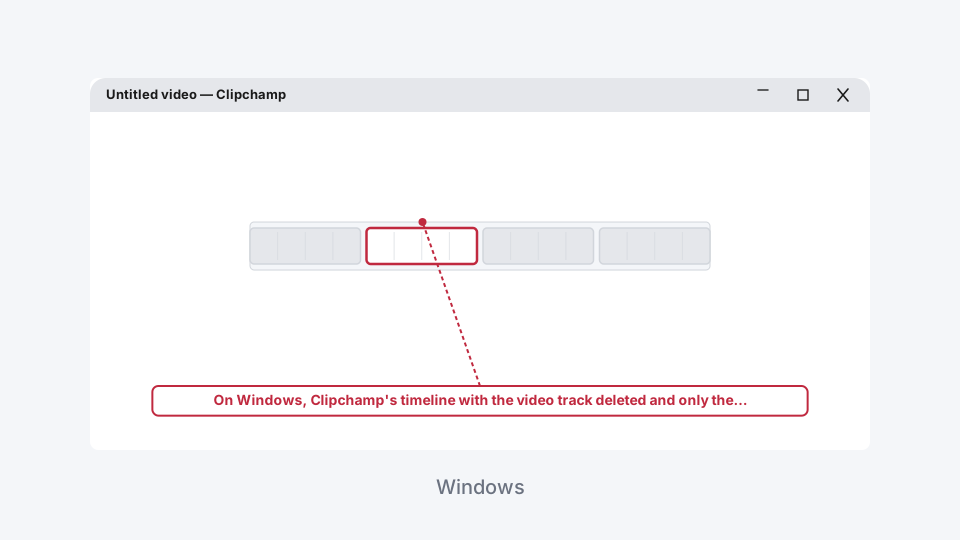
- Click Export and choose the audio-only export option.
Clipchamp's audio export options have shifted between versions, so if you don't see an audio-only choice in the export menu, exporting the trimmed-down project as a video and running the result through one of the other methods above gets you the same MP3 either way.
On a Mac: QuickTime Player, then the Music app
QuickTime Player can pull the audio out of a video, but it's worth knowing upfront that it doesn't actually produce an MP3. It exports an M4A file with AAC audio inside, which is a different (also lossy) audio format. If an M4A is fine for you, stop after the QuickTime step. If you specifically need a .mp3 file, the Music app can convert that M4A the rest of the way, using an encoder that's normally turned off by default.
- Open your video in QuickTime Player and go to File > Export As > Audio Only.
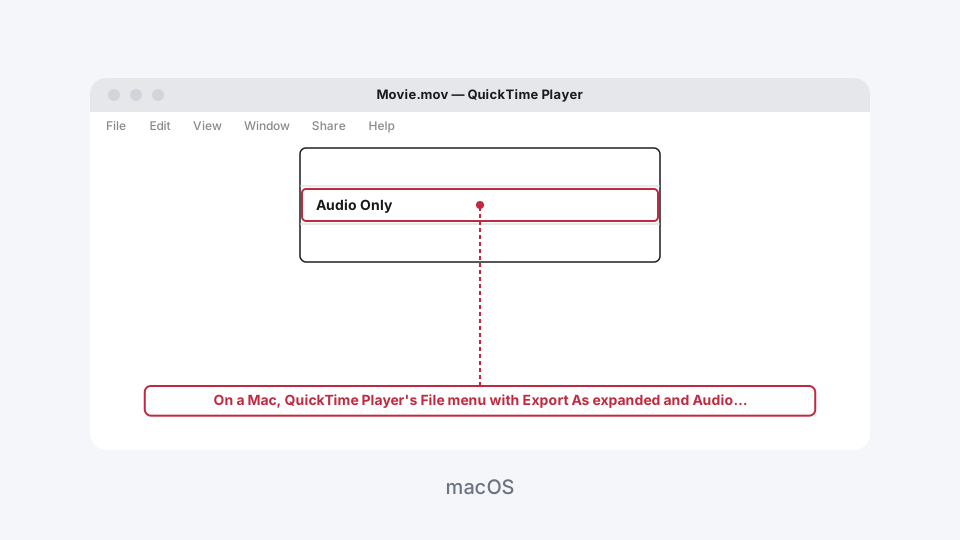
- Name the file and save it. This gives you an M4A, not an MP3.
- To get an actual MP3, open the Music app and go to Music > Settings, click the Files tab, then Import Settings.
- Set "Import Using" to MP3 Encoder and click OK.
- Drag the M4A file from Finder into your Music library.
- Select it and go to File > Convert > Create MP3 Version.
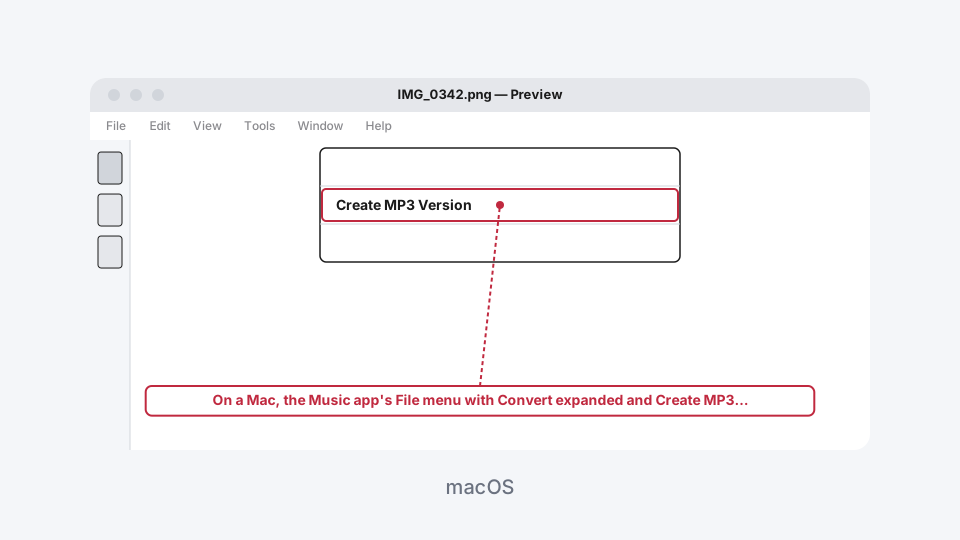
- The new MP3 shows up next to the original in your library. Select it and choose File > Show in Finder to grab the actual file.
It's a longer path than it should be for something this common, but it's genuinely built into macOS with nothing extra to download.
Audacity (most involved, worth it if you're also editing)
Audacity earns its extra steps when you don't just want the audio out, you want to trim it, cut out a section, or clean it up before saving. Straight extraction alone, none of the methods above need an audio editor.
The catch: Audacity can't import MP4 video on its own. It needs the FFmpeg import/export library installed separately, since licensing restrictions keep Audacity's own team from bundling it directly.
- On Windows, download and run the FFmpeg installer linked from Audacity's own support documentation, then restart Audacity. It should detect the library automatically; if it doesn't, go to Edit > Preferences > Libraries and locate it manually.
- Drag your video file into Audacity. It imports as an audio track, with the video portion discarded on import.
- Trim or edit the track if you need to, using the selection tool to cut out anything you don't want.
- Go to File > Export > Export as MP3.
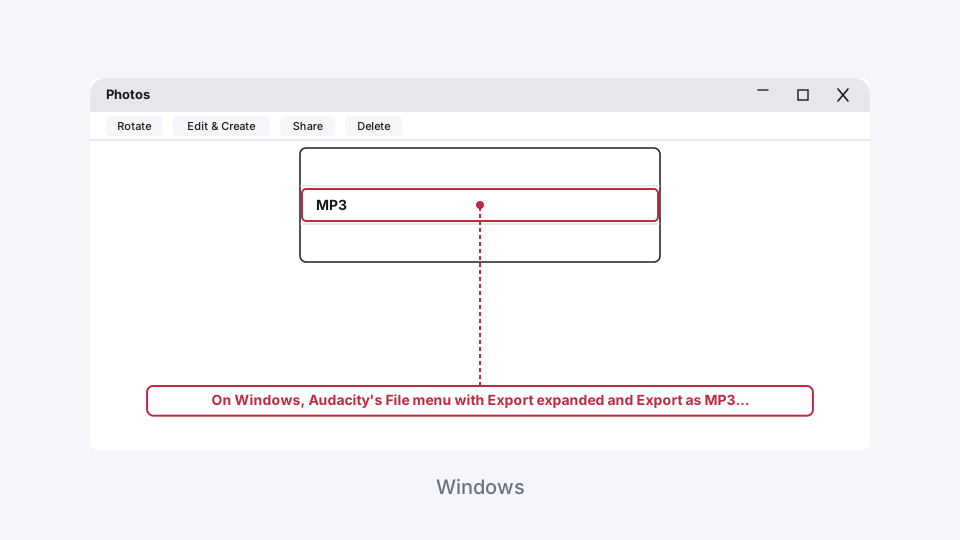
- Name the file, choose a quality setting, and save.
For a one-off "just get me the audio" job this is overkill. For anything you're also going to clean up or cut down first, it's the one method here that does both in a single pass.
MP4 to MP3
Extract the audio track from a video file.