How to Convert Audio Between MP3, WAV, and OGG
MP3, WAV, and OGG aren't interchangeable, and picking the wrong one causes real problems. Here's how to convert between them, and which one you actually need.
You've got an audio file in one format and something else needs it in another: a game engine that only reads OGG, an old phone system that wants WAV, a podcast host that rejects anything but MP3. Or you recorded something as a huge WAV file and need it small enough to actually send. Here's how to move between MP3, WAV, and OGG without losing more quality than you have to, and which one of the three you actually want in the first place.
What these three formats actually are
MP3 is lossy and compressed. It throws away audio detail your ear supposedly won't miss, in exchange for a file that's roughly a tenth the size of the uncompressed original. It's also the one format that plays absolutely everywhere: every phone, every car stereo, every app, every OS built in the last two decades. If you just need something small and universally playable, this is it.
WAV is the opposite: uncompressed, or close to it. Nothing gets thrown away, which is why a three-minute WAV file can run 30-40 MB against an MP3 of the same song sitting under 5 MB. That size is the whole point in professional audio work. Editing and re-exporting a WAV repeatedly doesn't degrade it the way re-compressing an MP3 does, so it's the standard format for recording, mixing, and anywhere a piece of hardware or software specifically demands uncompressed audio.
OGG (technically Ogg Vorbis, the audio codec wrapped in an Ogg container) is lossy and compressed like MP3, royalty-free, and often slightly more efficient at a given bitrate. It shows up constantly as the audio format baked into video games, since Vorbis was designed as a patent-free alternative when MP3's licensing was still a real concern for engine developers, and it's common in the Linux world for the same reason. The honest limit: Apple's ecosystem never picked it up. iTunes, the Music app, and iOS itself have no built-in Vorbis decoder, so an OGG file dropped onto an iPhone or into Music on a Mac just won't play. If a friend on an iPhone sends you a file that won't open, or a game asset needs to end up somewhere Apple, converting to or from OGG is usually why you're here.
AI Convertly's audio converter (browser-based, nothing uploaded)
This is the tool built into this site, so it goes first: it converts entirely on your own device using your browser's processing power, and the file never gets sent anywhere.
- Open the audio converter.
- Drop your MP3, WAV, or OGG file onto the upload area, or click it to browse.
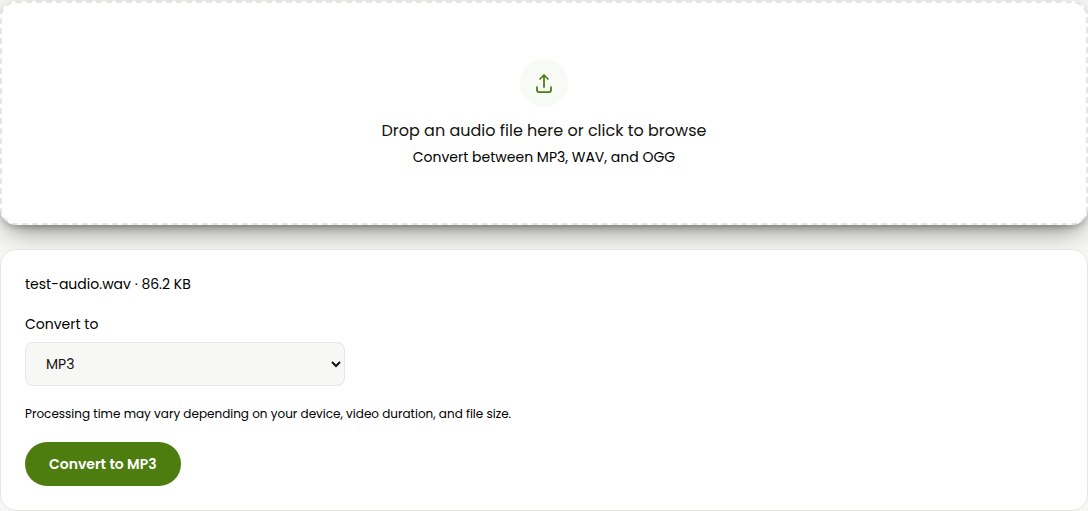
- Under "Convert to," pick MP3, WAV, or OGG from the dropdown.
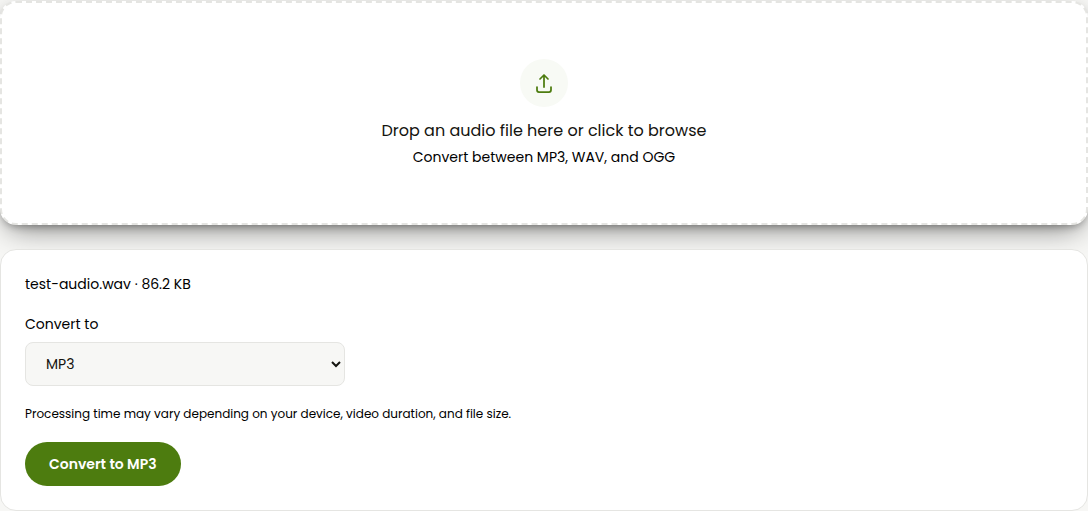
- Click Convert. The file downloads automatically once it's done.
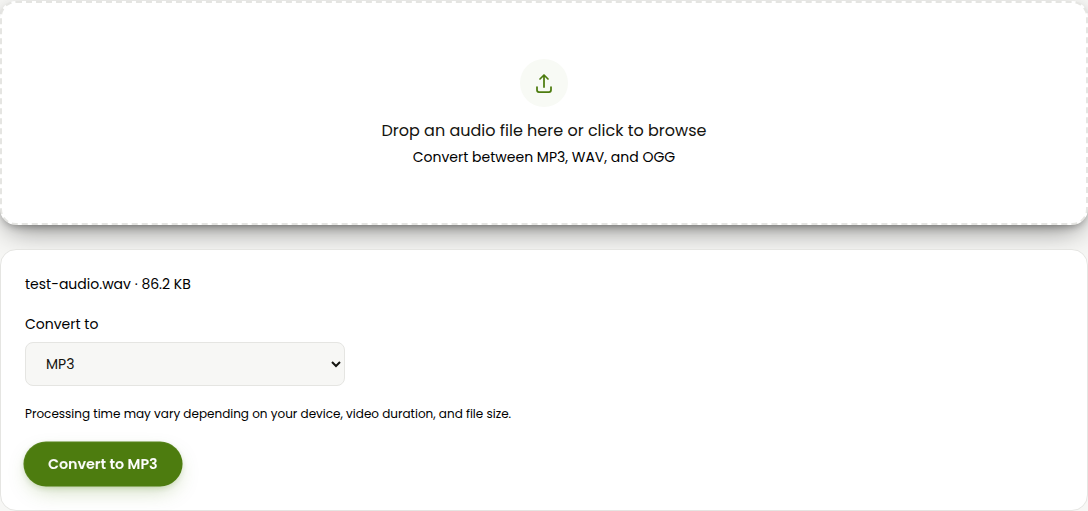
Processing time depends on the file's length, not its format, since your device is doing the actual decode-and-re-encode work rather than a server. There's no file size cap tied to a server quota, but a very long file will take longer and use real memory in the tab while it processes.
VLC Media Player (already installed for a lot of people, handles all three)
If VLC is already on your machine, you don't need anything else. It genuinely converts the audio, and its Vorbis output covers OGG, which a lot of converters skip entirely.
On Windows
- Open VLC and go to Media > Convert / Save.
- Click Add, select your audio file, then click Convert / Save again.
- Under Profile, choose the matching audio profile: Audio - MP3, Audio - WAV, or Audio - Vorbis for OGG.
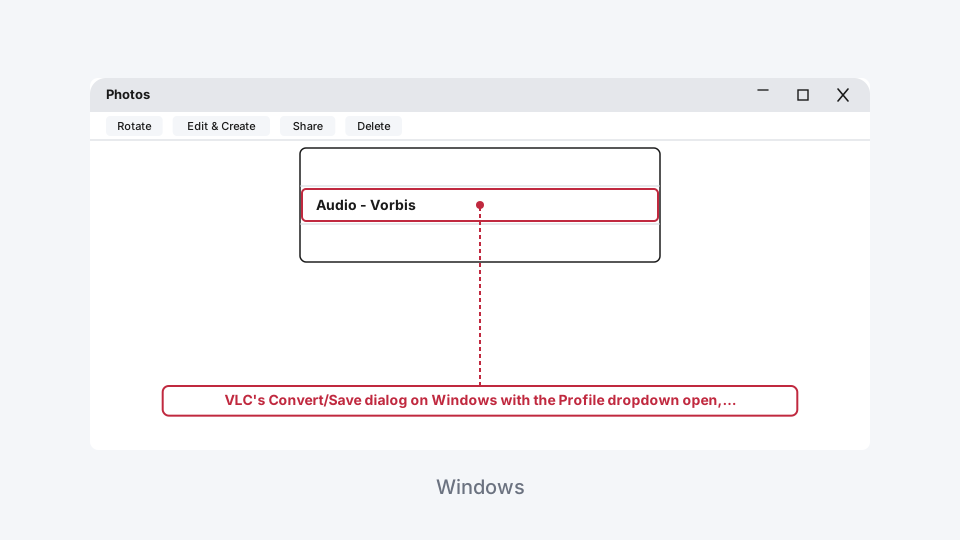
- Under Destination, click Browse, pick a save location, and fix the file extension if VLC pre-filled the wrong one.
- Click Start.
On a Mac
- Open VLC and go to File > Convert / Stream.
- Click Open Media, select your audio file, then continue to the profile screen.
- Under Choose Profile, pick the matching audio profile for your target format.
- In the Save As field, type a filename ending in the right extension yourself, since Mac's version doesn't always append it automatically.
- Click Save.
Online converters: FreeConvert and CloudConvert
Useful if you're on a locked-down machine with nothing installable, or just want a quick one-off without opening a desktop app.
FreeConvert handles MP3, WAV, and OGG conversions with no sign-up required for a single file, and its free tier caps uploads at 1GB, generous enough for almost anything that isn't a multi-hour recording.
- Go to FreeConvert's converter page, click Choose Files, and select your audio file.
- Pick your target format (MP3, WAV, or OGG) from the conversion options.
- Click Convert and wait for it to finish, then click Download.
CloudConvert works the same way and is worth knowing about specifically because of its limits: the free plan gives you 10 conversions a day, caps each file at 1GB, and processes at "low priority" with a 5-minute ceiling per job. Fine for occasional use, a real constraint if you're converting a batch of files in one sitting.
- Go to CloudConvert's converter page, upload your file, and choose MP3, WAV, or OGG as the output.
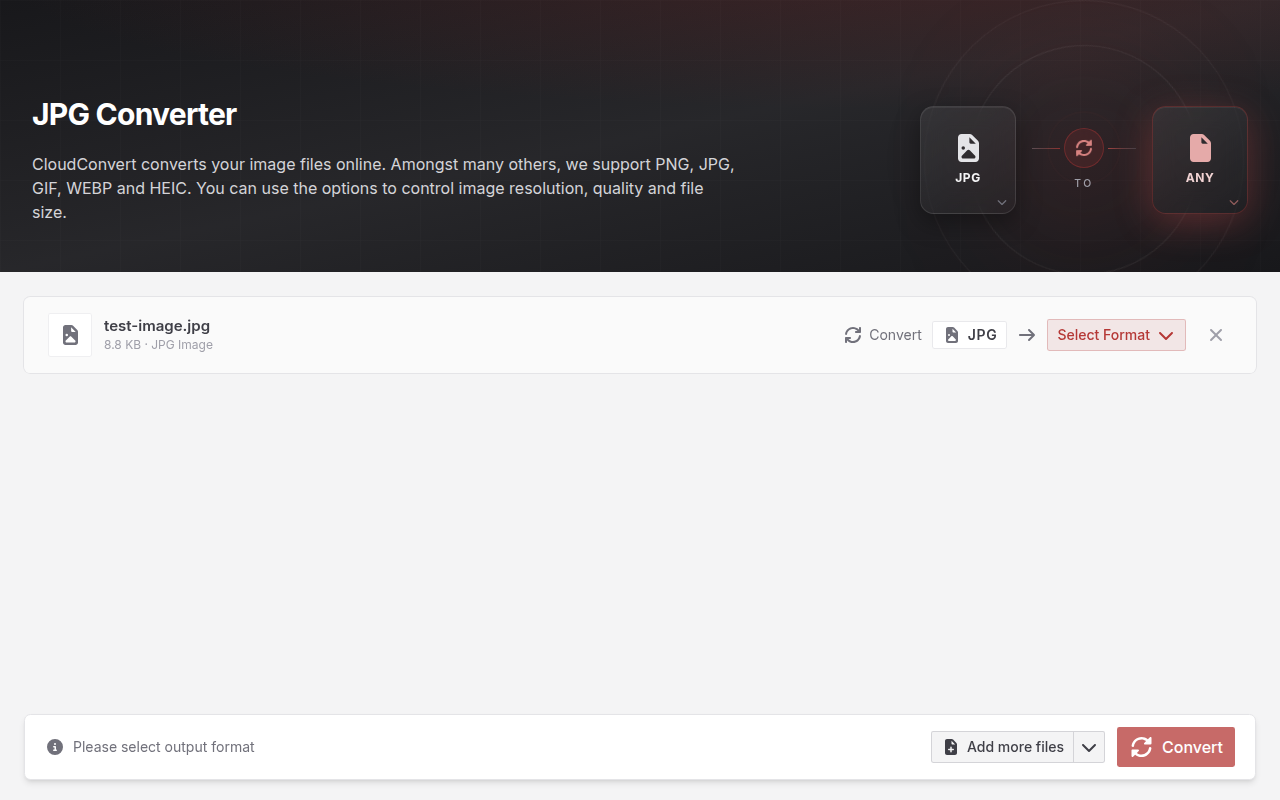
- Start the conversion and download the result once it completes.
The tradeoff with both: your file leaves your device and sits on someone else's server for the length of the conversion. For a music file that's nothing to worry about. For a personal voice recording, that's worth weighing against a tool that never uploads anything.
Audacity (most involved, worth it if you're also editing)
Audacity earns its extra steps when you're not just converting, you're also trimming, adjusting levels, or cleaning up the audio before saving. Straight format conversion alone, the tools above are faster.
On Windows and Mac, current versions of Audacity have the MP3 encoder (LAME) built in already, so there's no separate download needed the way there used to be. WAV and OGG export have always been built in.
- Open your audio file in Audacity by dragging it into the window, or File > Open.
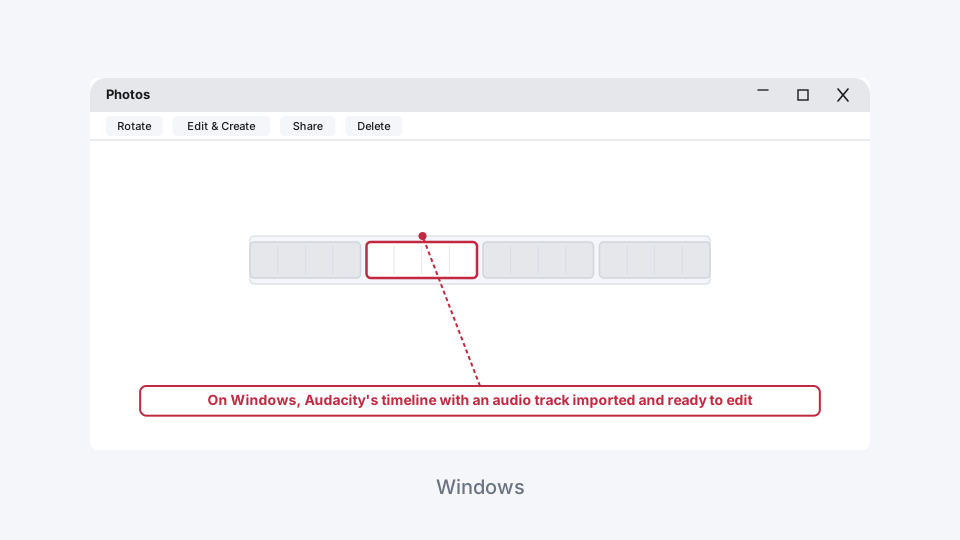
- Trim, adjust, or clean up the track if you need to.
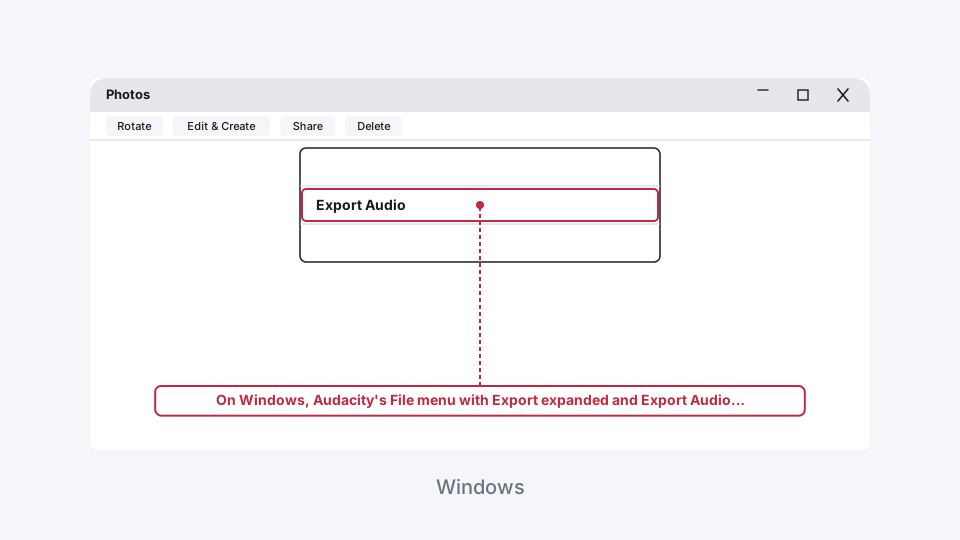
- Go to File > Export > Export Audio.
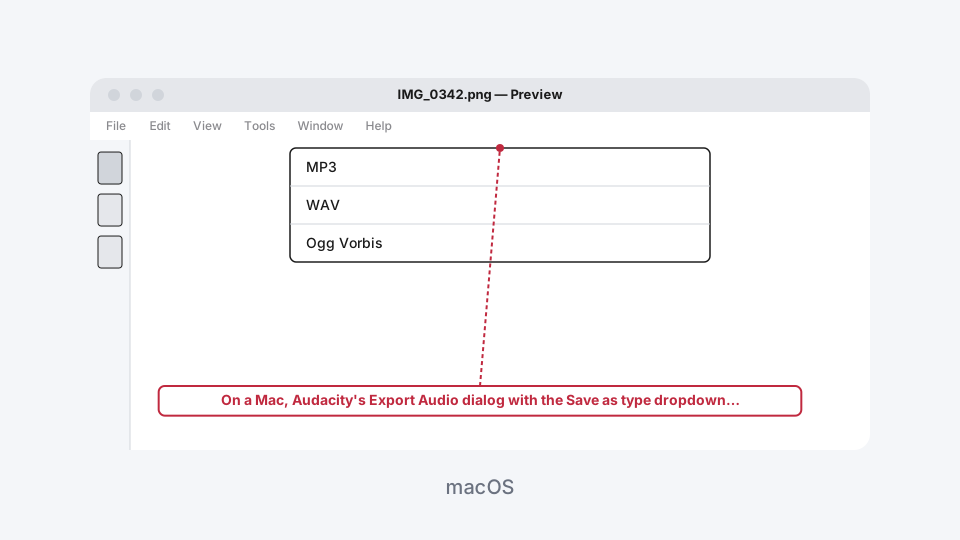
- Under "Save as type," choose MP3 Files, WAV (Microsoft), or Ogg Vorbis Files.
- Set the quality or bitrate if the format asks for it, then click Save. Metadata fields will pop up next; fill them in or skip them, then confirm.
For a one-off conversion this is more clicks than it needs to be. For anything you're editing anyway, it does both jobs in a single pass.
Audio Converter
Convert between MP3, WAV, and OGG.